
Vine Logistics Hub · Logistics Service Provider
Provider quick guide
Find a requirement, send a quotation, answer the seeker, and get paid work. Quoting is free.
The journey
Red numbered circles on each screenshot match the numbered actions under it. Quoting is free. The seeker sees you only as "Vine Logistics Hub — Quotation A" until the order is paid. Do not put phone numbers or emails in a quotation or chat: our team will reject them.
Find a requirement
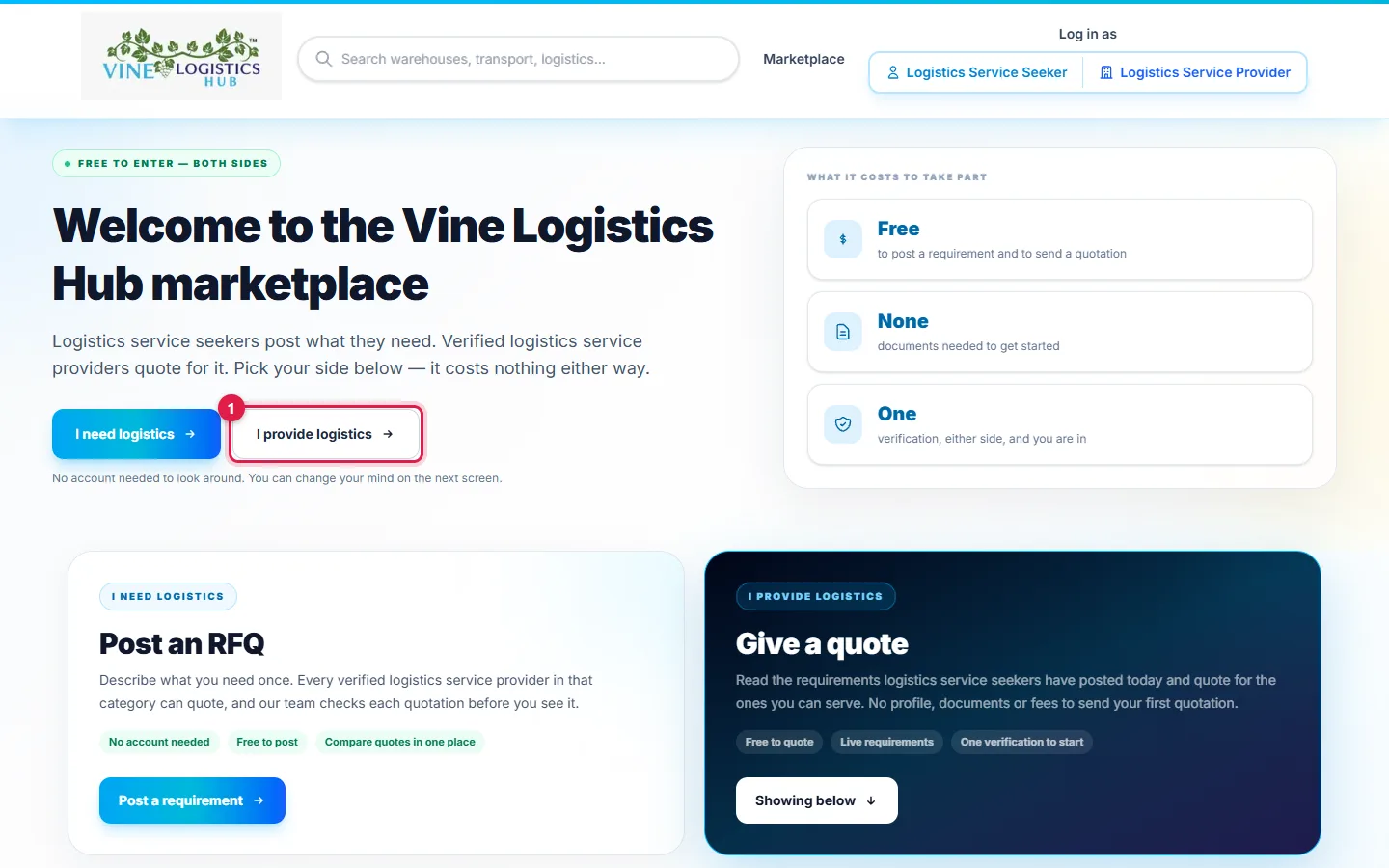
- 1Open Marketplace on the website and click I provide logistics.
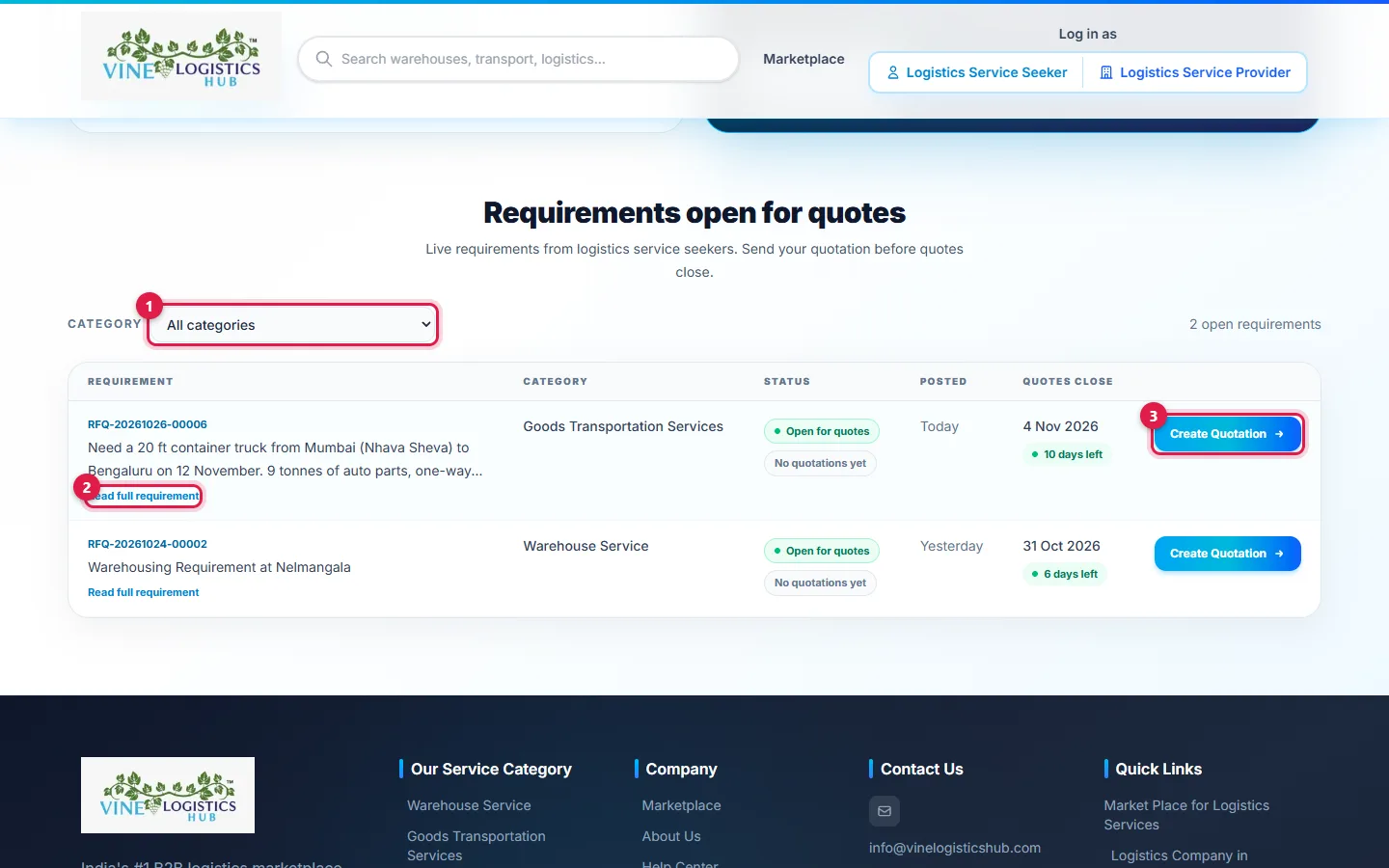
- 1Filter by Category if you like.
- 2Click Read full requirement to see all the details.
- 3Click Create Quotation on the requirement you want. A requirement you have already quoted shows View Quotation instead, so you cannot send a duplicate.
Sign in to quote
If you already have an account
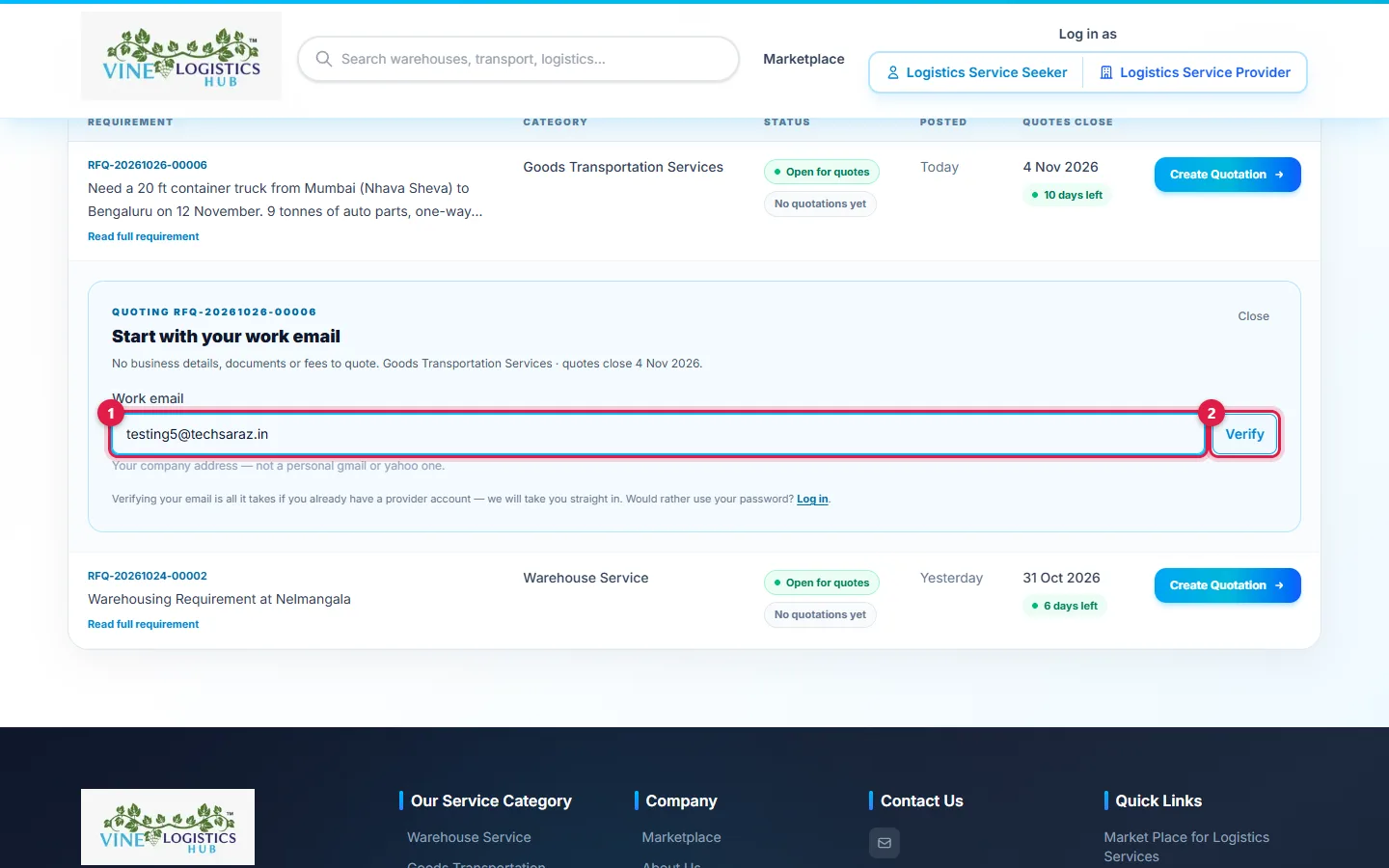
- 1Type your company email.
- 2Click Verify.
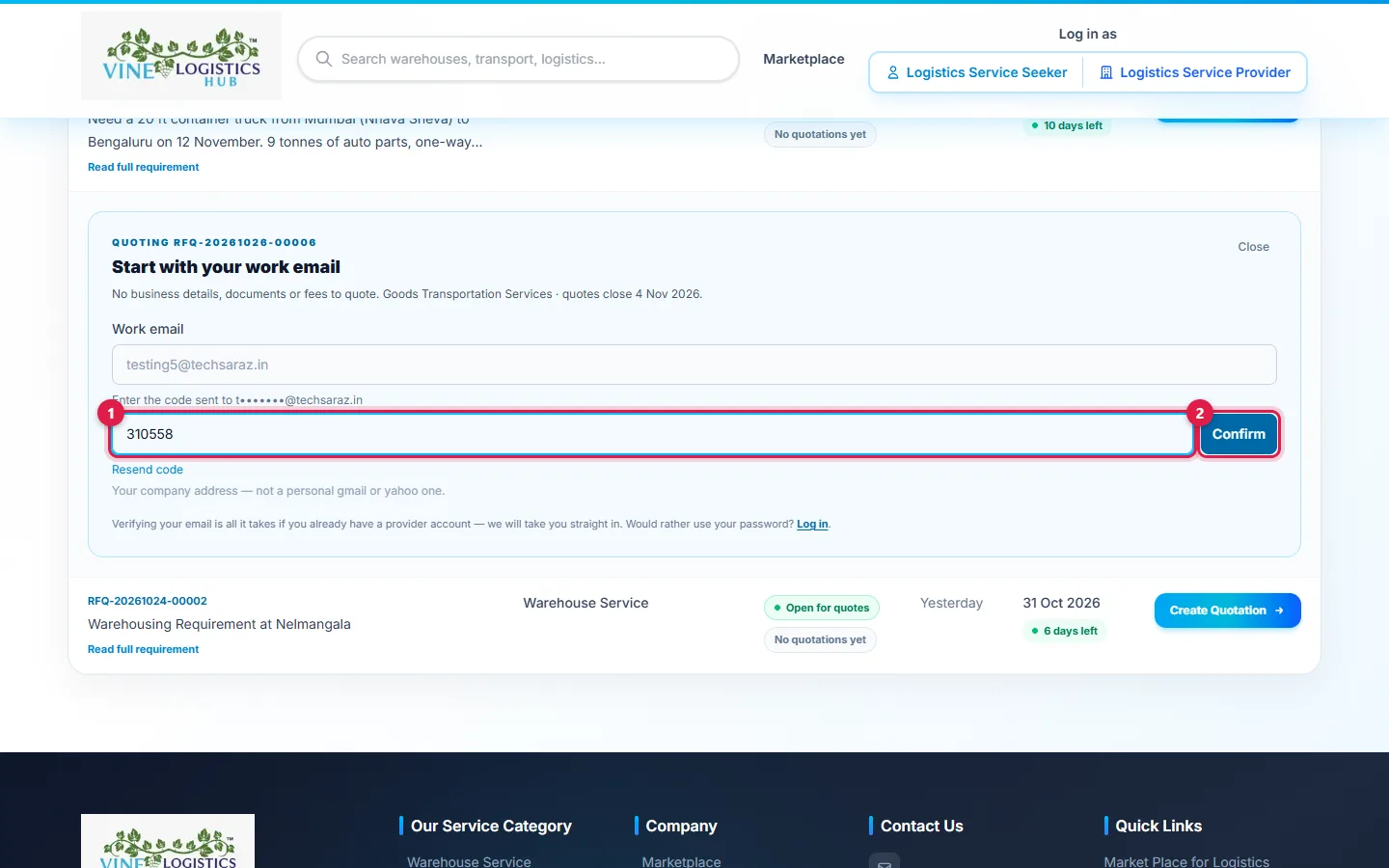
- 1Type the 6-digit code from your email.
- 2Click Confirm. You go straight to the quotation form.
If you are new
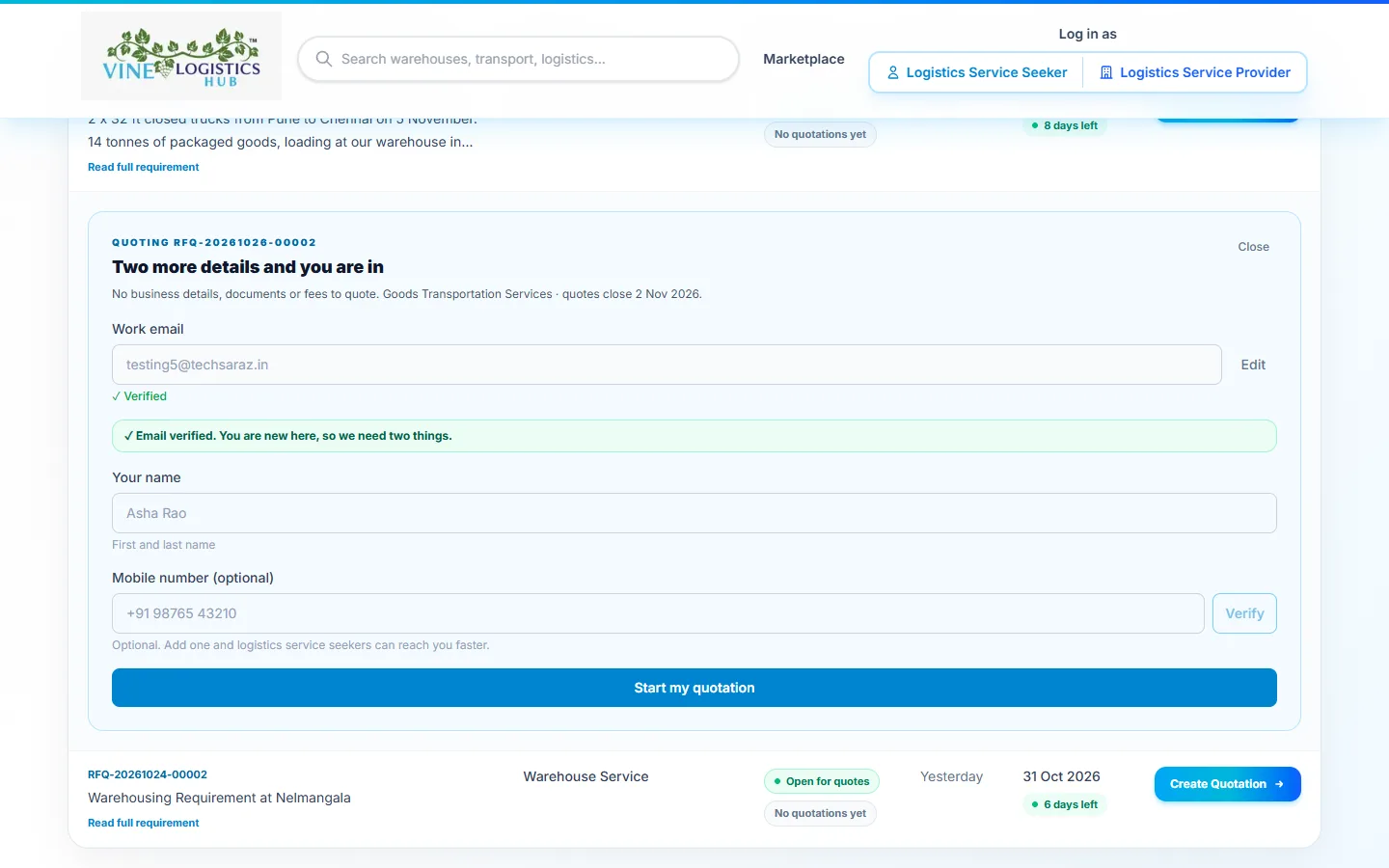
After the email is verified, the form asks for Your name and your Mobile number (Indian mobiles get an SMS code).
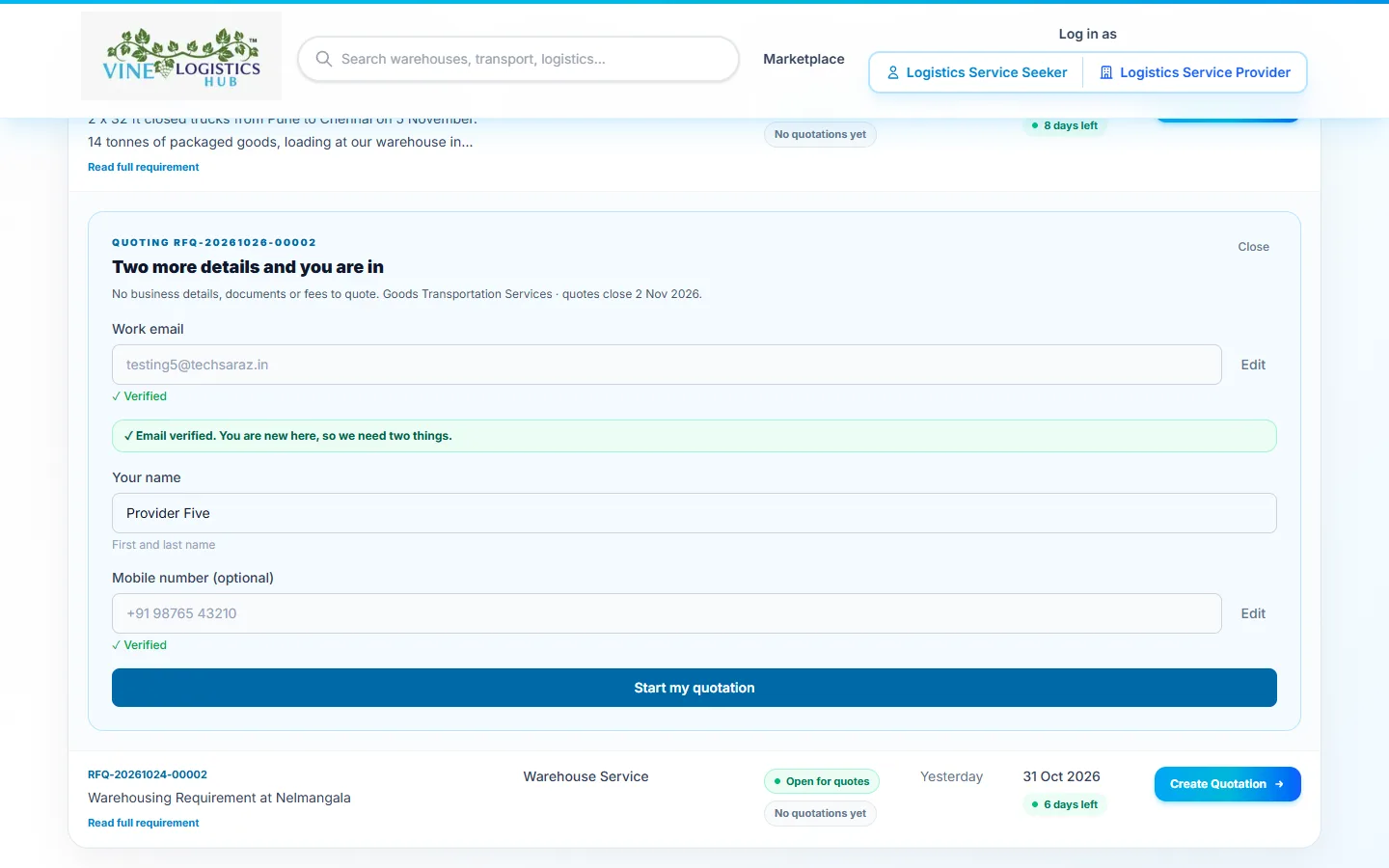
Click Verify next to the mobile, type the SMS code, then click Start my quotation.
New accounts need a company email, not Gmail, Yahoo or Outlook. You can sign in later with an email code (or a password if you set one) from Log in as → Logistics Service Provider.
Create and send your quotation
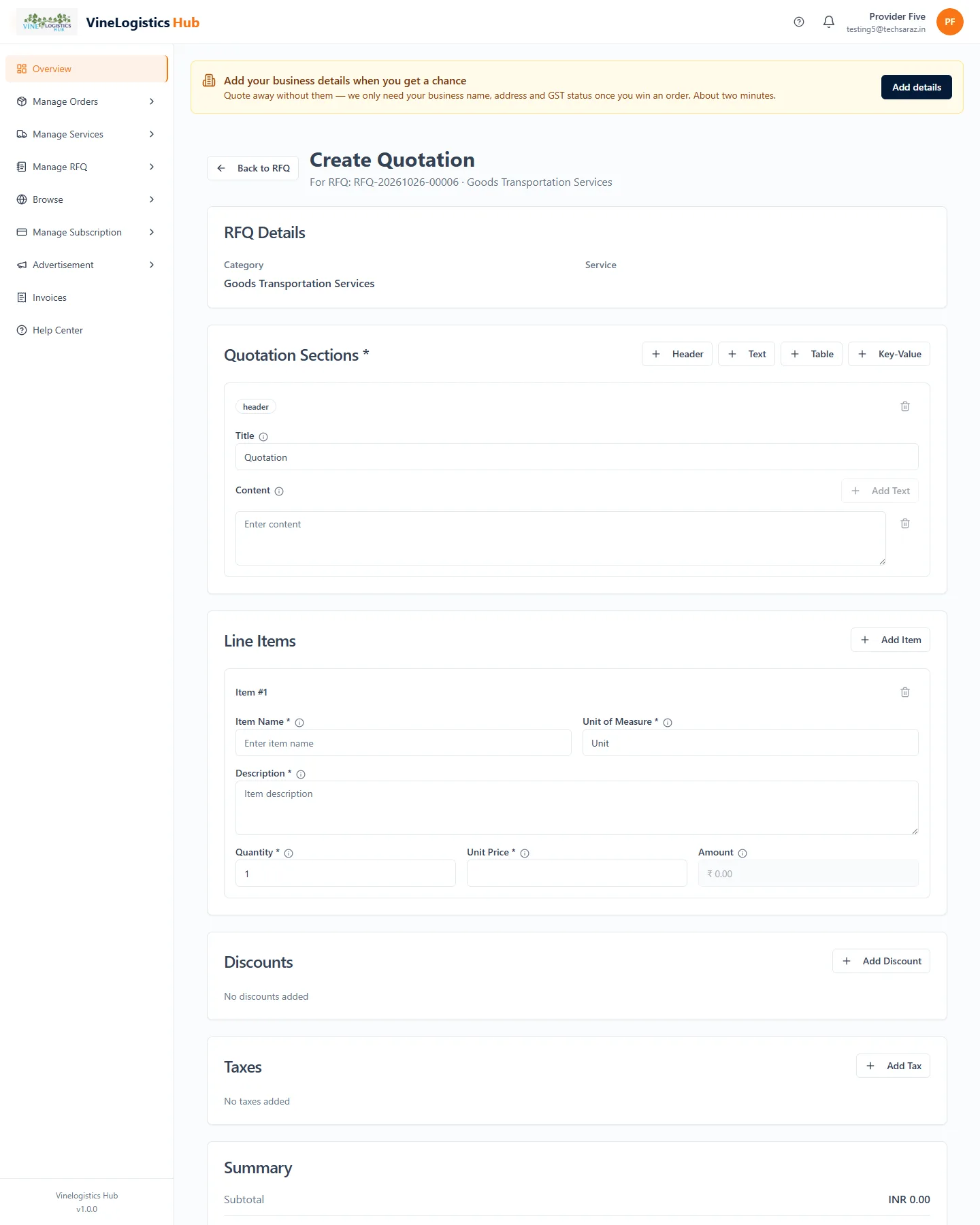
The quotation form opens with the requirement details at the top.
For a requirement you have already quoted, the board shows View Quotation and opens that quotation instead of the form.
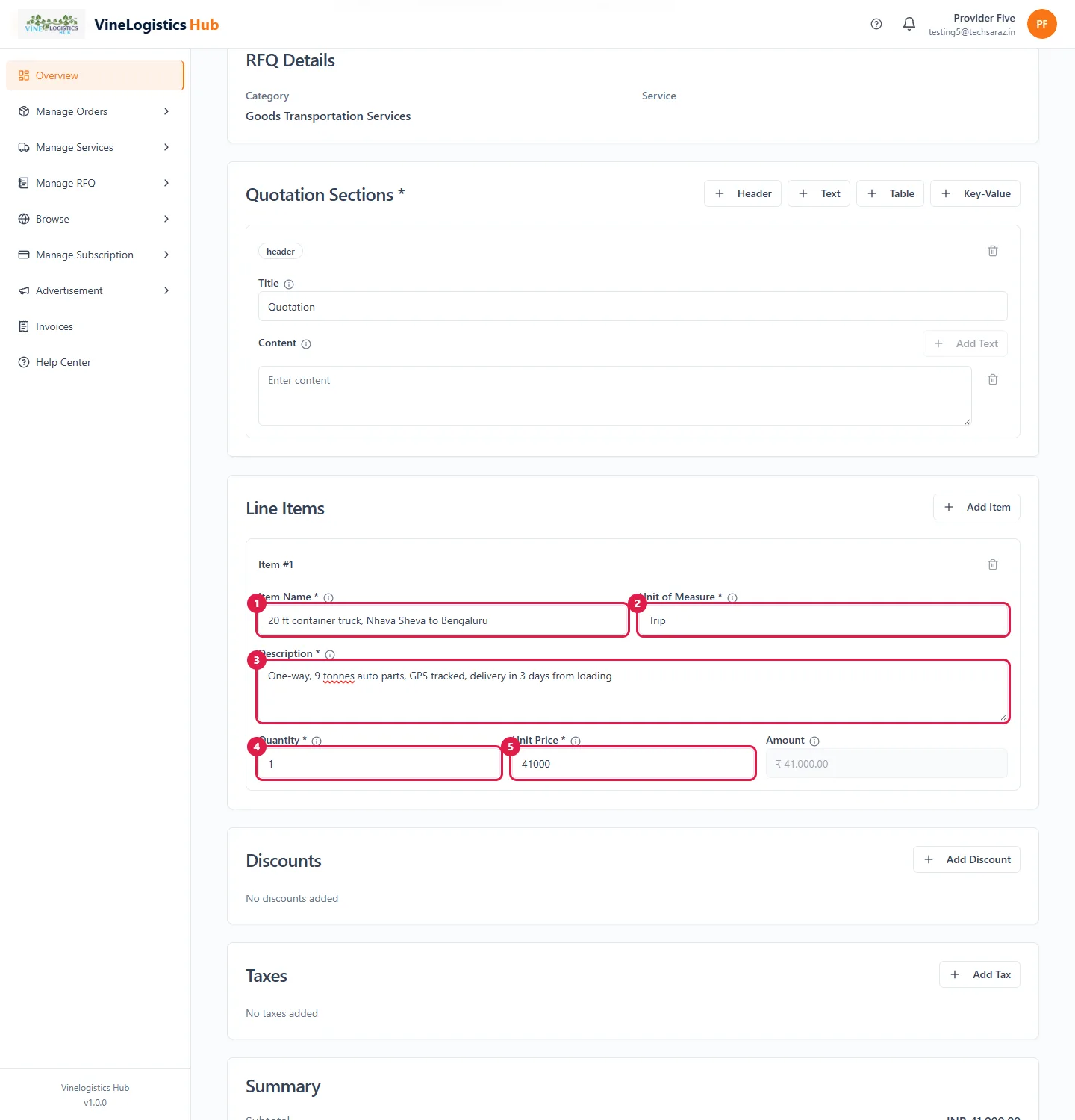
- 1Item Name
- 2Unit of Measure (Trip, Kg, Unit...)
- 3Description
- 4Quantity
- 5Unit Price in rupees. The amount is worked out for you.
Click Add Item for more lines. Use Add Discount and Add Tax if needed.
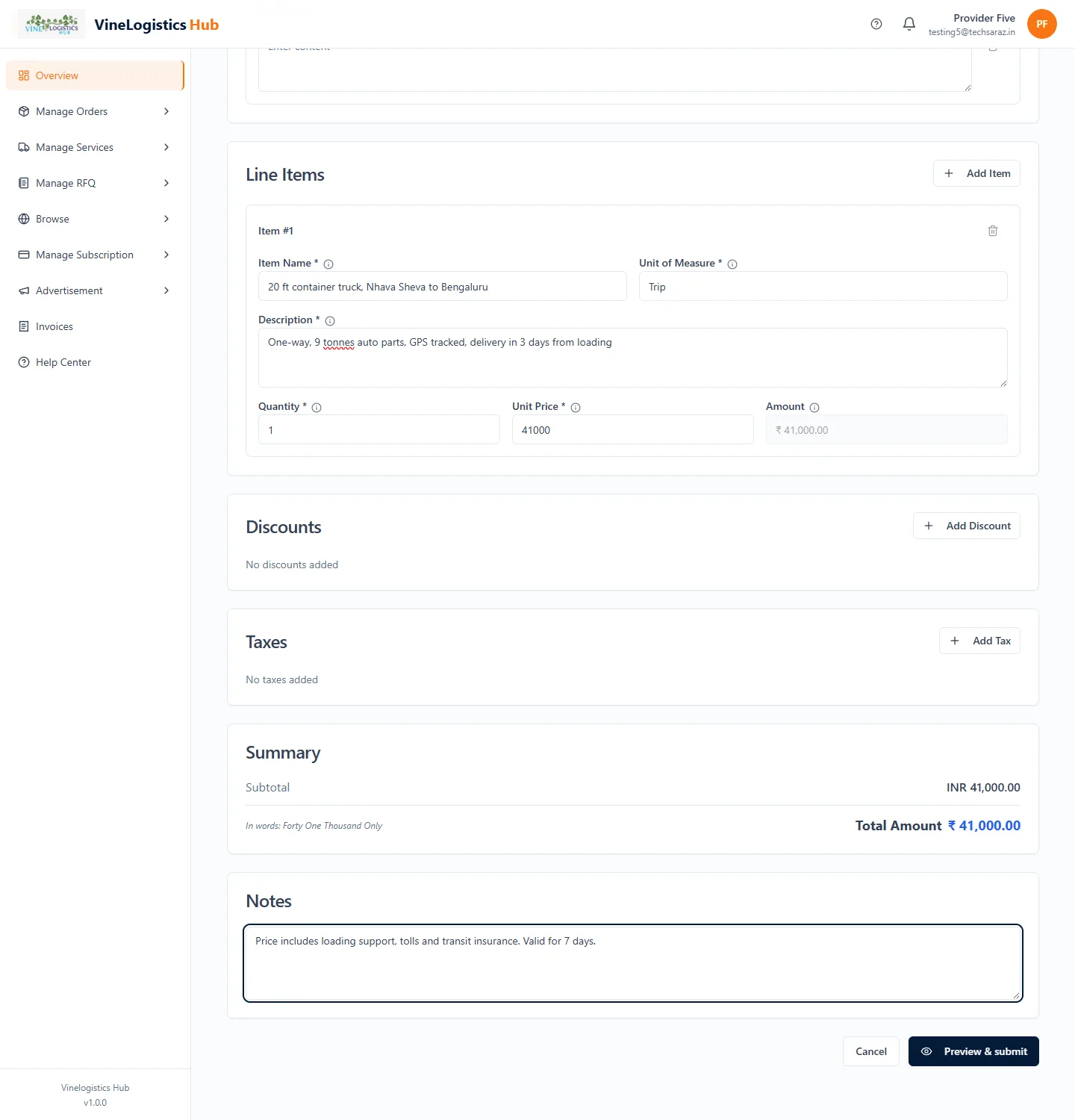
Add notes and terms at the bottom, for example what is included and how long the price is valid.
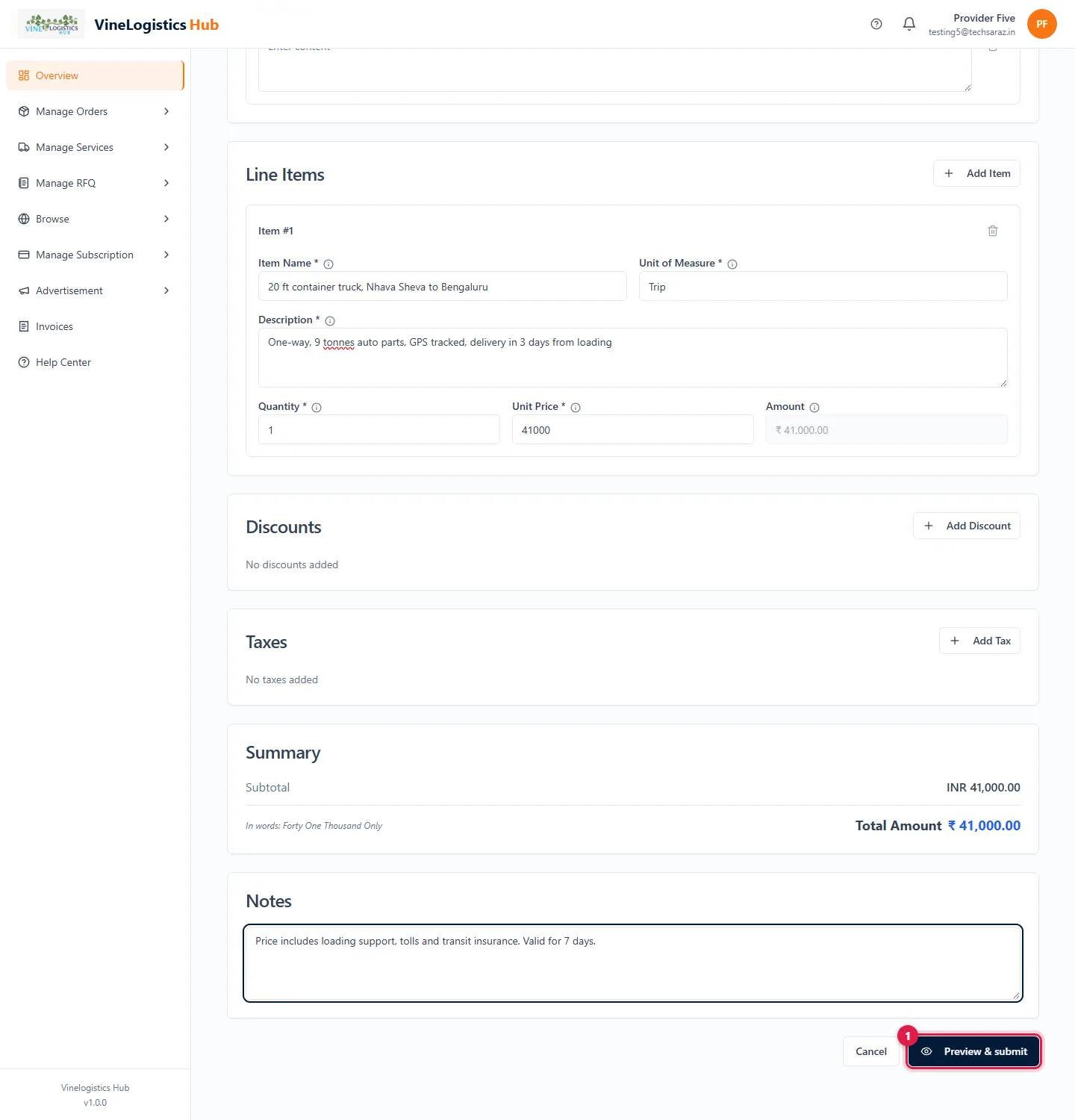
- 1Click Preview & submit.
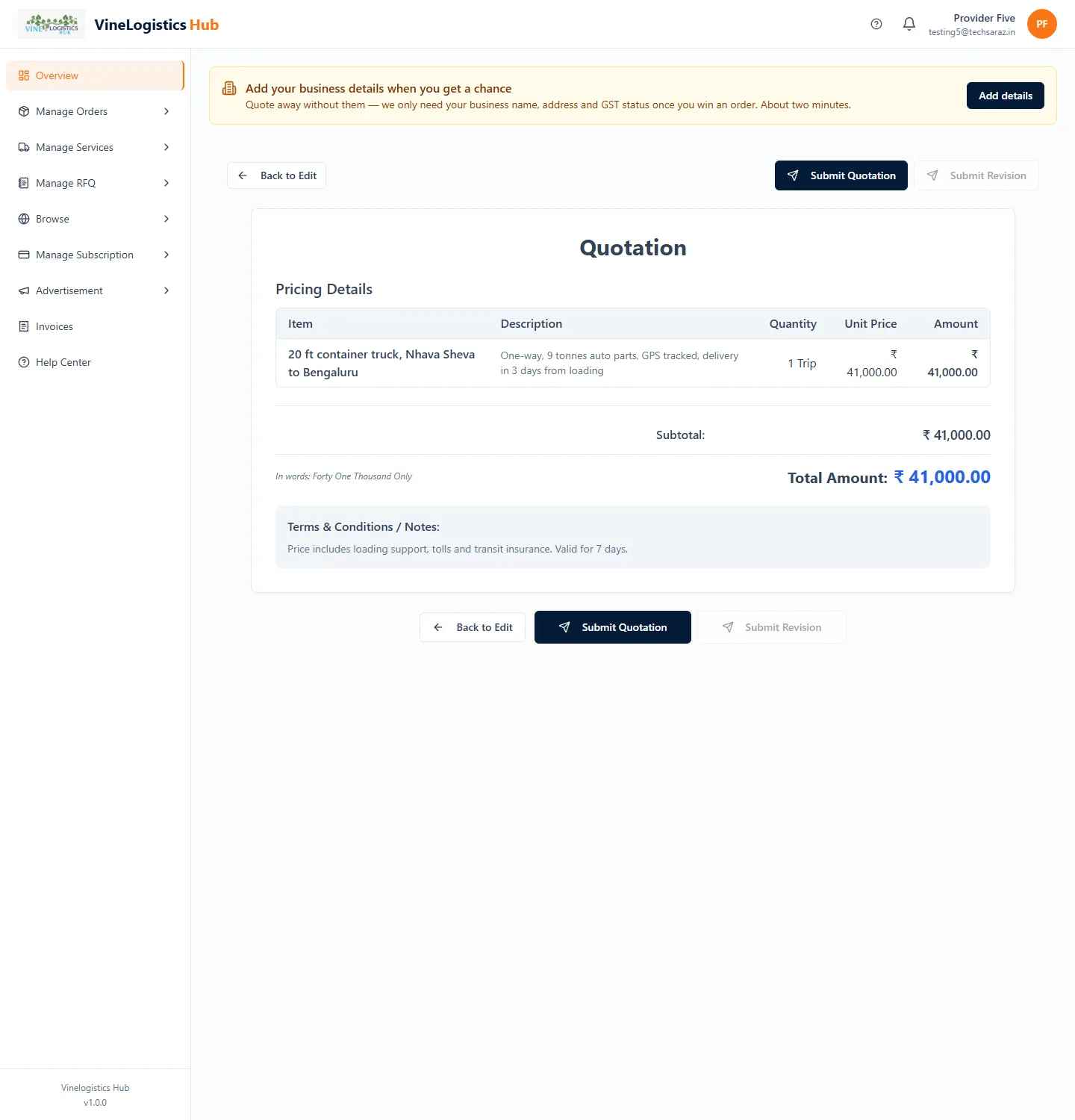
Check the quotation. Use Back to Edit to change it.
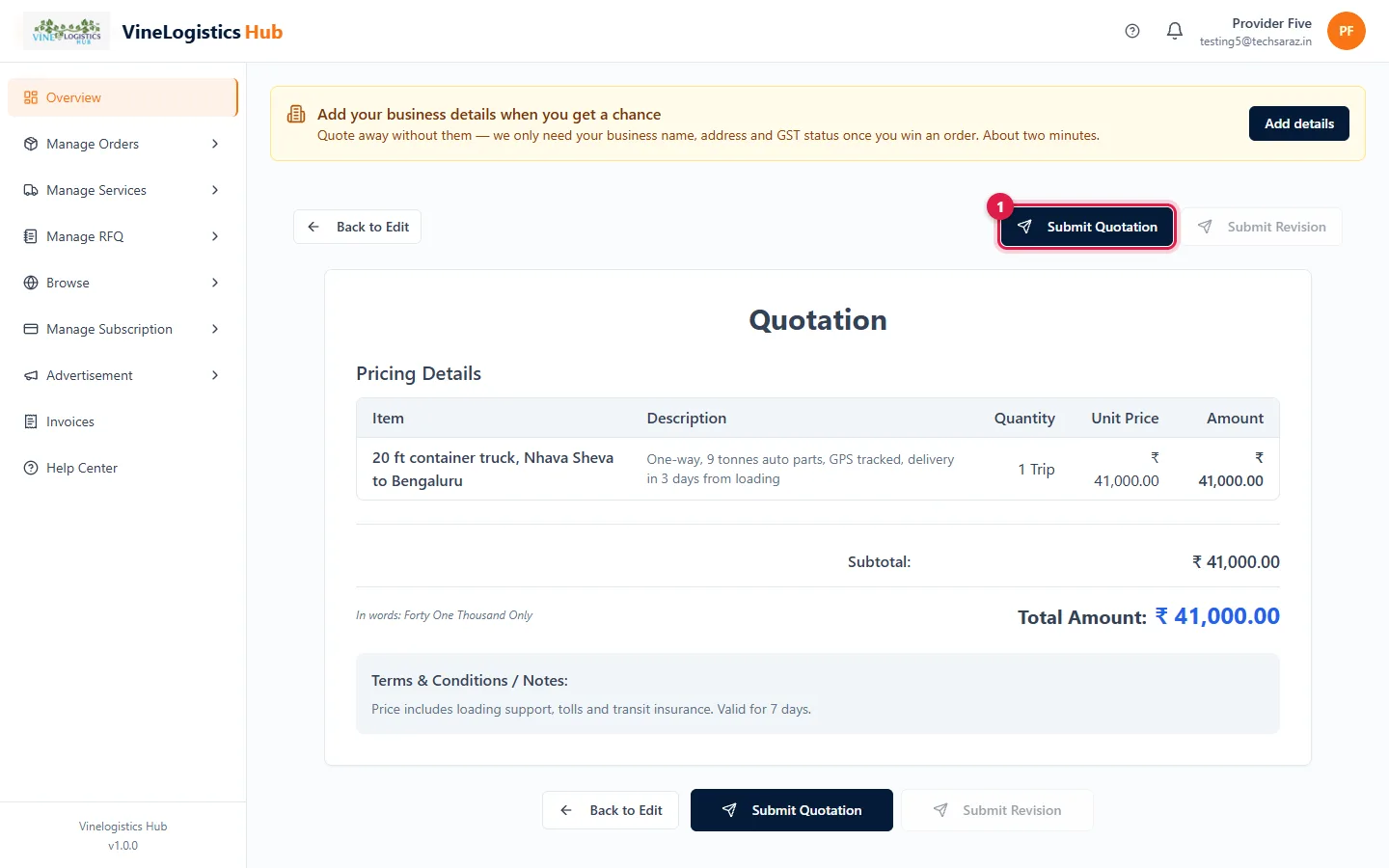
- 1Click Submit Quotation.
Track your quotation
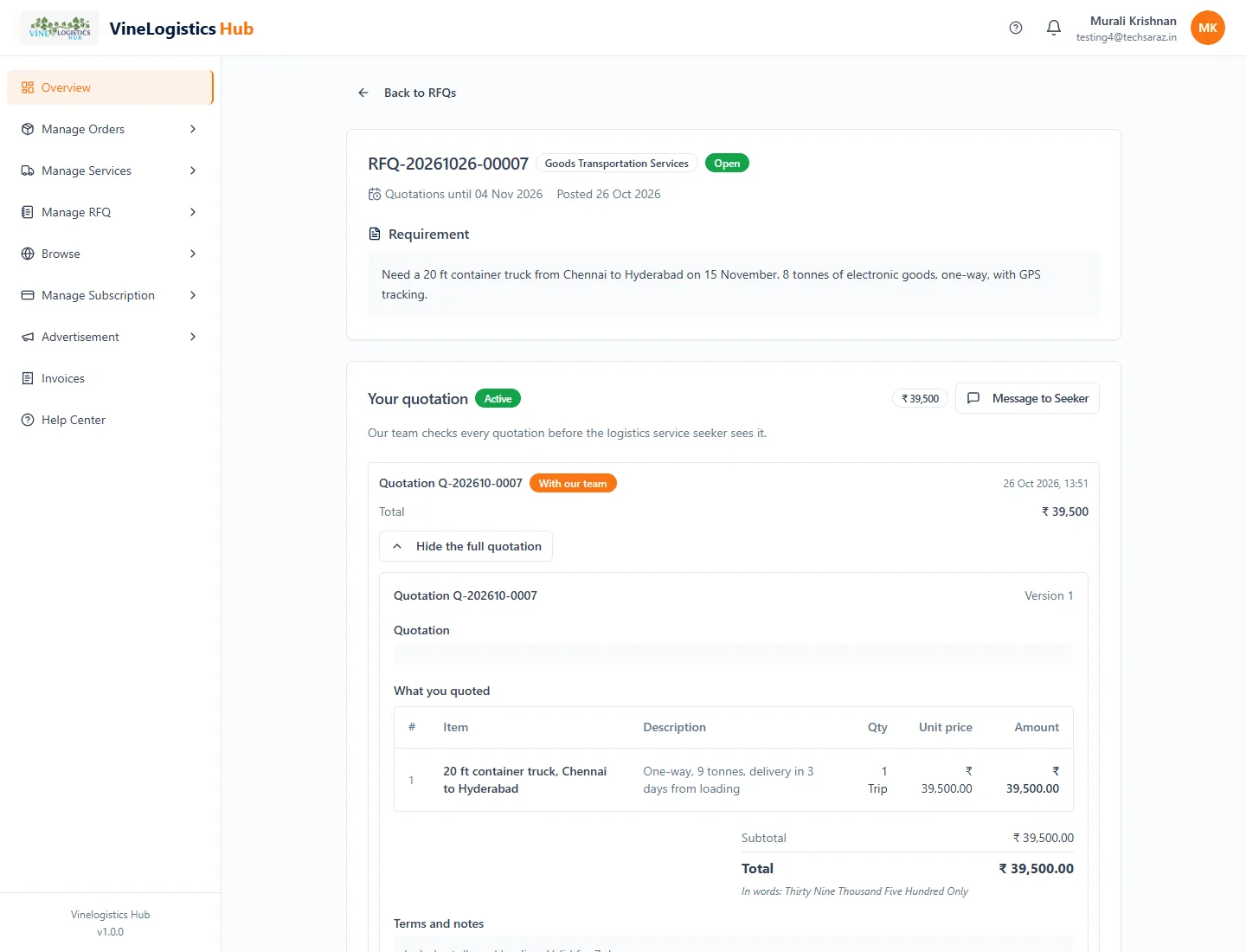
Status With our team: our team checks every quotation before the seeker sees it.
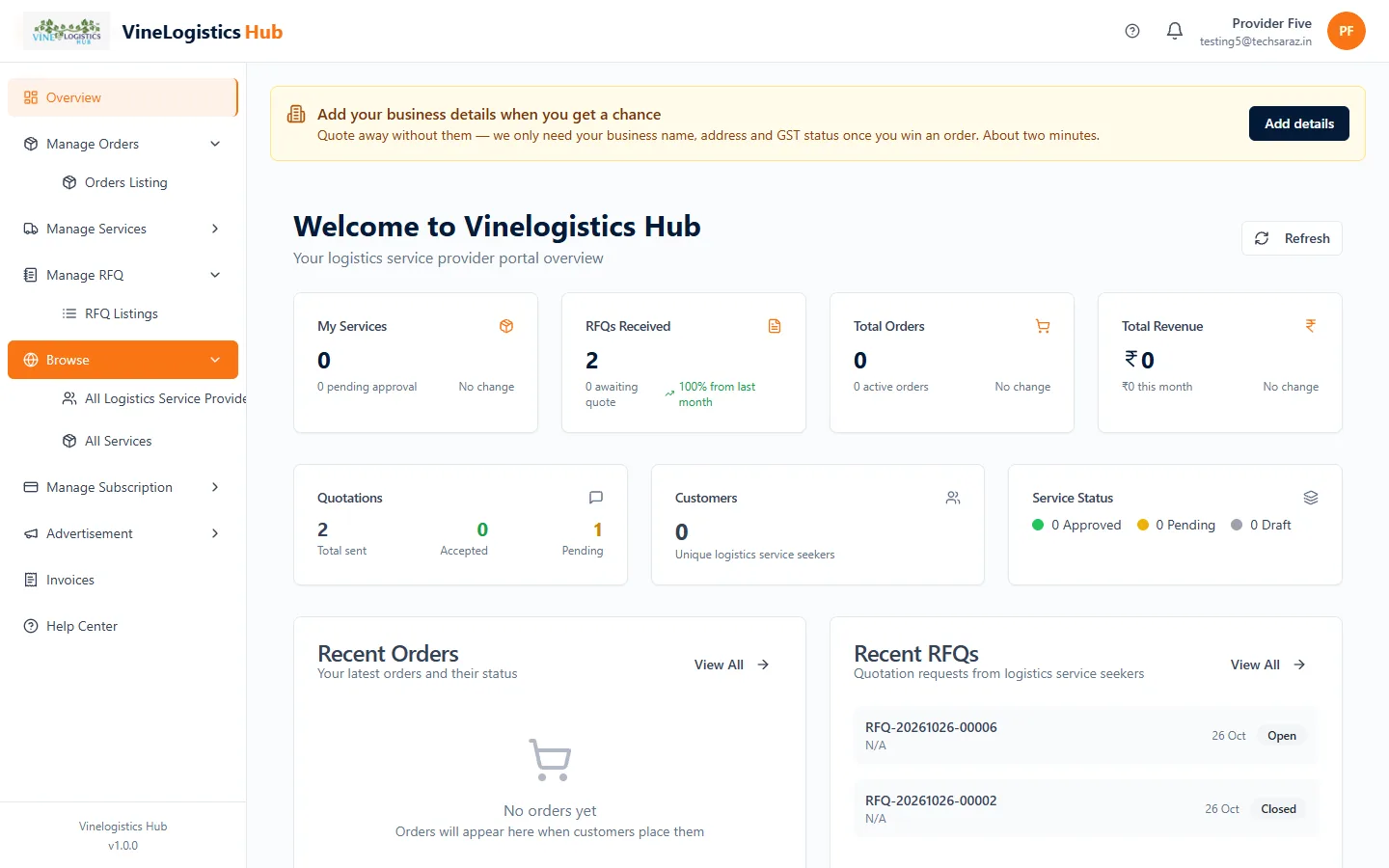
Your dashboard shows quotations sent and accepted. Open Manage RFQ → RFQ Listings to see all requirements.
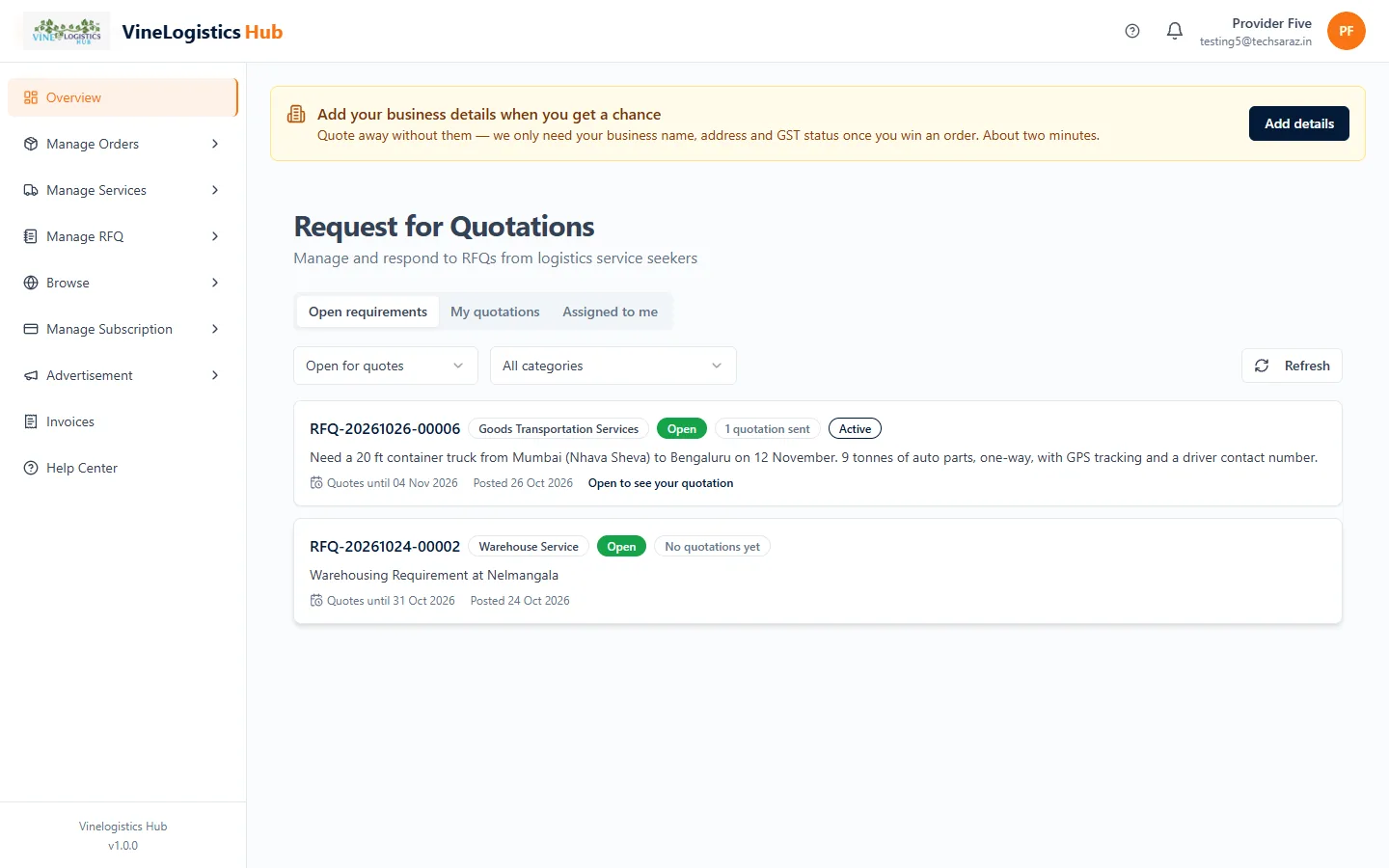
Use the tabs Open requirements and My quotations.
| Status | Meaning |
|---|---|
| With our team | Waiting for our team to check it. |
| Changes requested | Our team or the seeker asked for changes. Read the note and send a new version. |
| Approved | Checked and sent to the seeker. |
| Not approved / Closed | Not accepted, or another quotation was approved. |
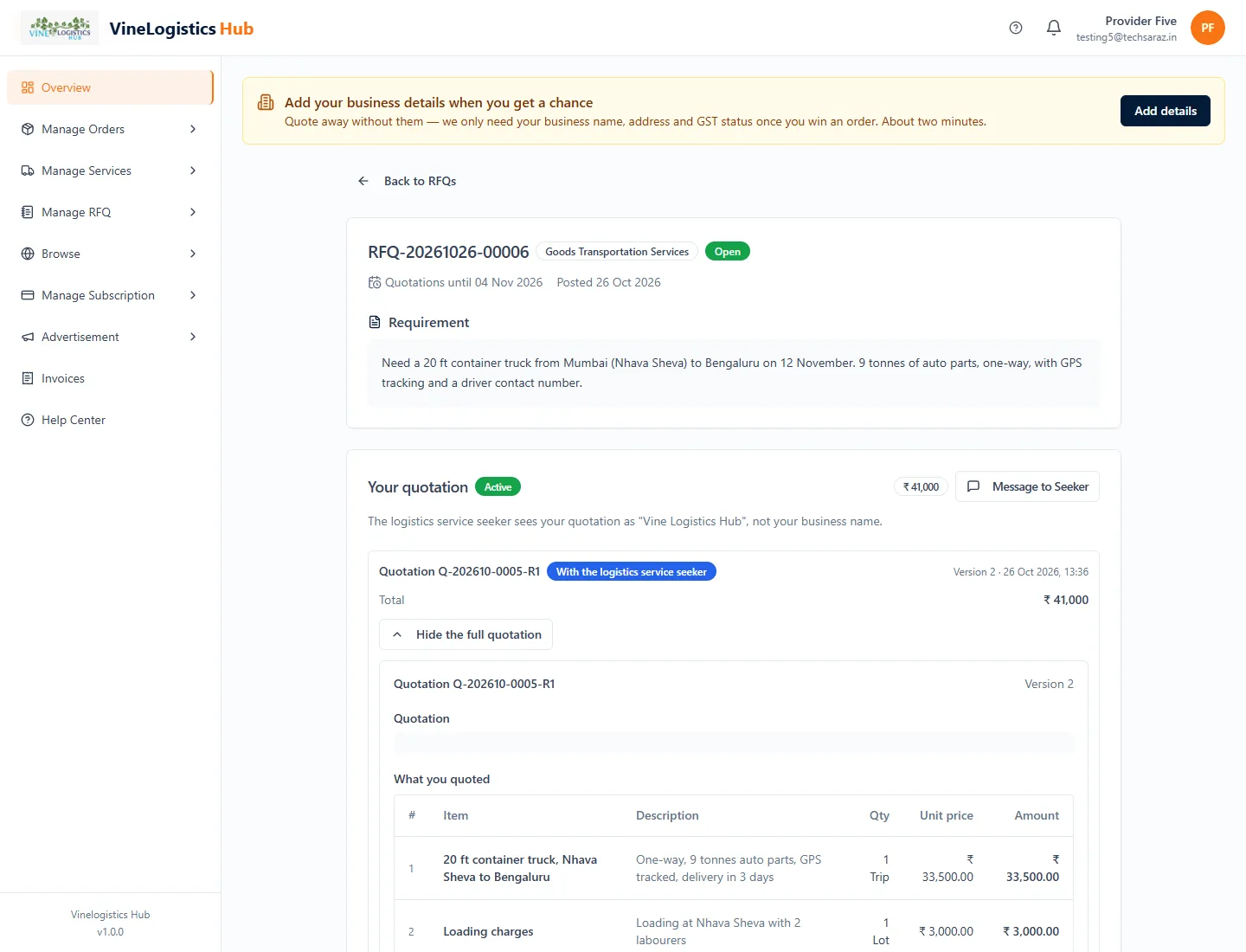
After our team approves it, the seeker can see it.
Revise your quotation
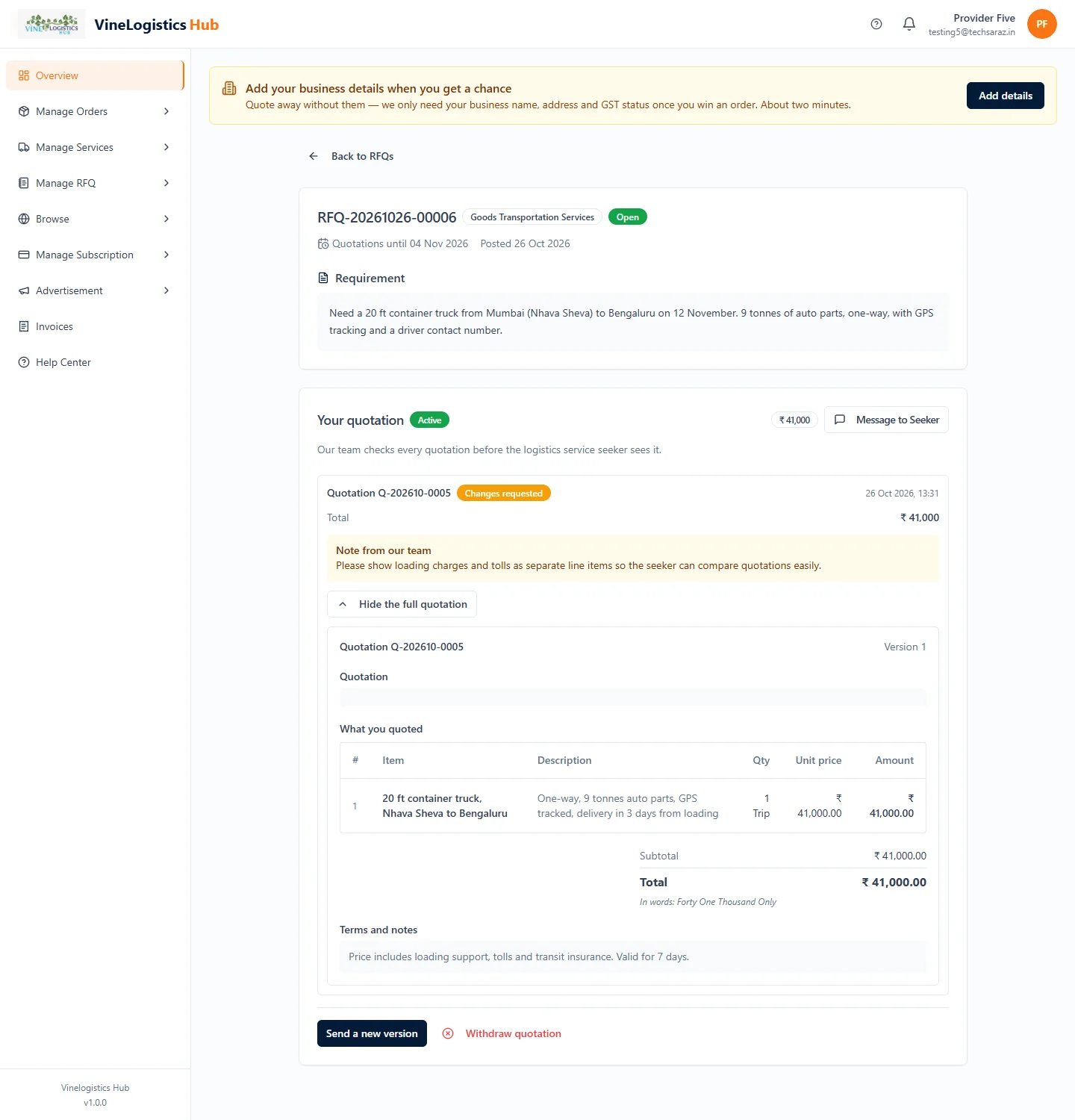
Changes requested with a Note from our team. Read it first.
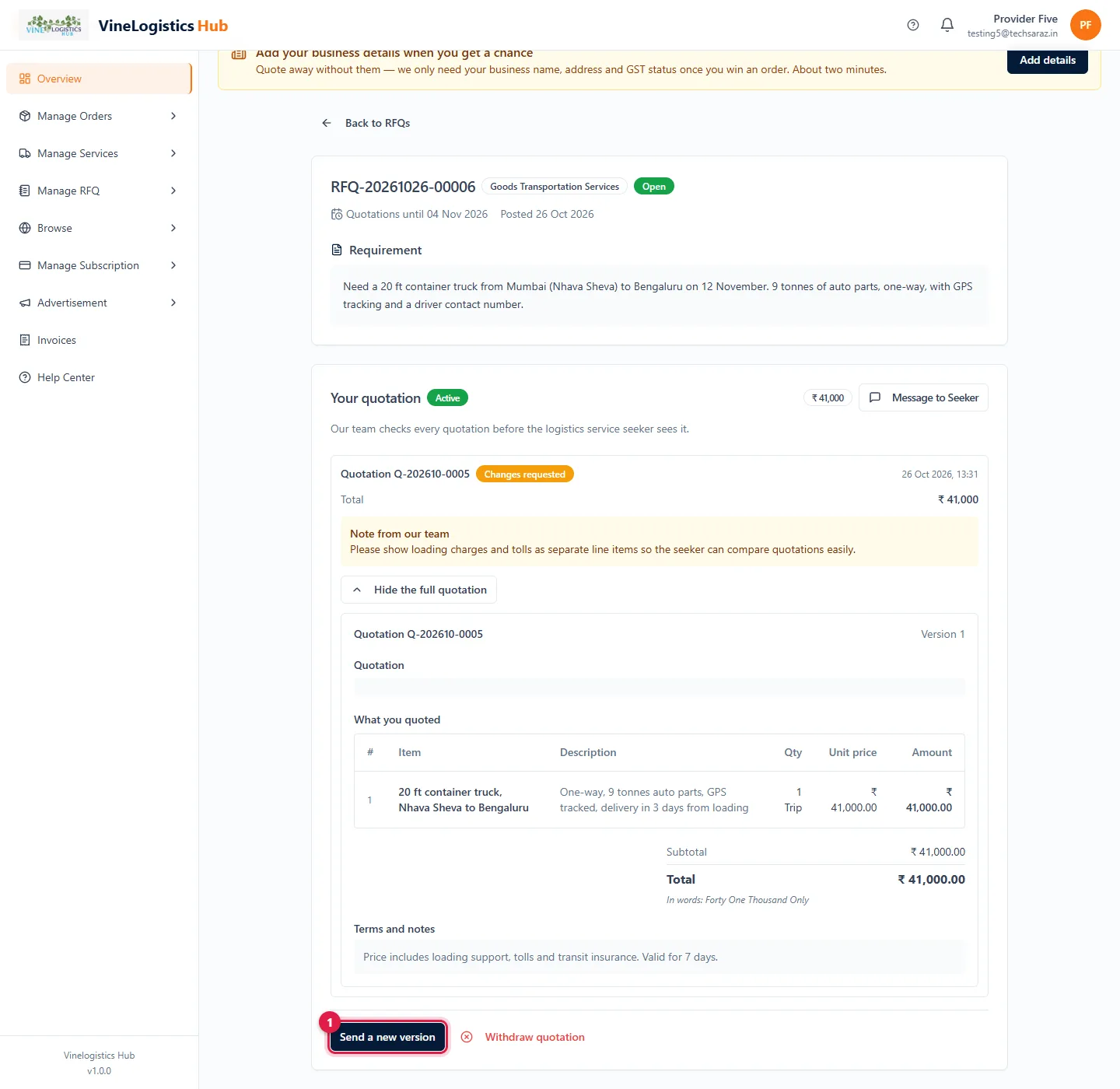
- 1Click Send a new version.
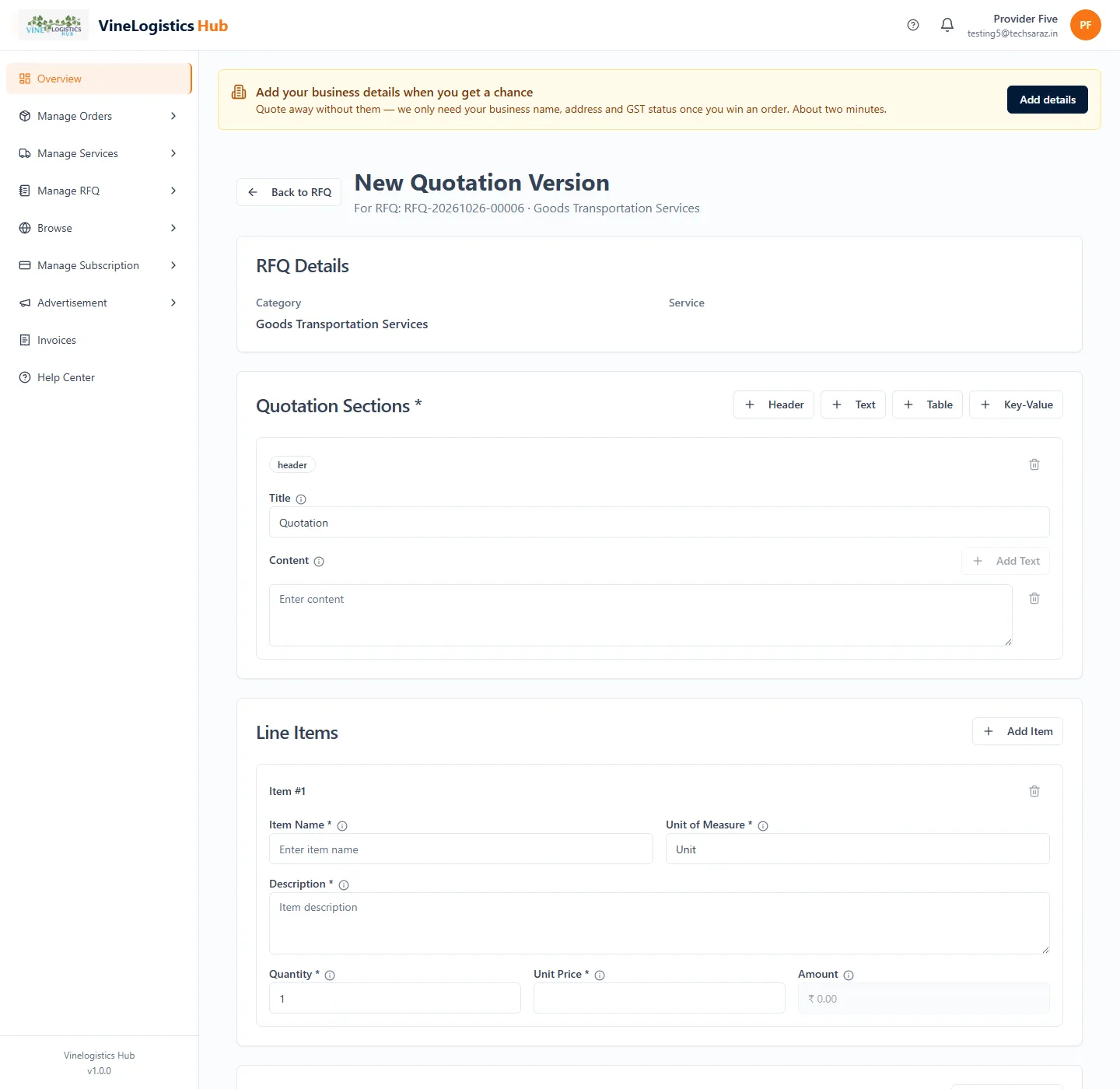
The form opens empty. Enter the whole quotation again with the changes.
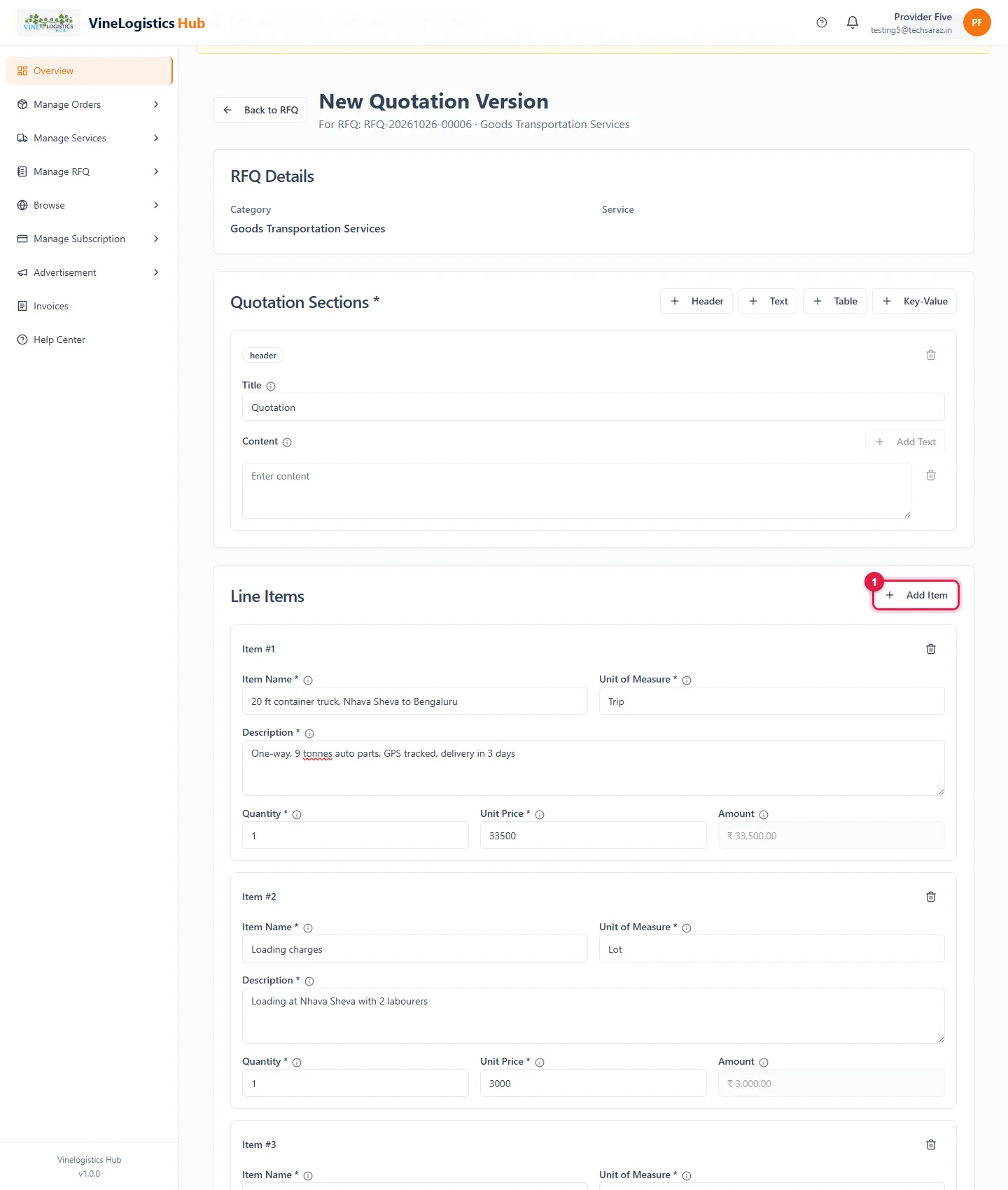
- 1Click Add Item to add lines (for example loading and tolls).
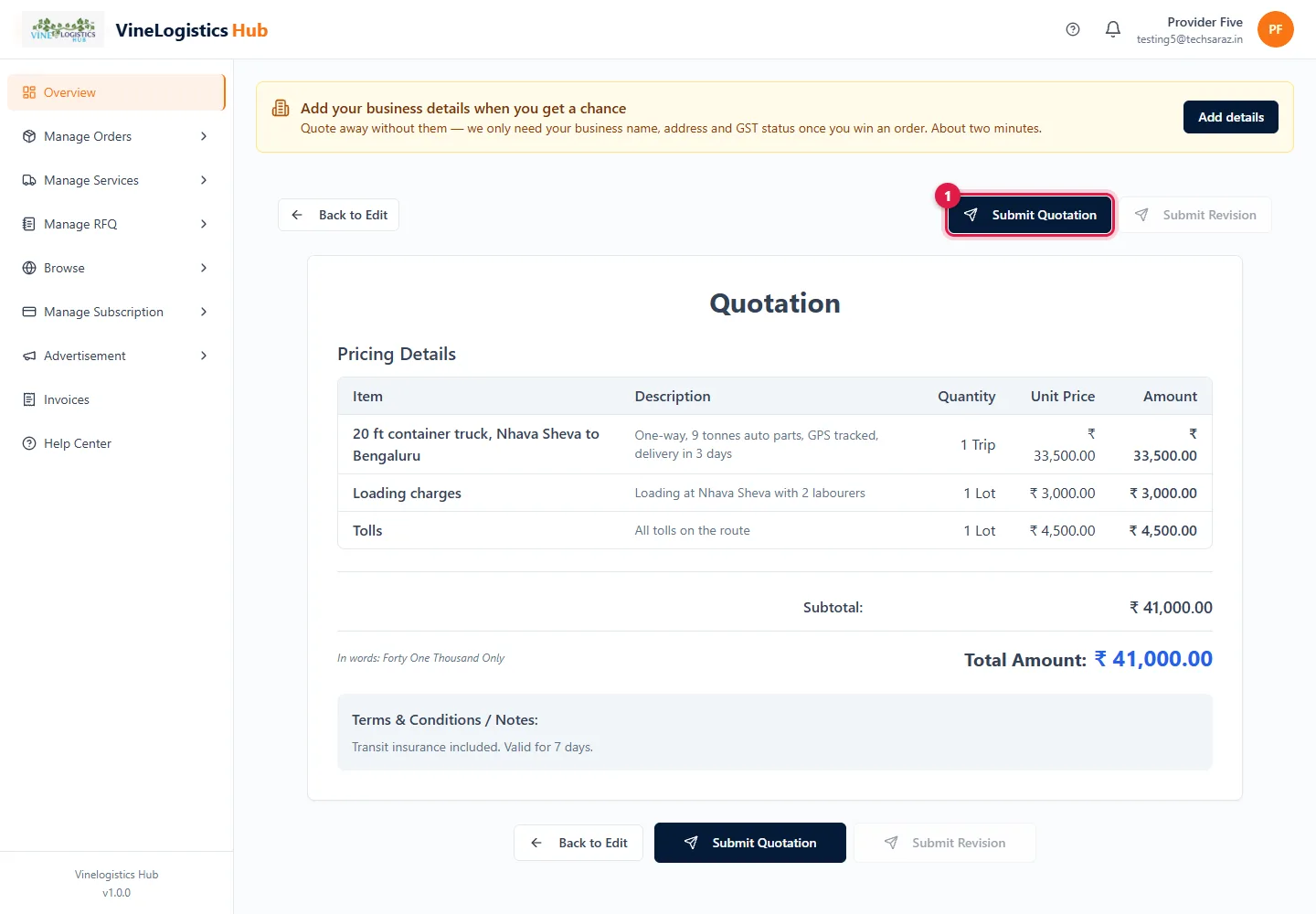
- 1Click Submit Quotation to send the new version. (Submit Revision stays grey.)
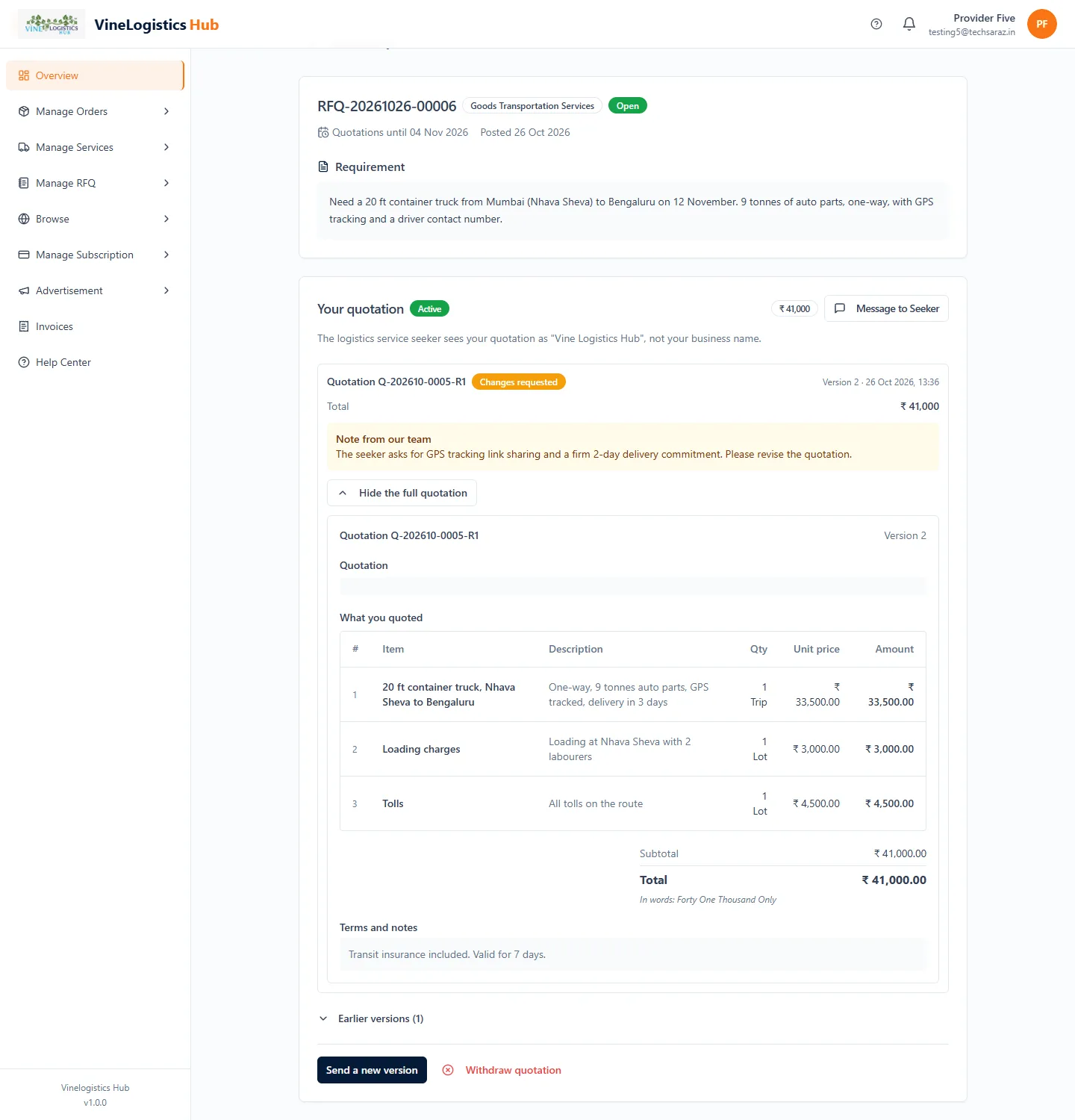
If the seeker asks for changes, our team passes the request to you the same way. Revise and send a new version.
Chat with the seeker
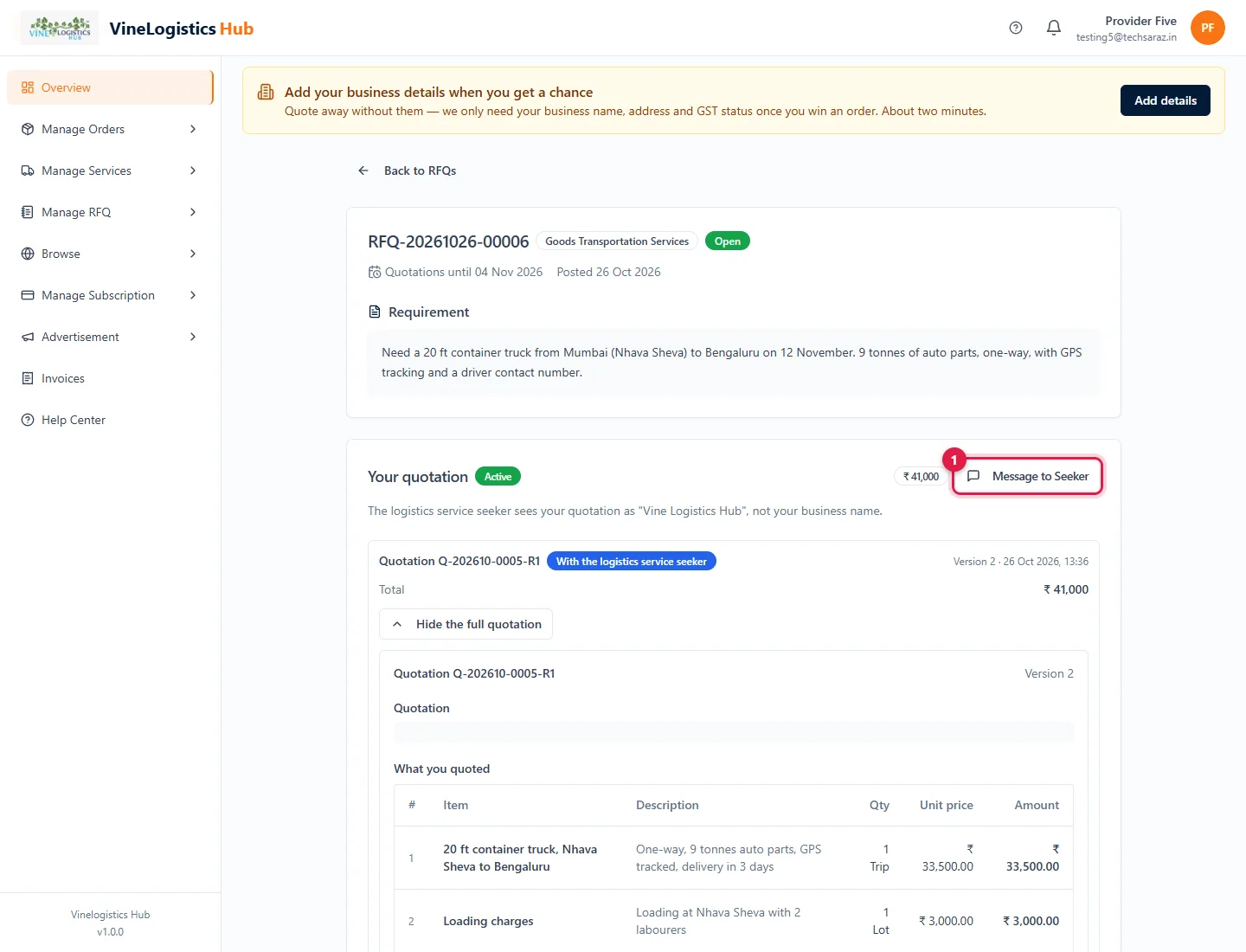
- 1Open your quotation and click Message to Seeker.
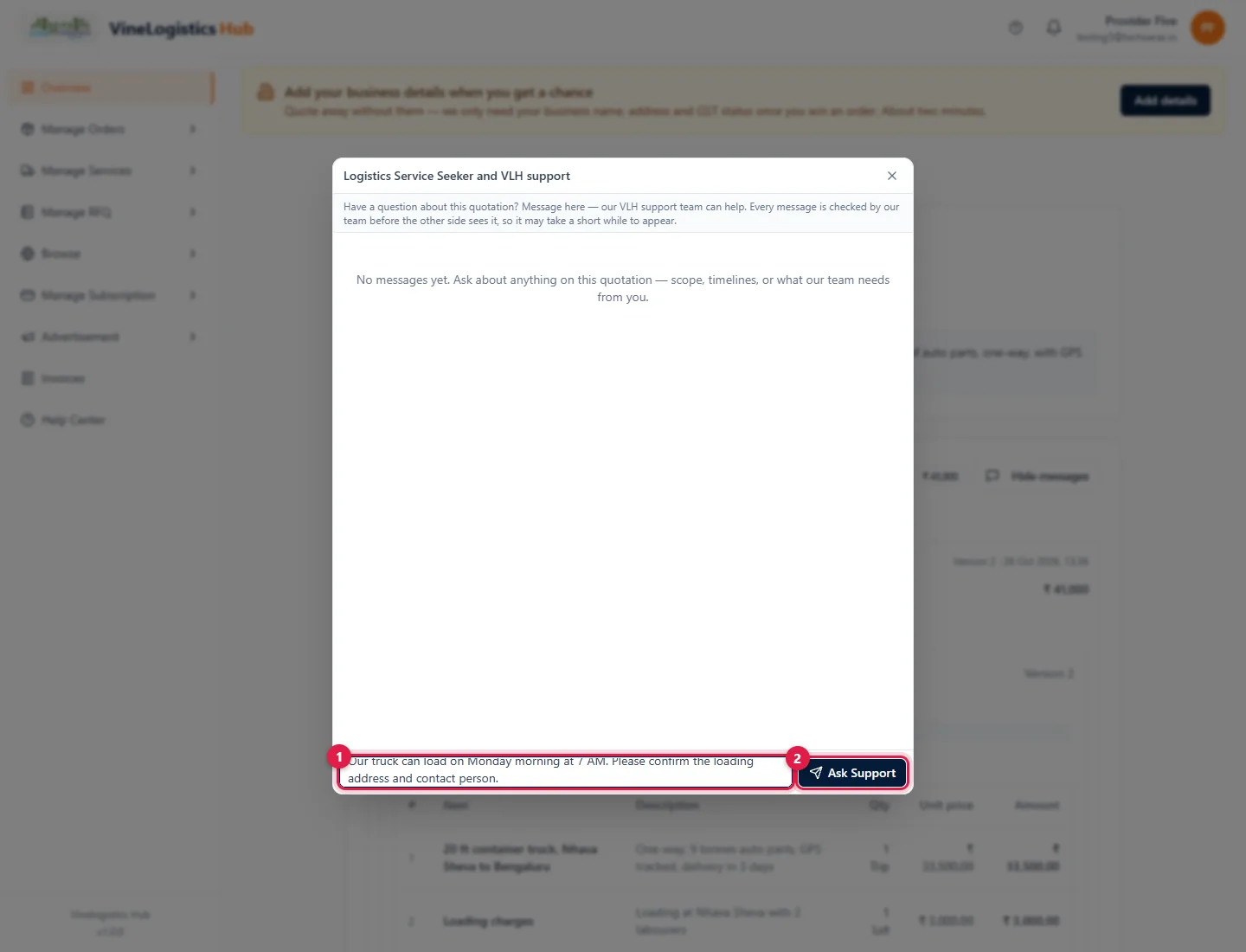
- 1Type your message.
- 2Click Ask Support.
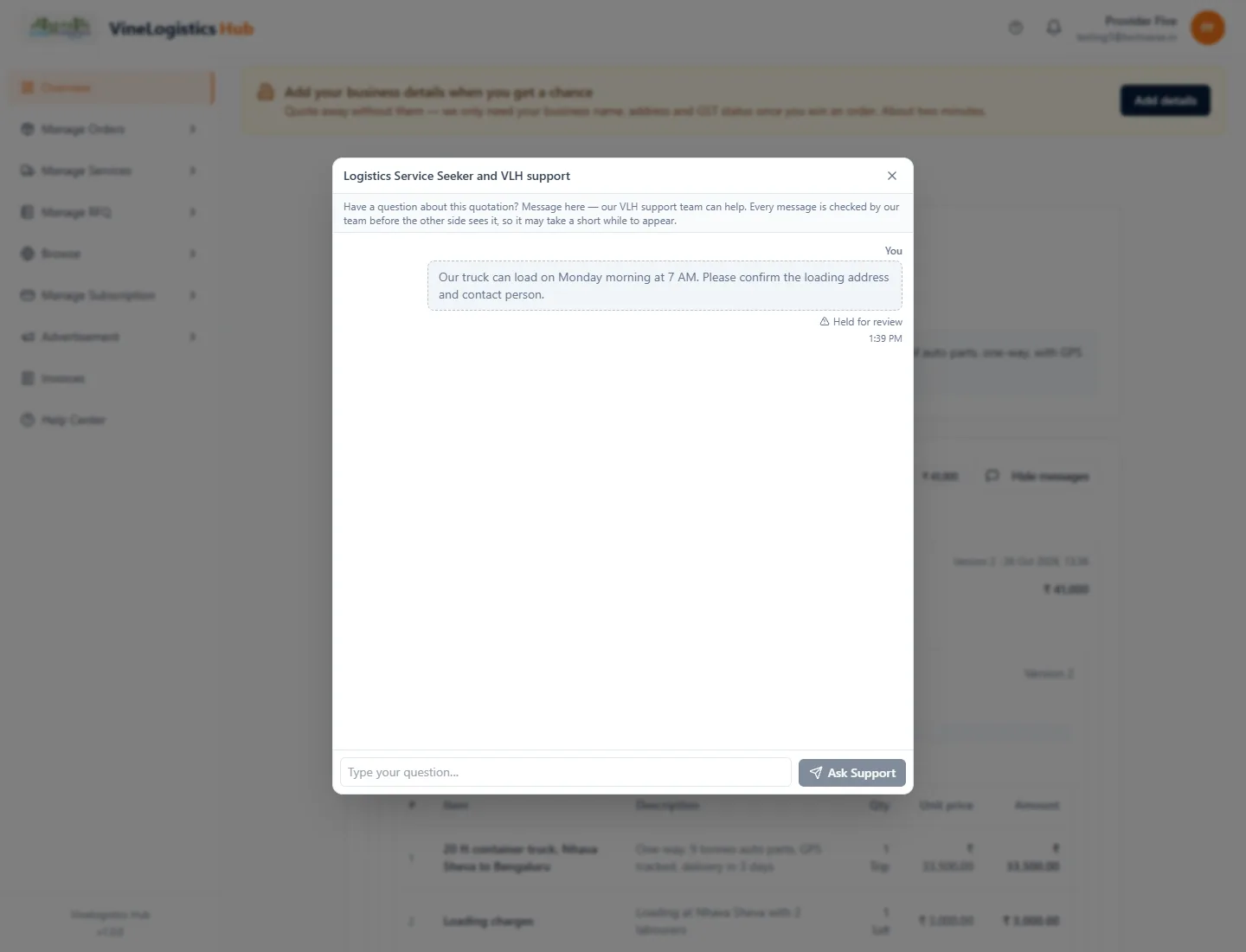
Held for review: our team checks every message first, then passes it on. Replies appear in the same window.
Do not share phone numbers, emails or websites. Those messages and quotations are rejected.
If it is not approved, or you withdraw
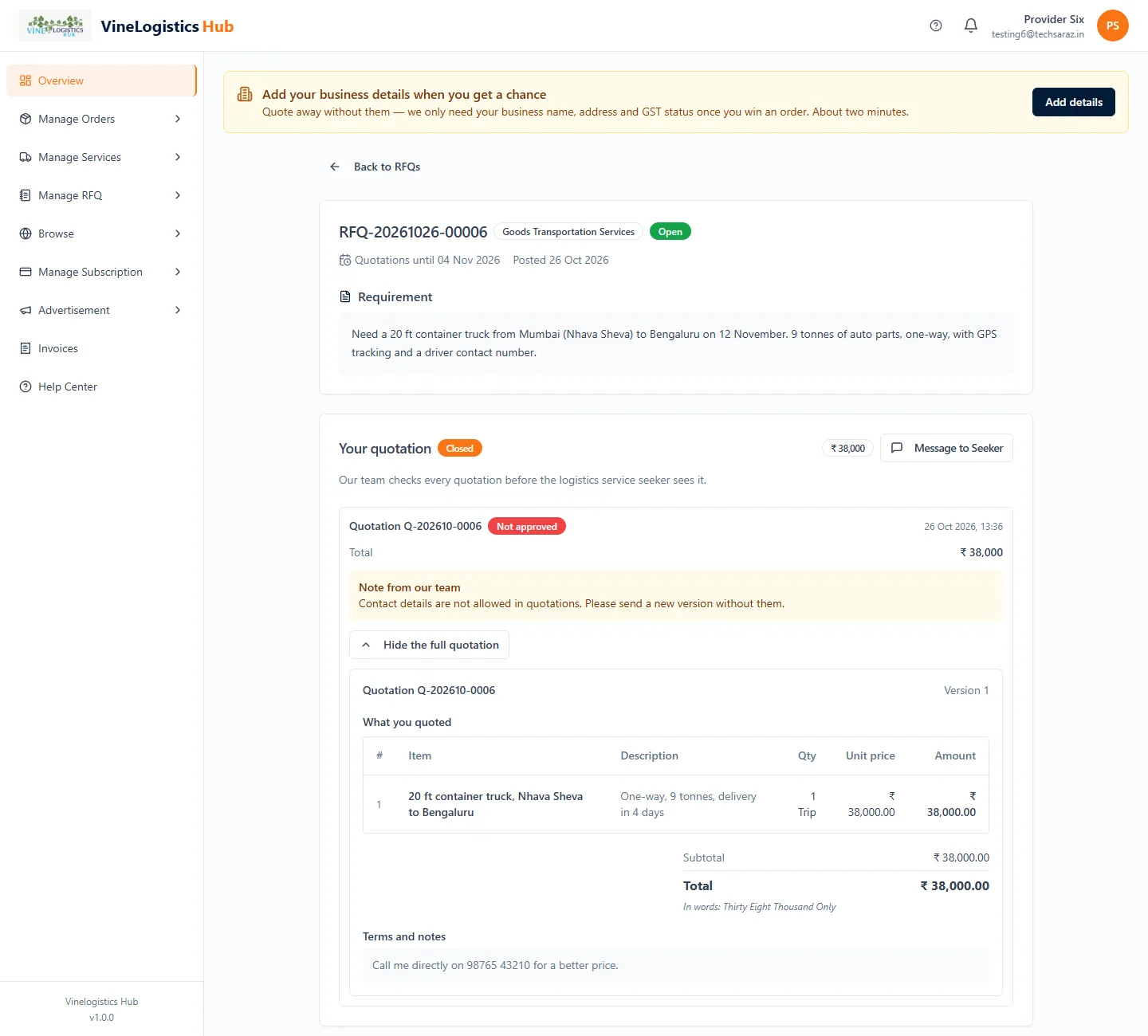
If our team does not approve a version, you see Not approved and a Note from our team. You can send a new version unless the whole quotation was closed.
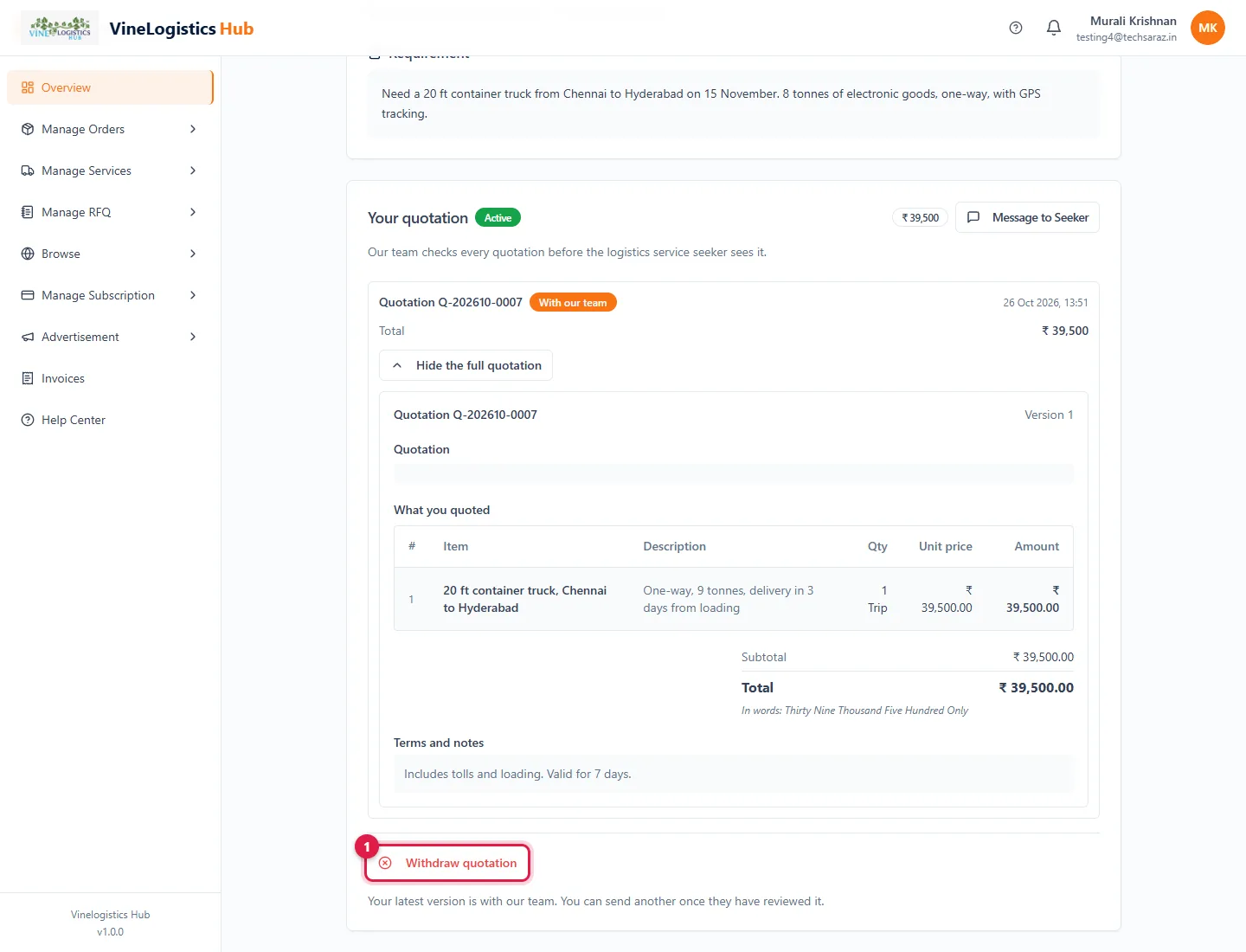
- 1To stop quoting, click Withdraw quotation.
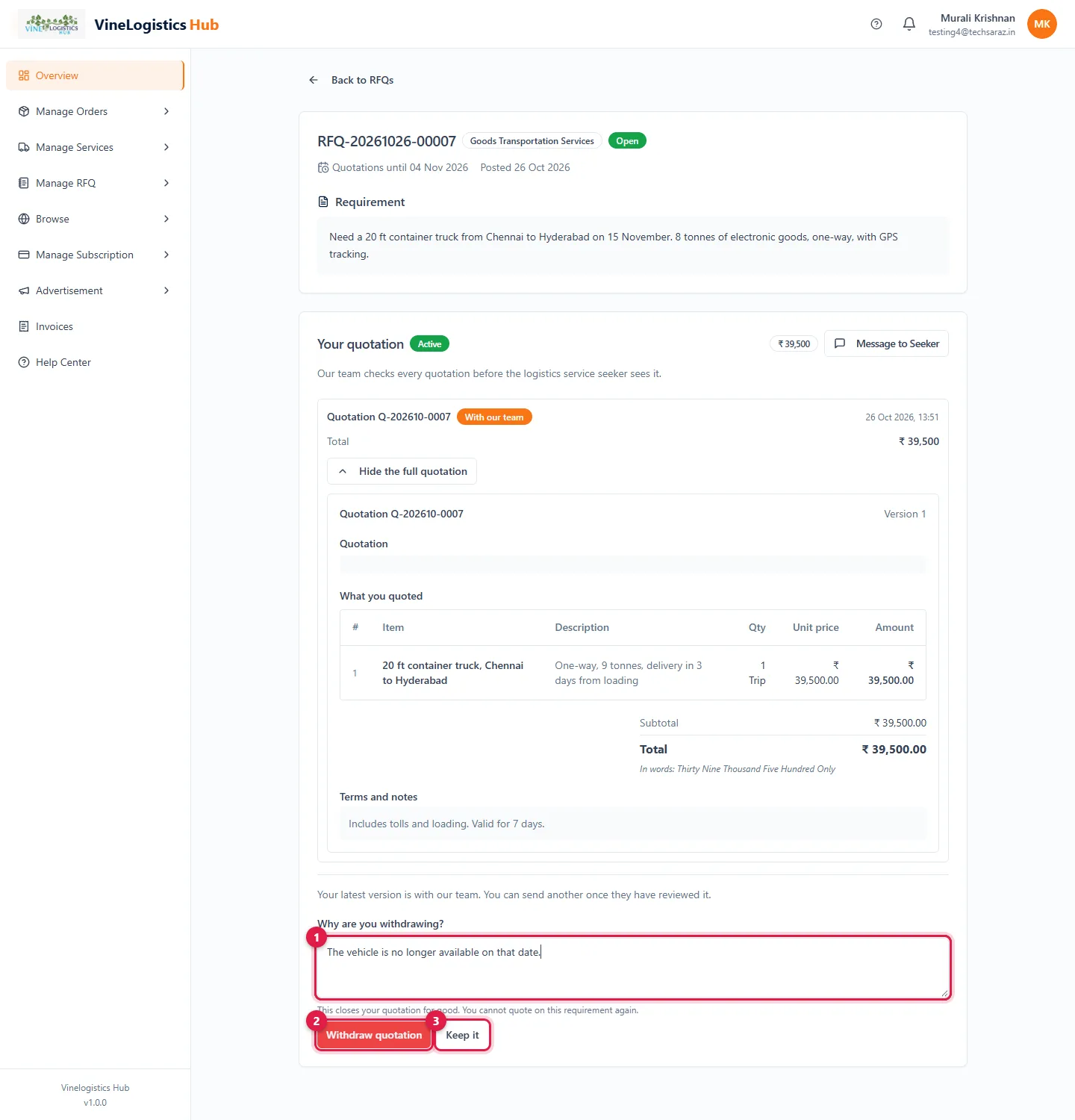
- 1Write a reason (at least 10 characters).
- 2Click Withdraw quotation.
- 3Or click Keep it.
Withdrawing closes your quotation for good. You cannot quote on that requirement again.
You won: pay and get the seeker's details
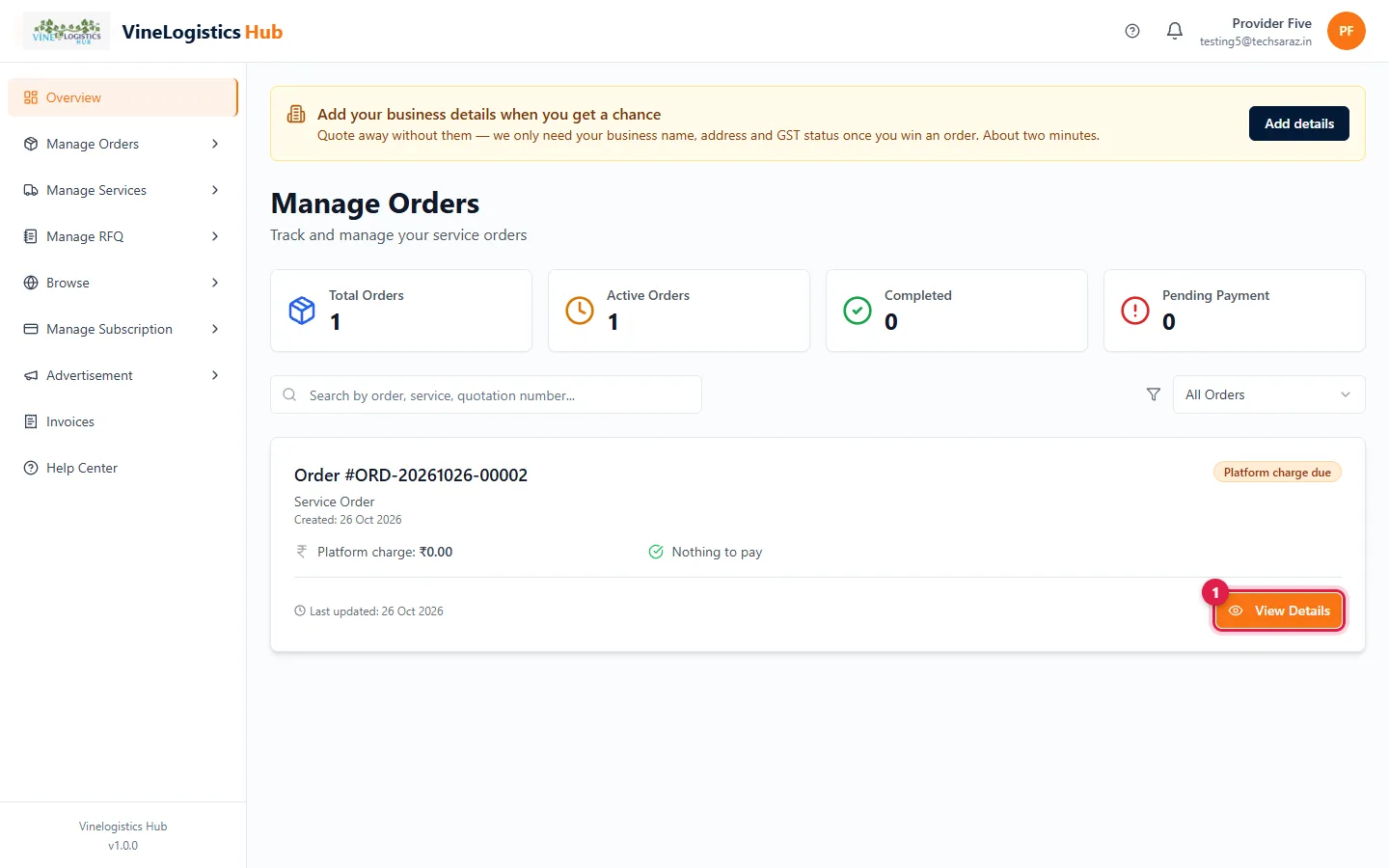
- 1When the seeker approves your quotation, our team raises an order. Open Manage Orders and click View Details.
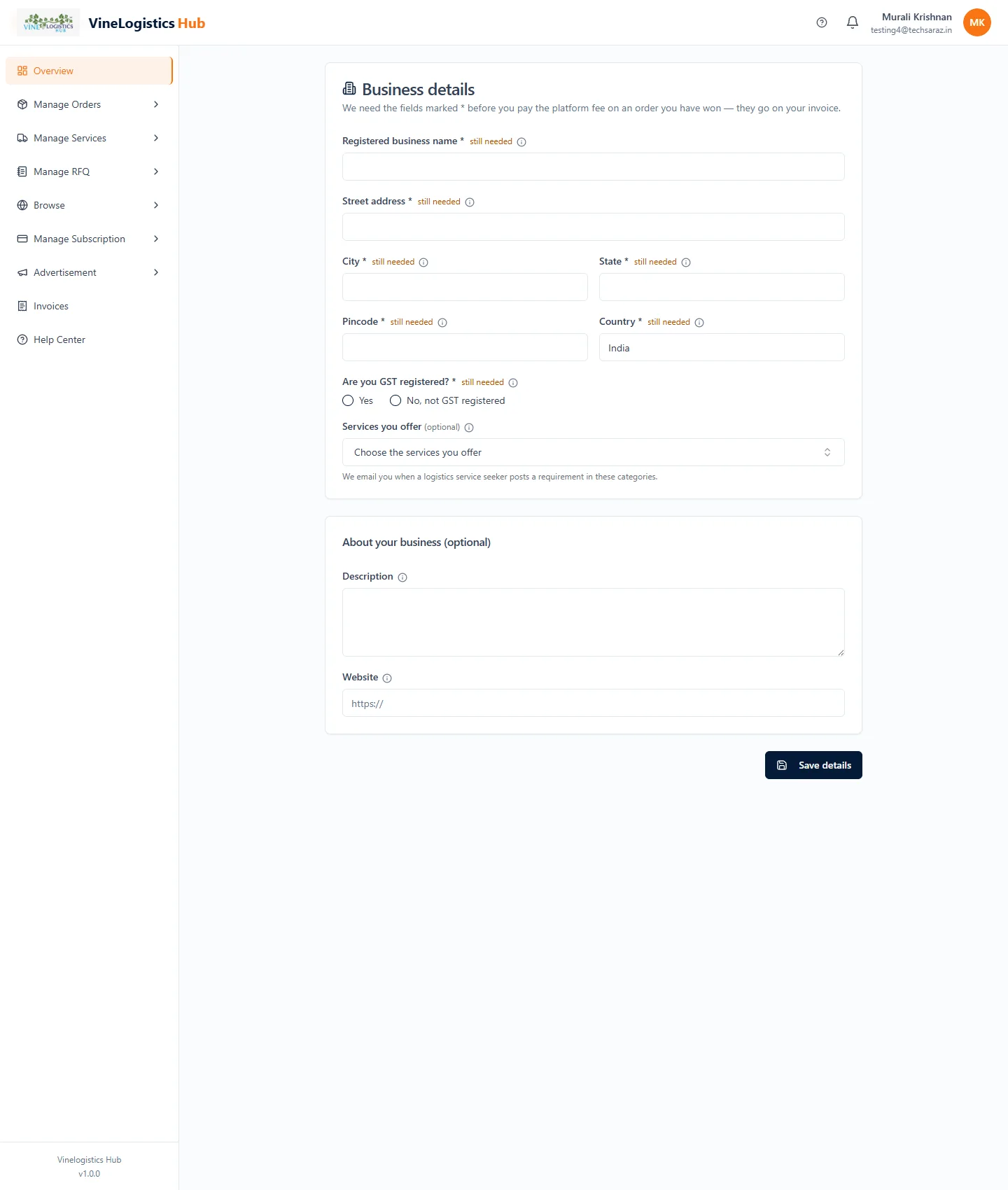
The first time, click Complete business details and fill in the business name, address and GST status.
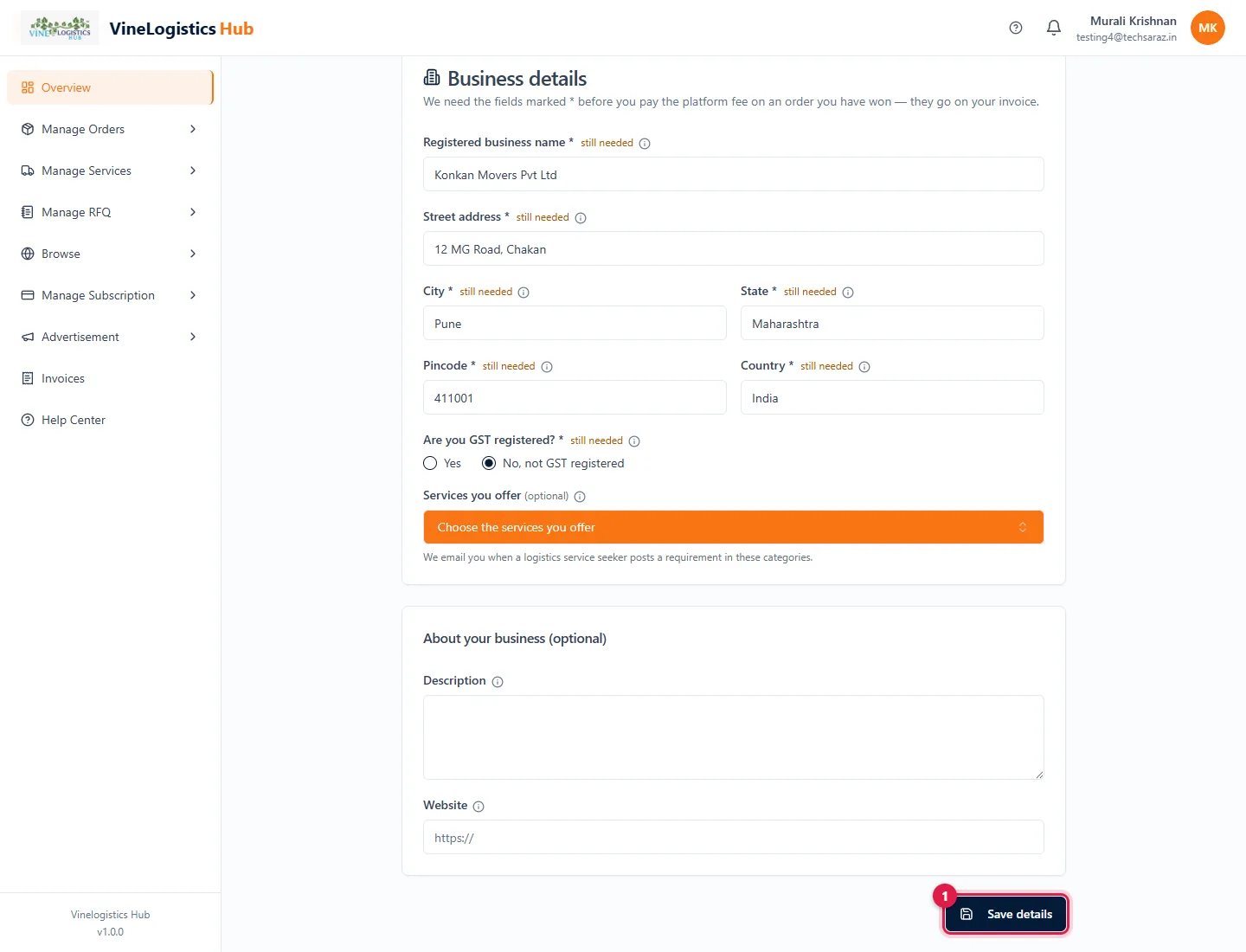
- 1Click Save details. You return to the order.
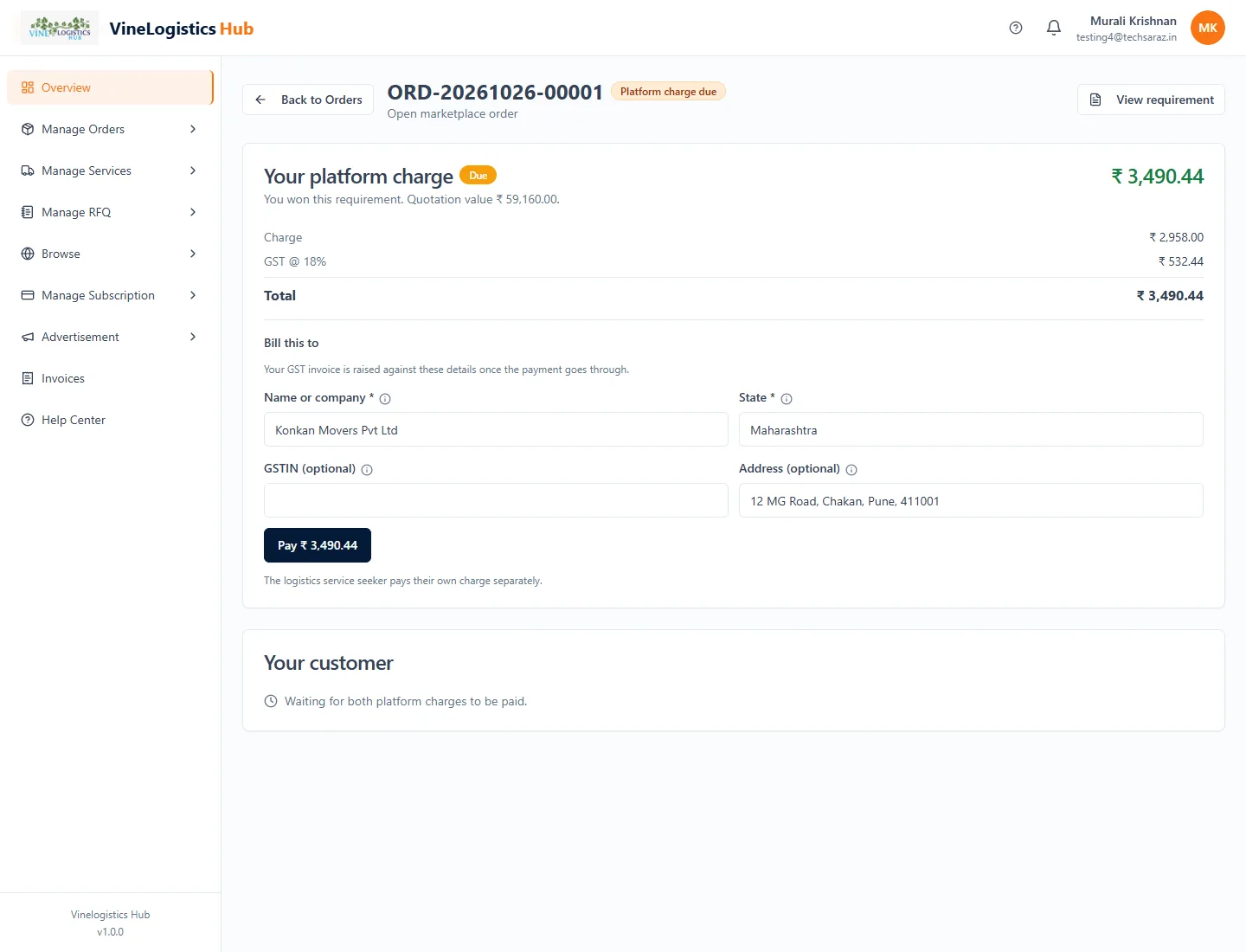
Your platform charge = a percentage or fixed amount set by our team + 18% GST. Check the billing details.
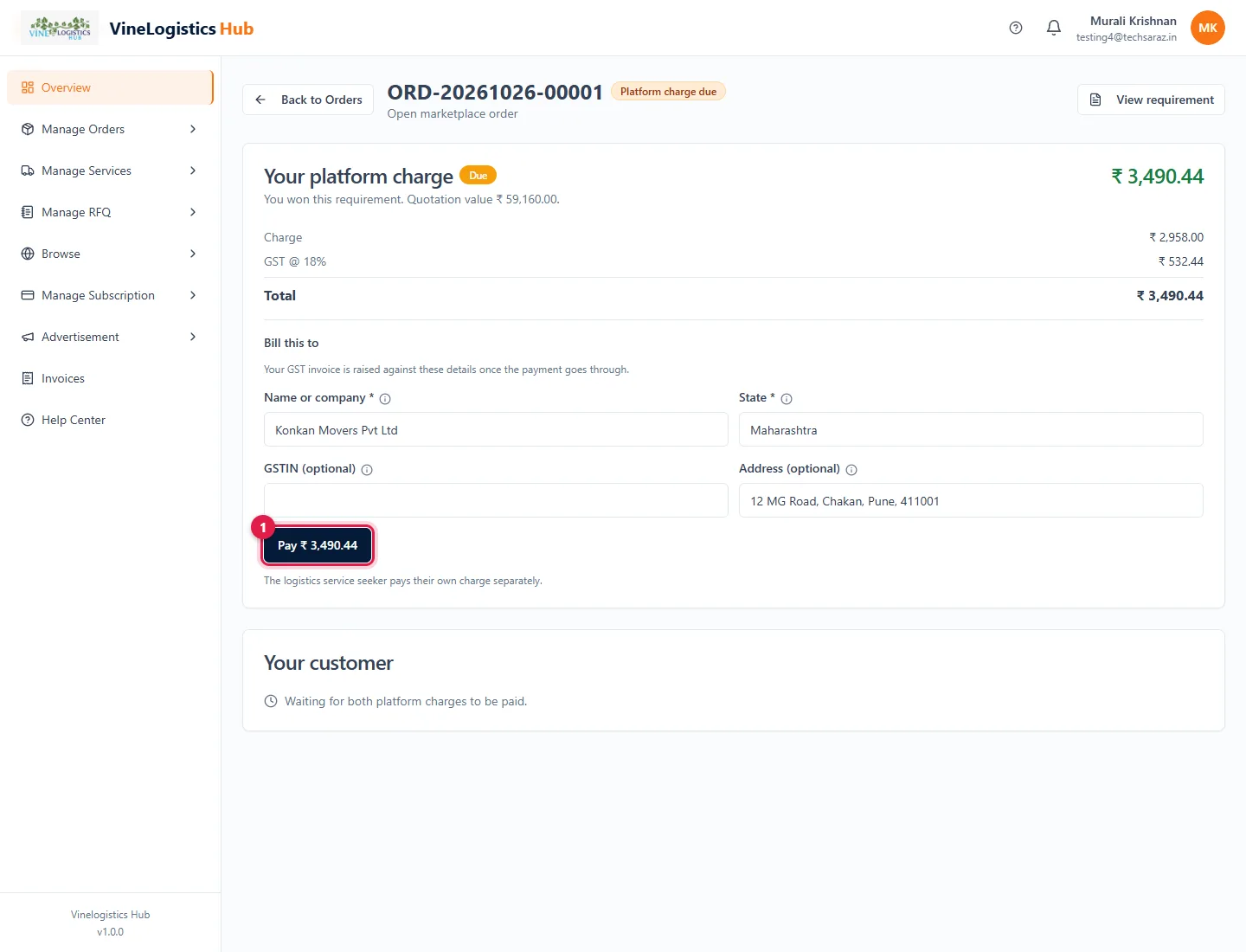
- 1Click Pay ₹ ….
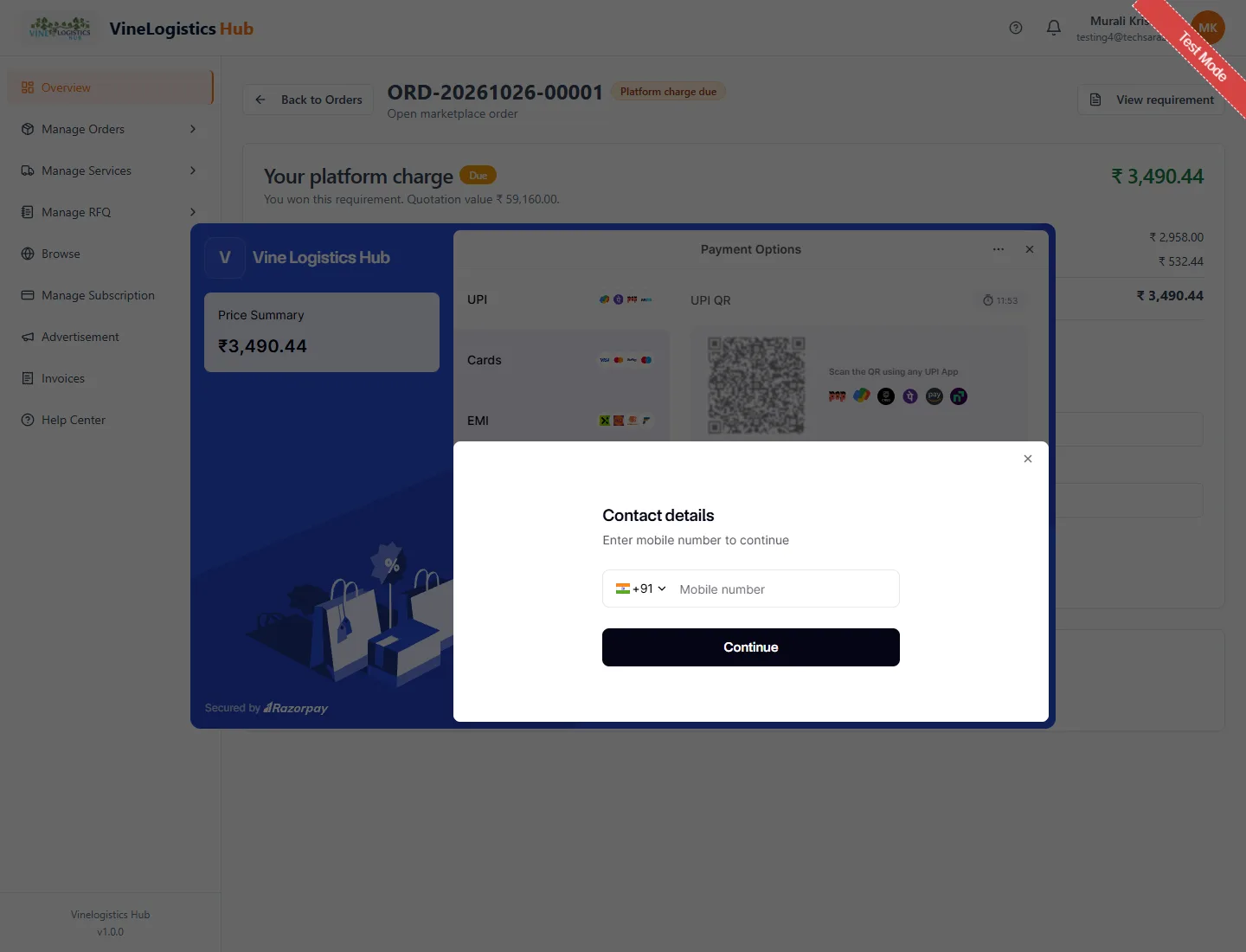
Choose UPI, card, netbanking or wallet and follow the steps. Stay on the page until it shows Paid.
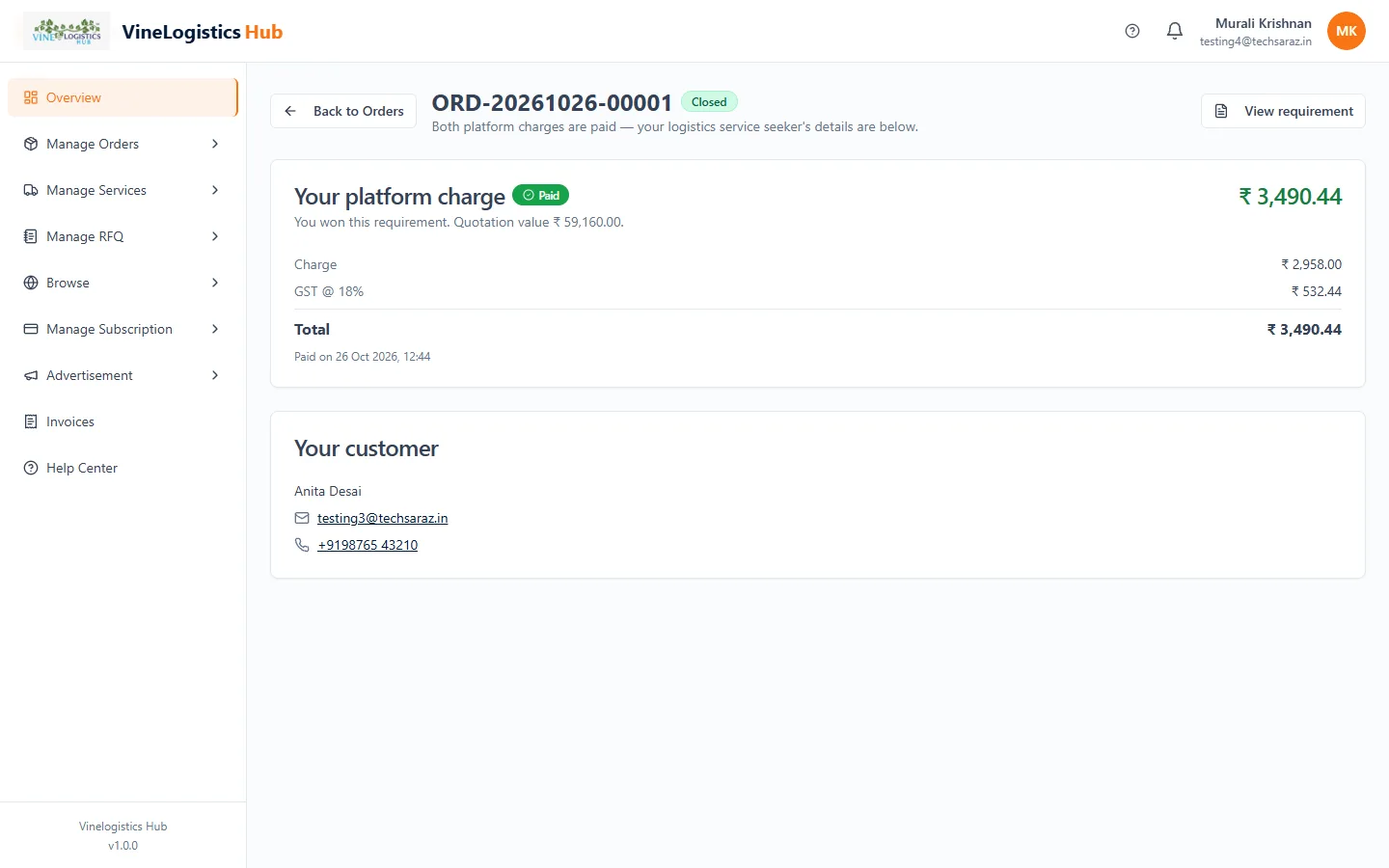
When both sides have paid, the order is Closed and Your customer shows the seeker's name, email and phone. They are also emailed to you.
Sometimes our team waives your charge. Then the order says Nothing to pay and you only wait for the seeker to pay.
Need help?
Email info@vinelogisticshub.com or open Help Center in your dashboard menu.