
Vine Logistics Hub · Logistics Service Seeker
Seeker quick guide
Post a requirement, choose a quotation, pay, and get your provider's details.
The journey
Red numbered circles on each screenshot match the numbered actions under it. Posting and receiving quotations is free. You pay one platform charge after you approve a quotation.
Open the marketplace
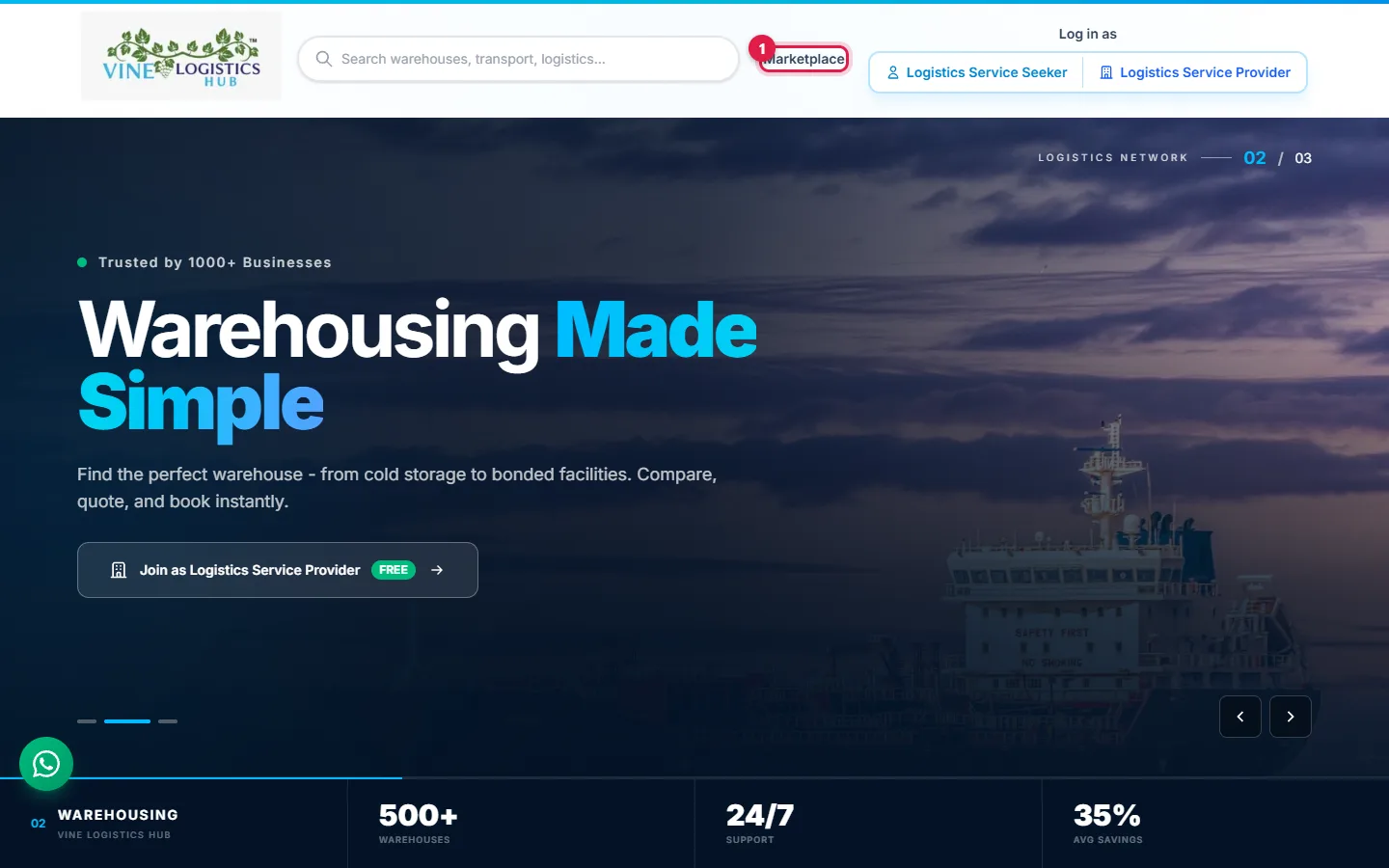
- 1Click Marketplace in the page header.
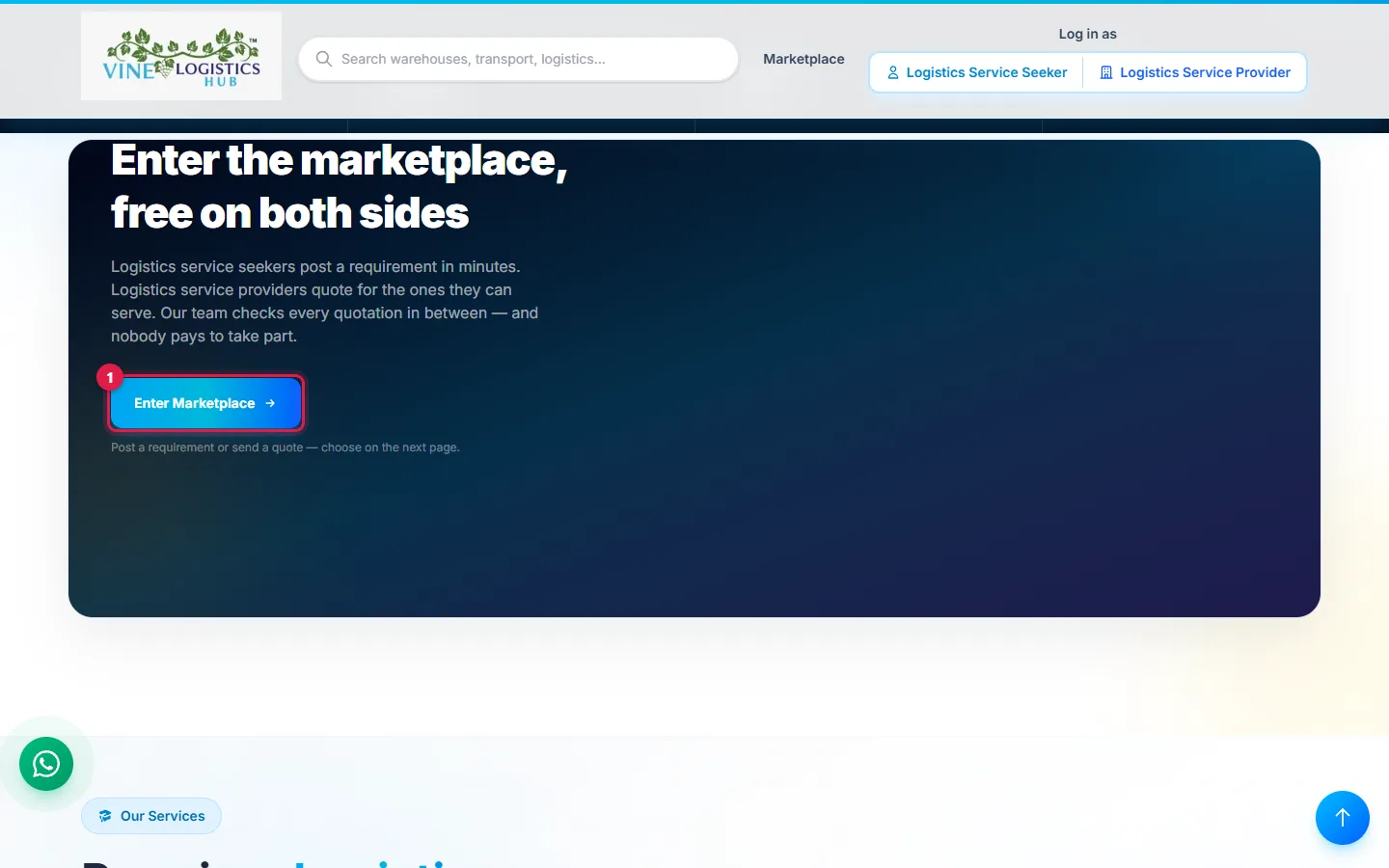
- 1Or click Enter Marketplace on the home page.
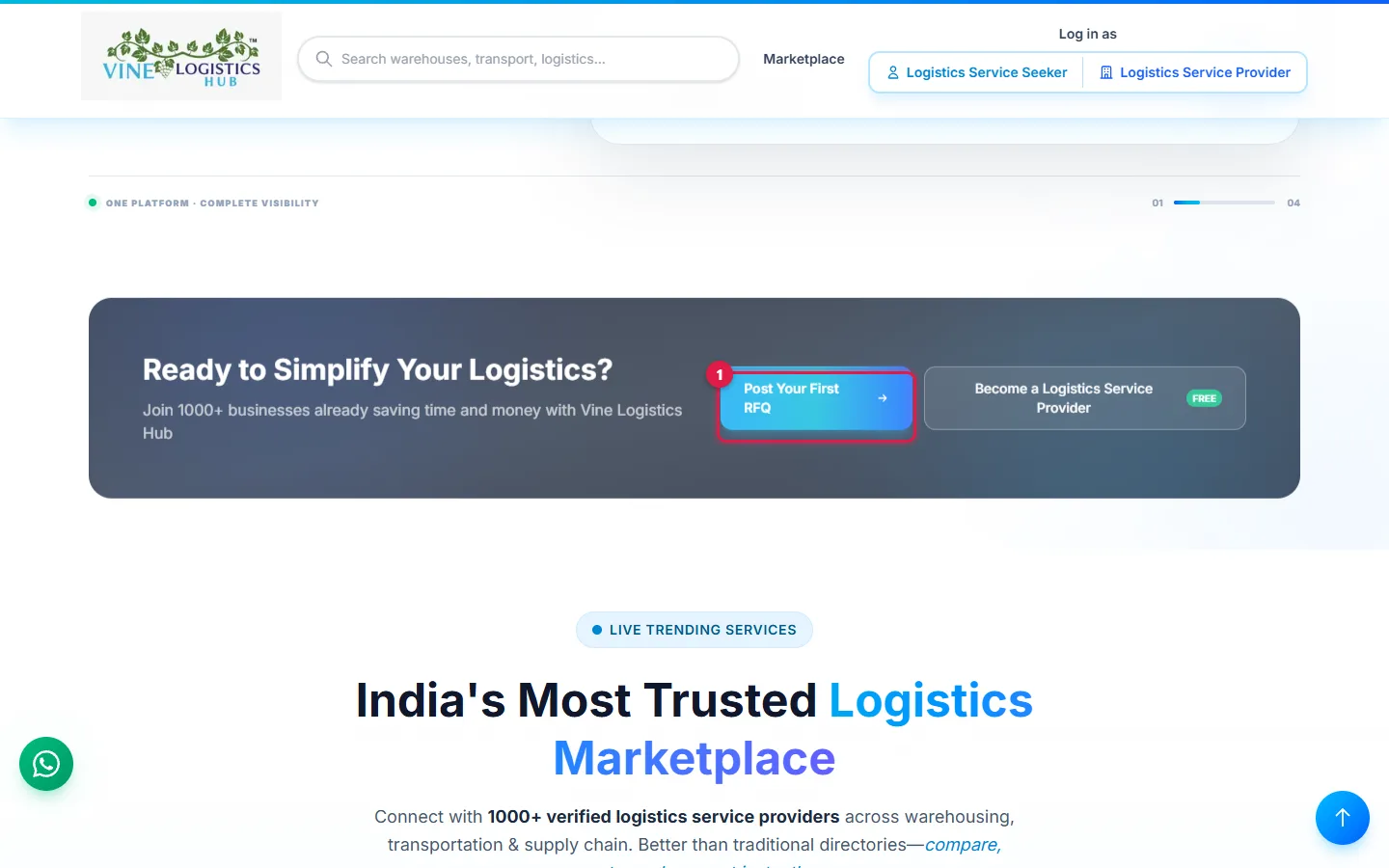
- 1Or click Post Your First RFQ near the bottom of the home page.
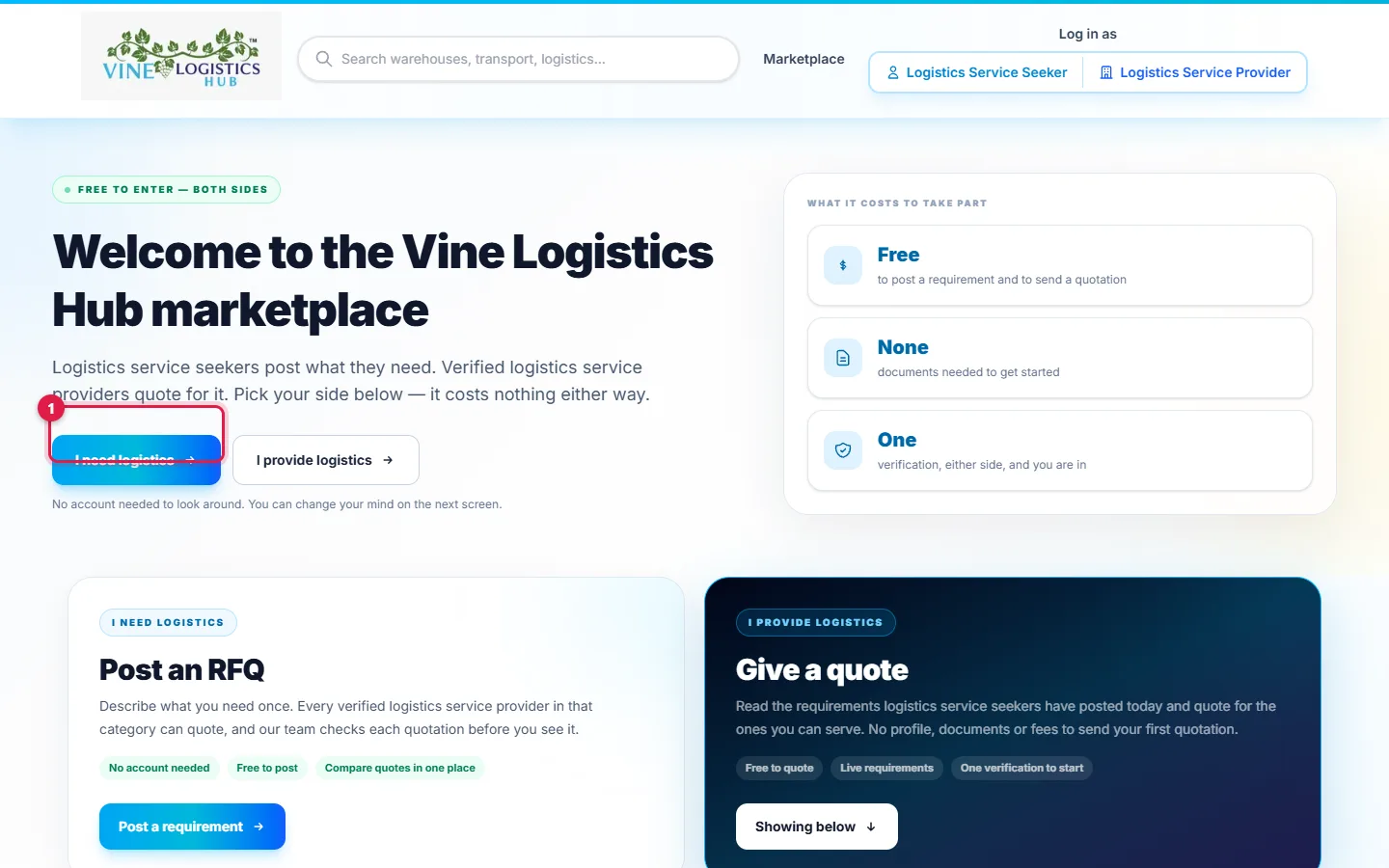
- 1On the marketplace page, click I need logistics.
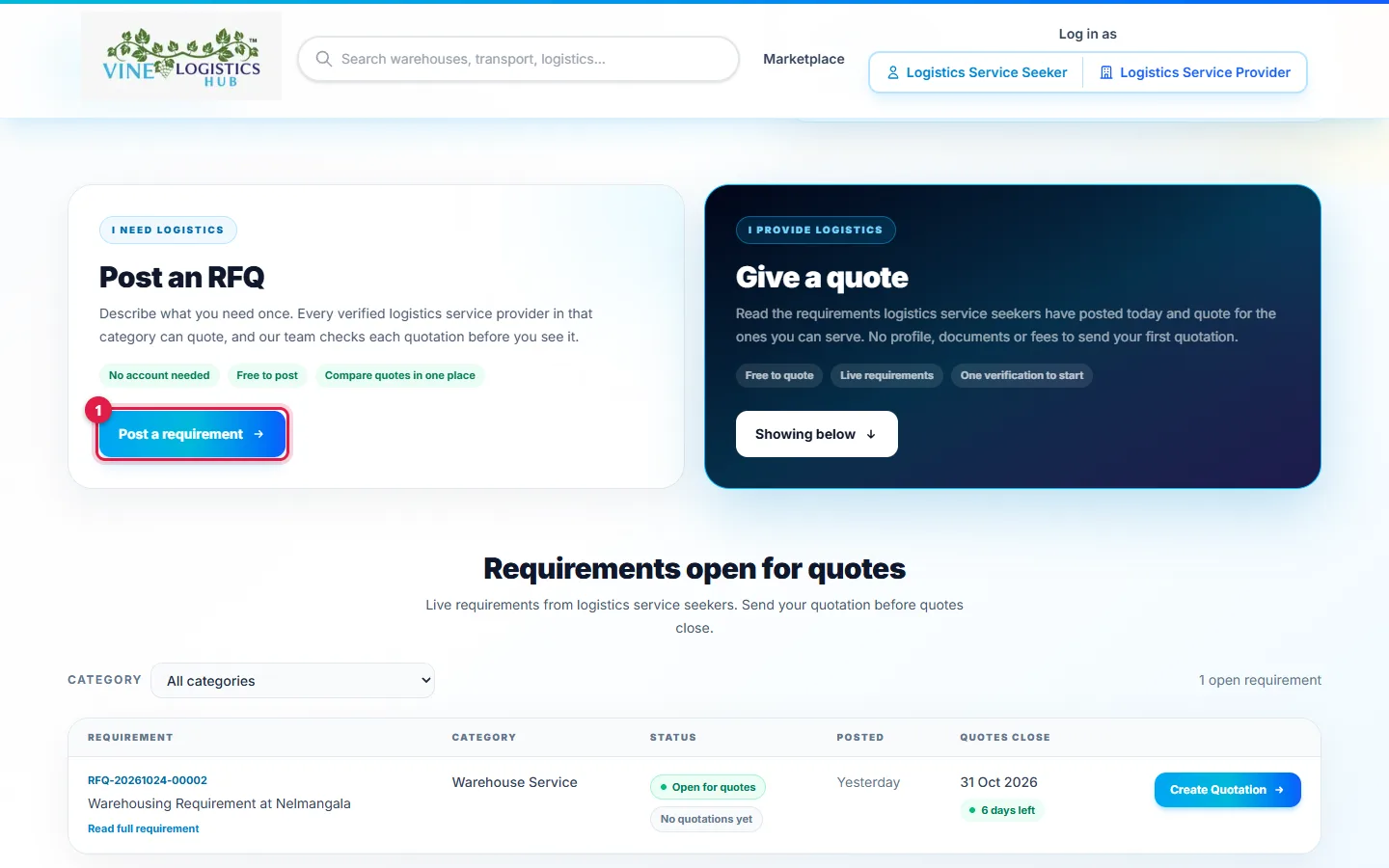
- 1Or click Post a requirement on the "Post an RFQ" card.
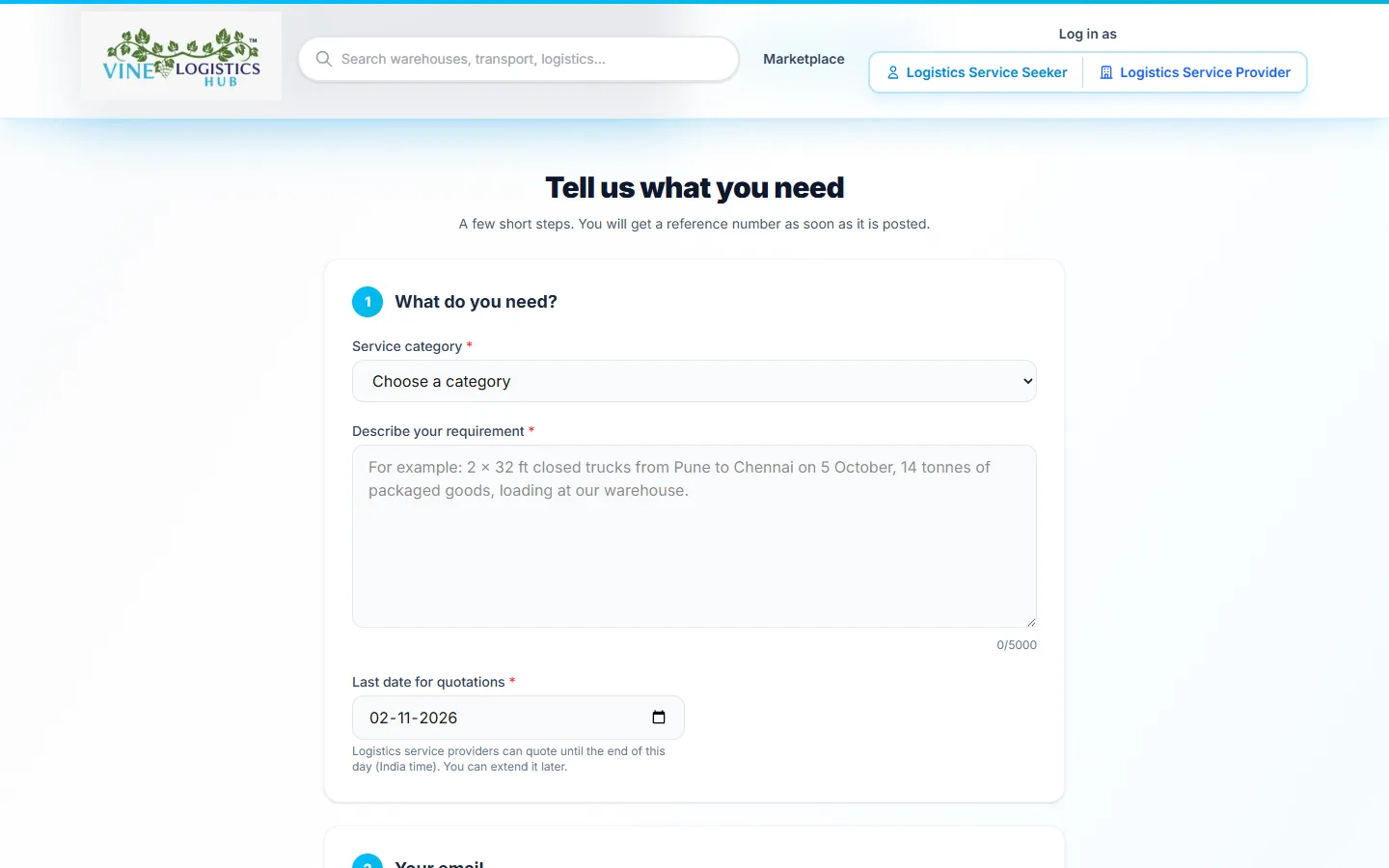
The form Tell us what you need opens. No account is needed.
Post your requirement and verify with OTP
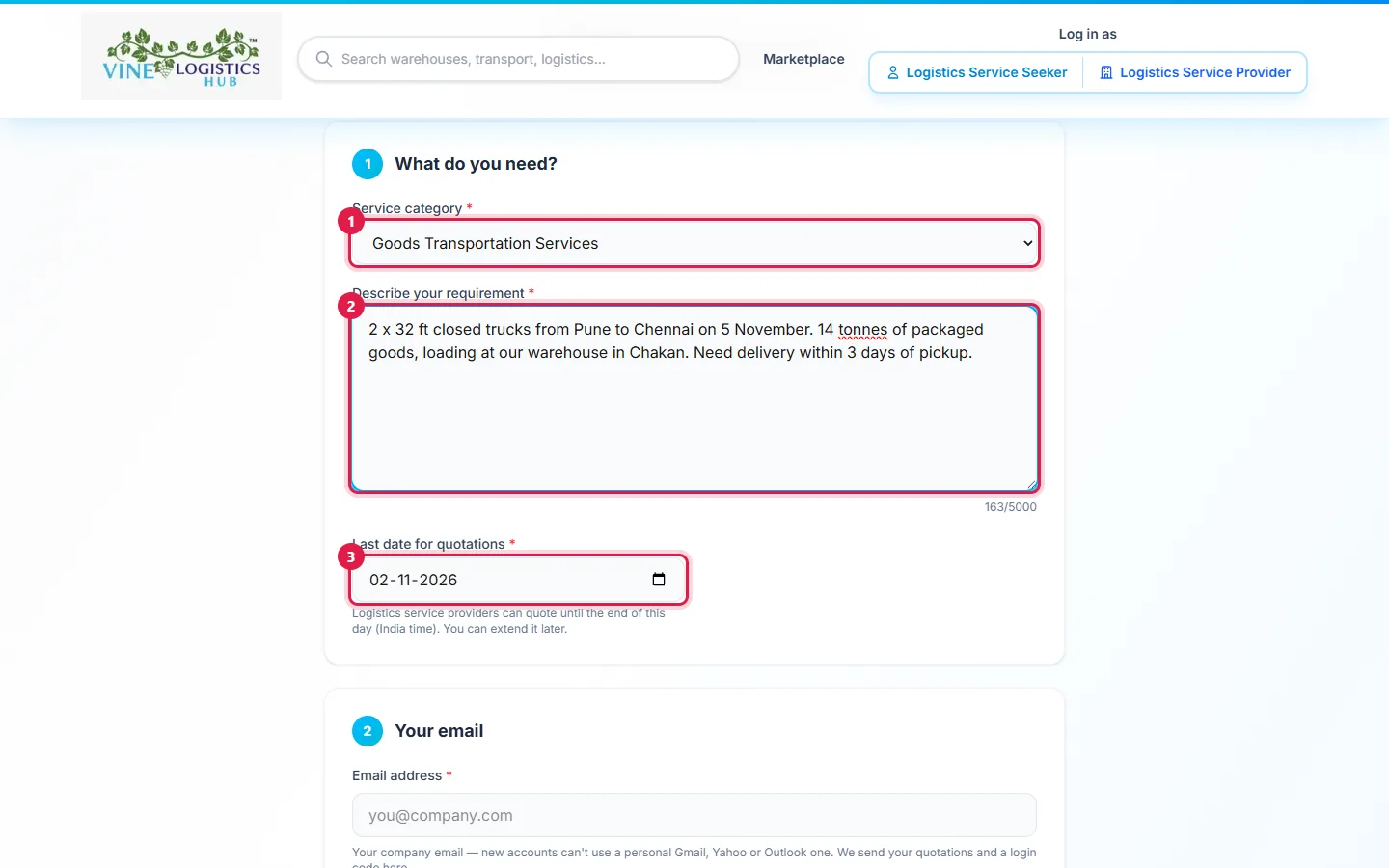
- 1Choose the Service category.
- 2Describe your requirement (20 to 5000 characters).
- 3Check the Last date for quotations (tomorrow to 90 days ahead).
Example: 2 x 32 ft closed trucks from Pune to Chennai on 5 November, 14 tonnes of packaged goods, loading at our warehouse in Chakan.
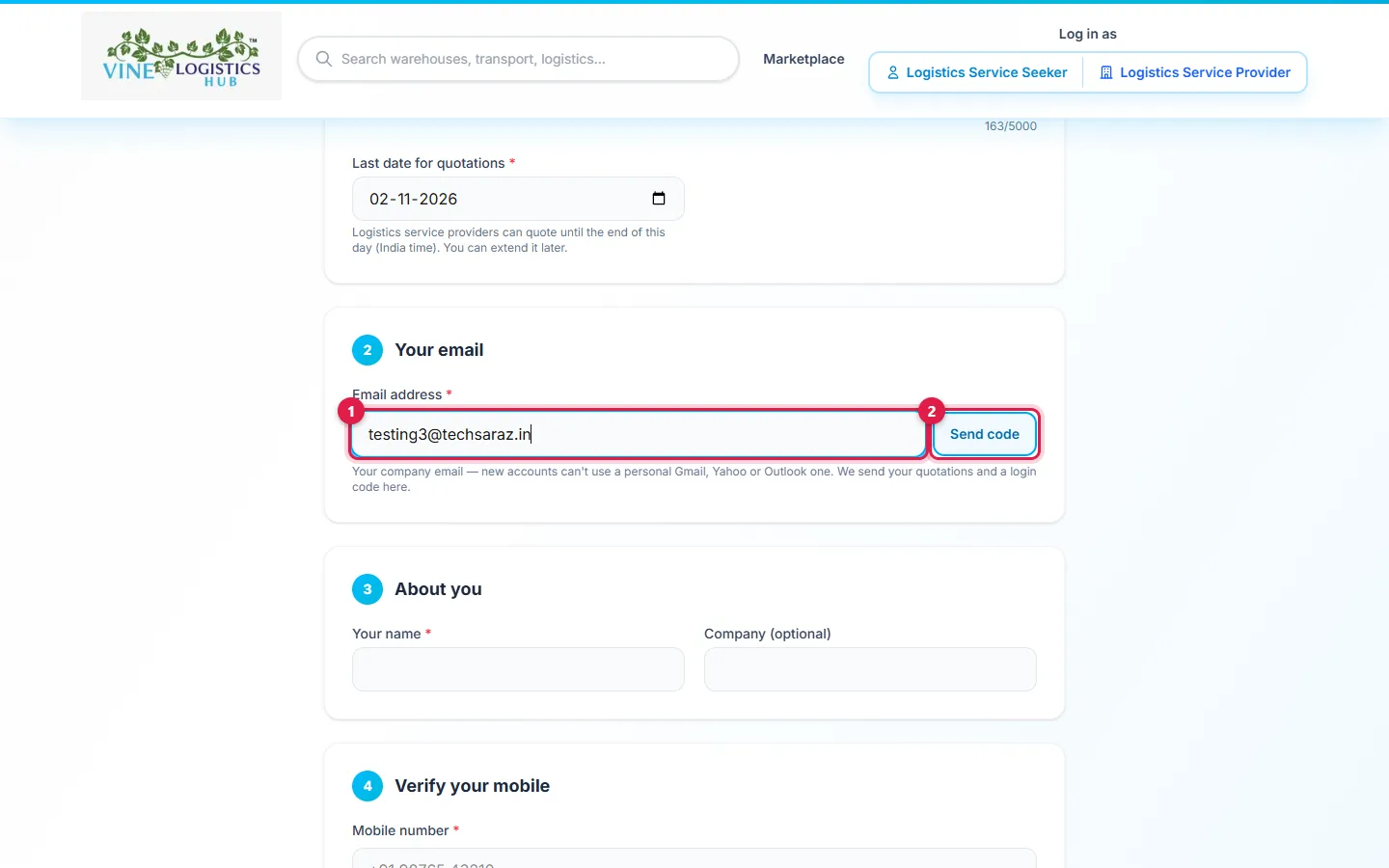
- 1Type your company email.
- 2Click Send code.
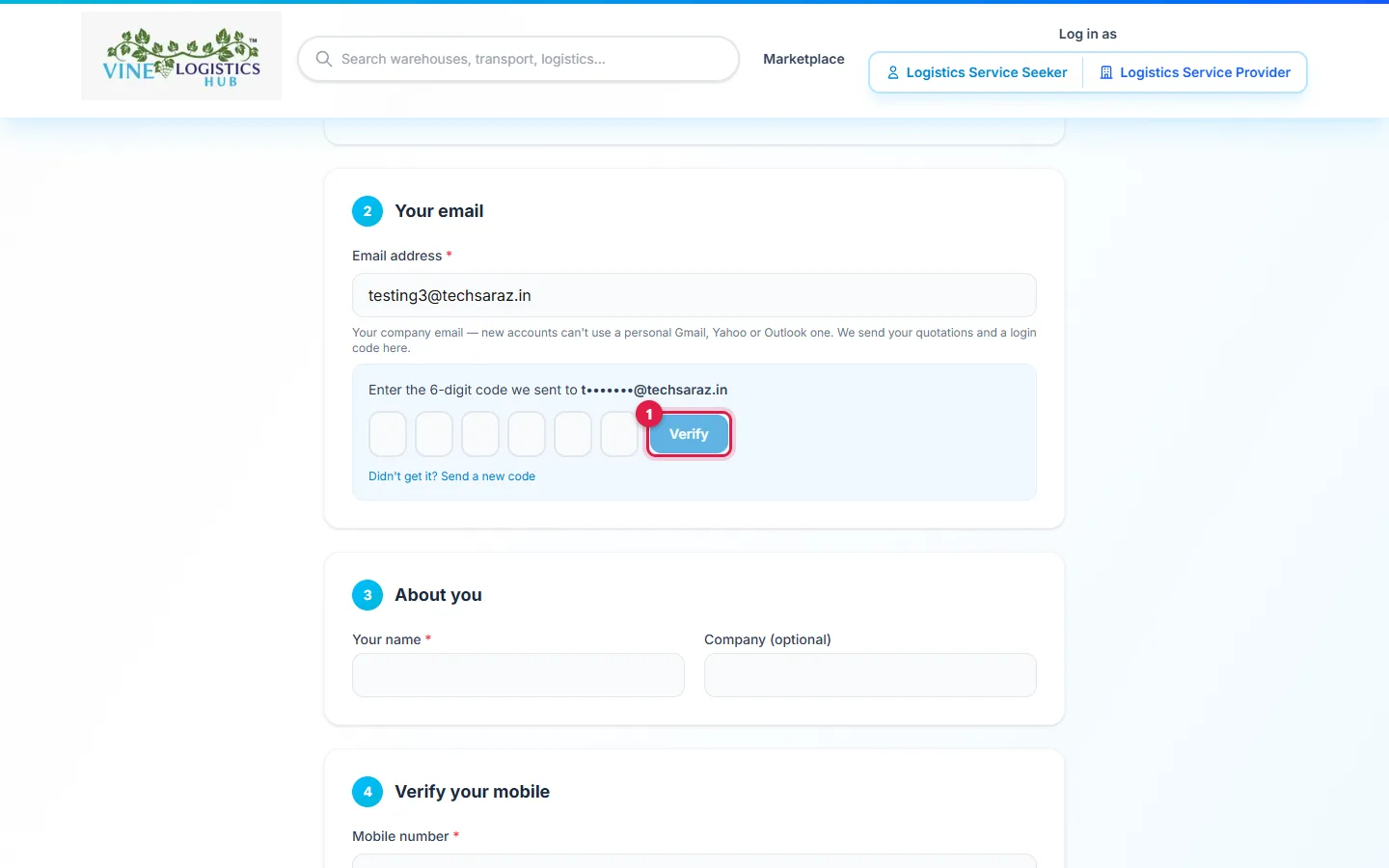
- 1Type the 6-digit code from your email, then click Verify.
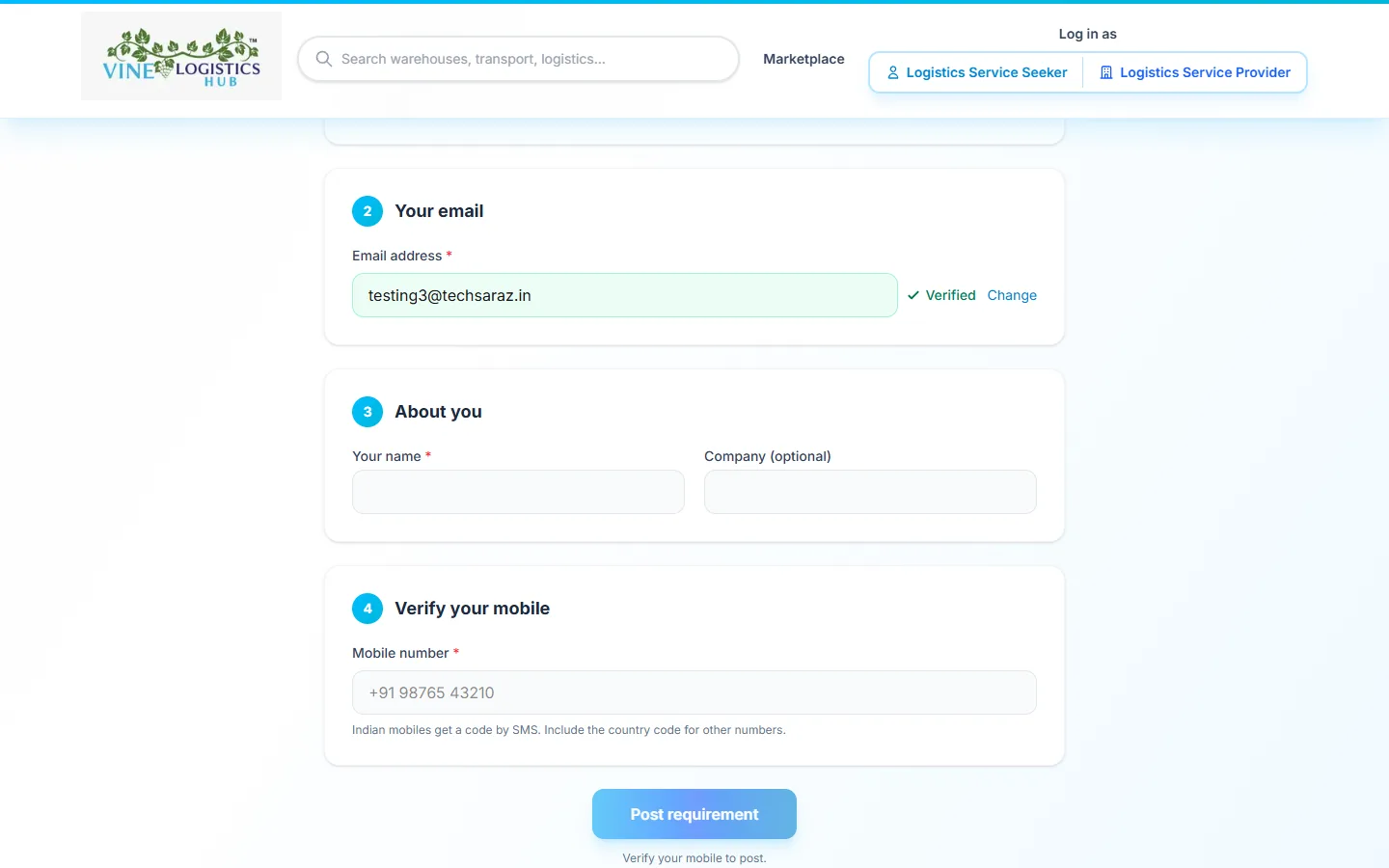
A green Verified tick means the email is confirmed.
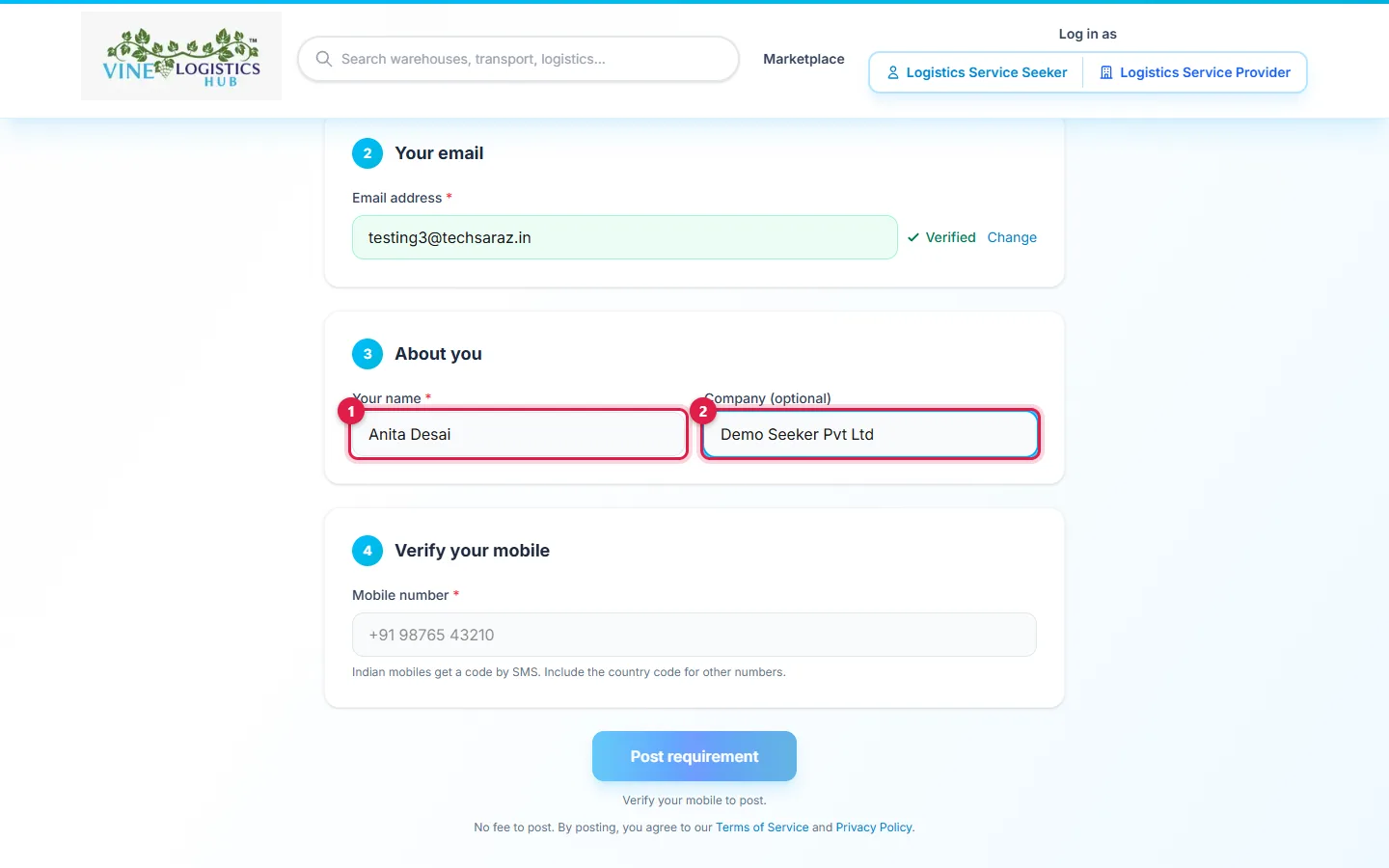
- 1Type Your name.
- 2Add your Company (optional).
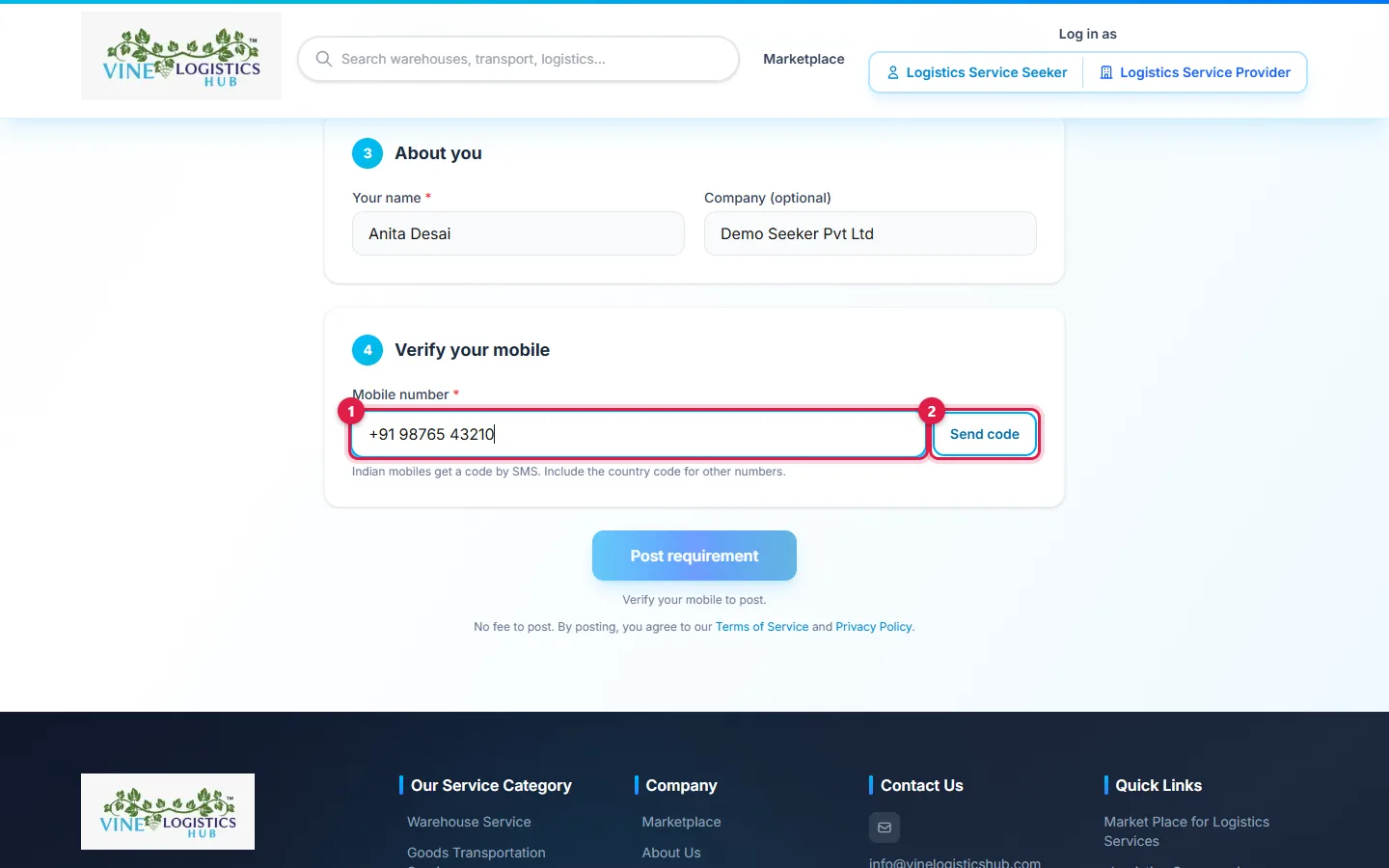
- 1Type your mobile number with country code.
- 2Click Send code.
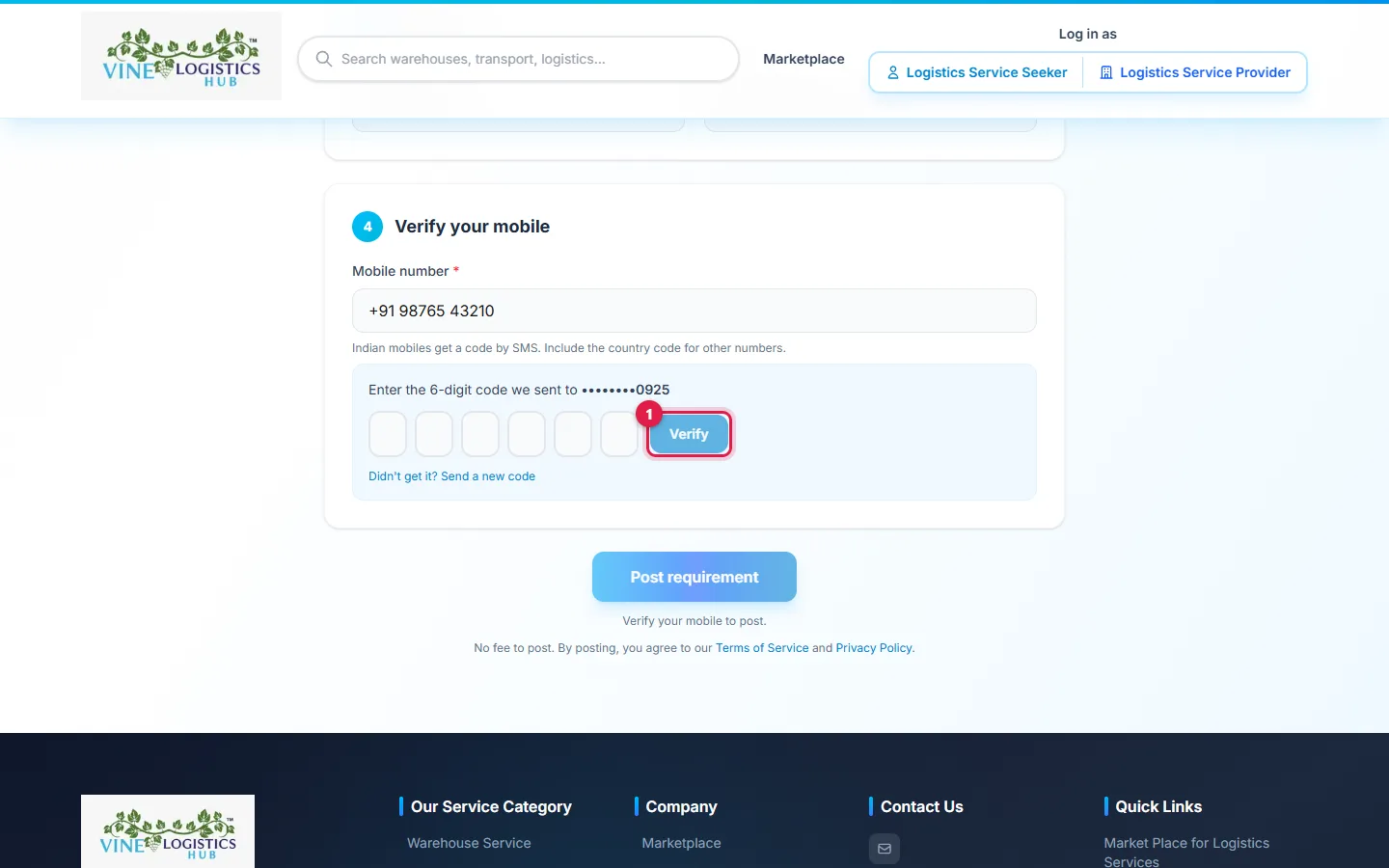
- 1Type the 6-digit SMS code, then click Verify.
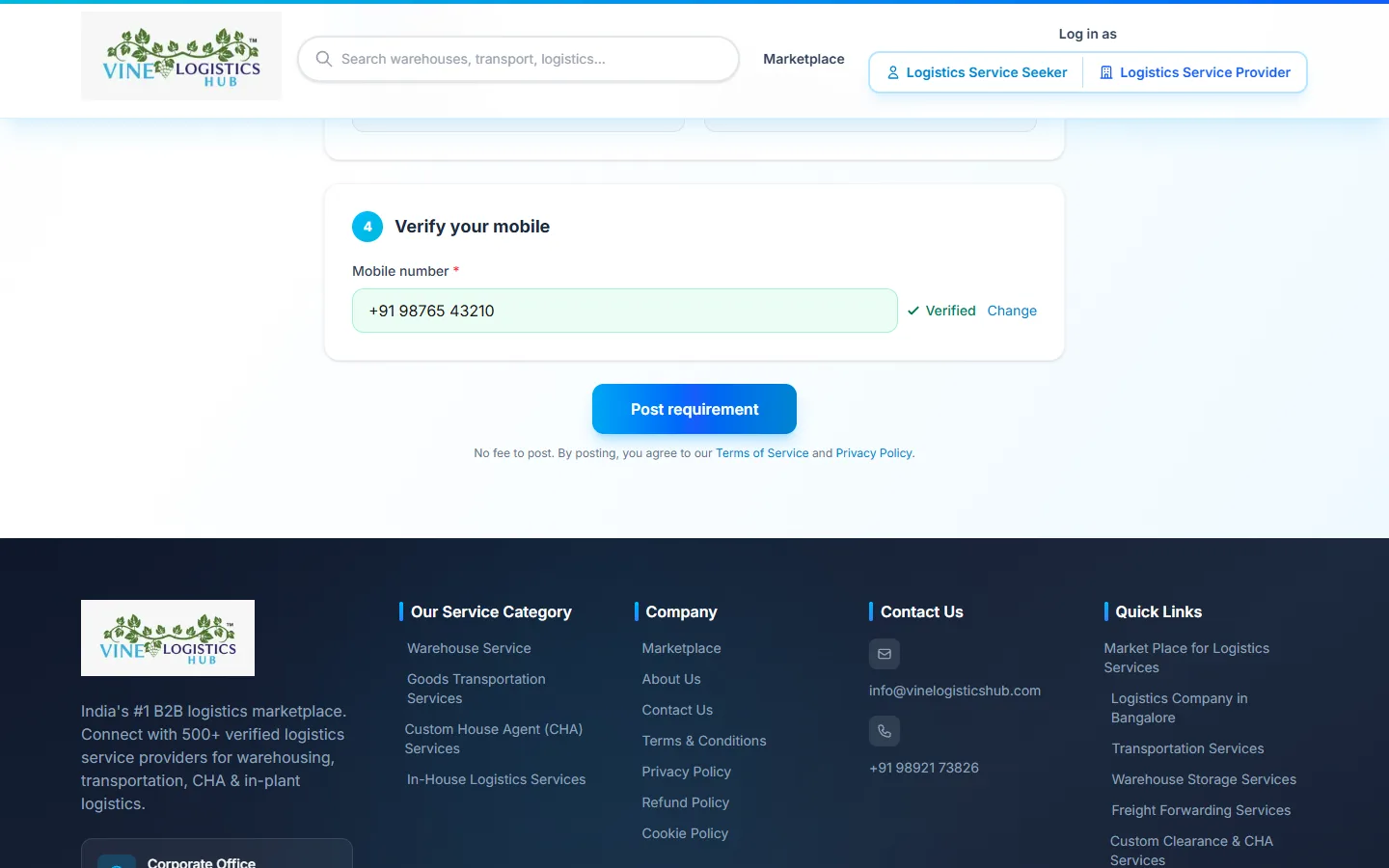
Both cards show Verified.
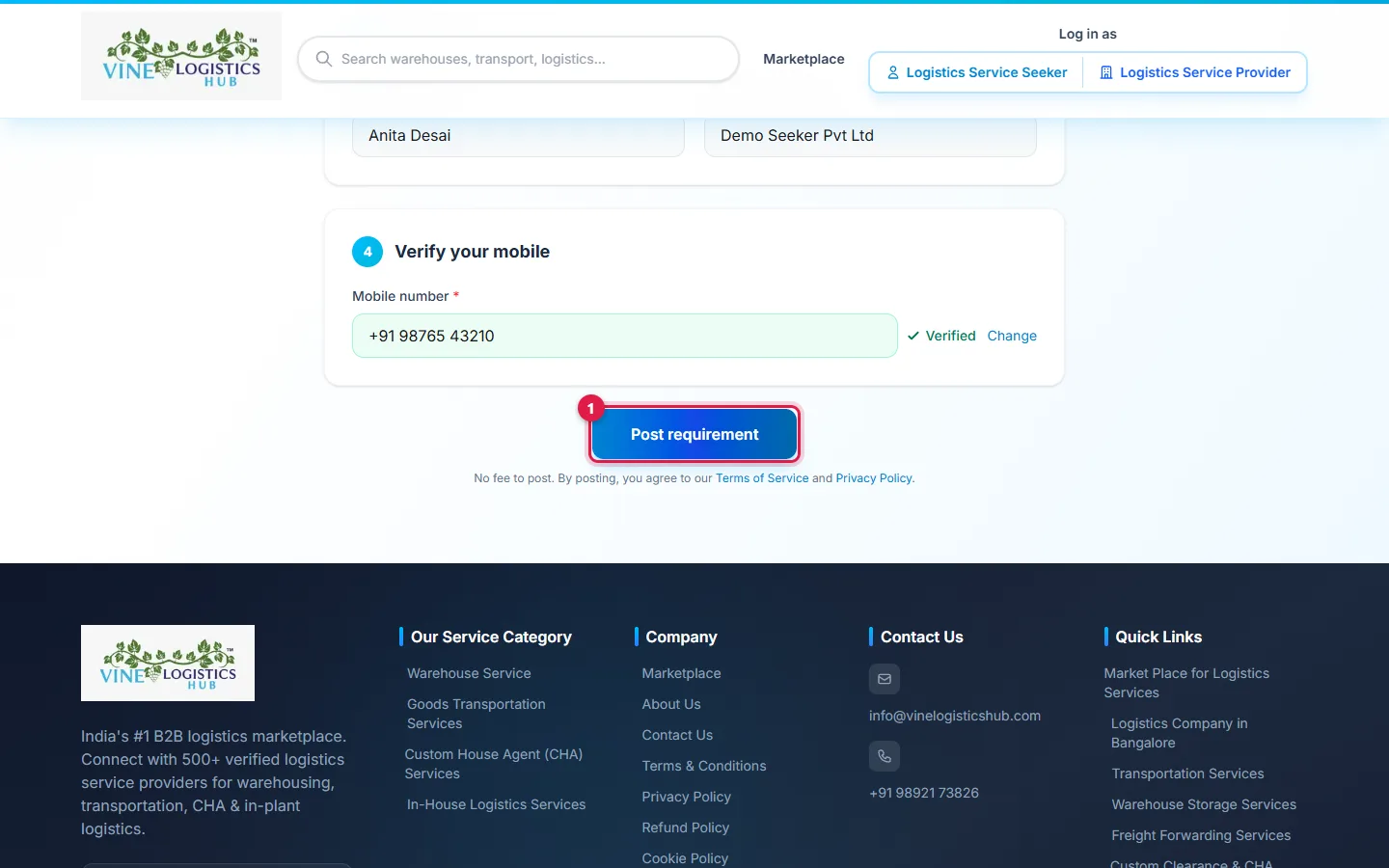
- 1Click Post requirement.
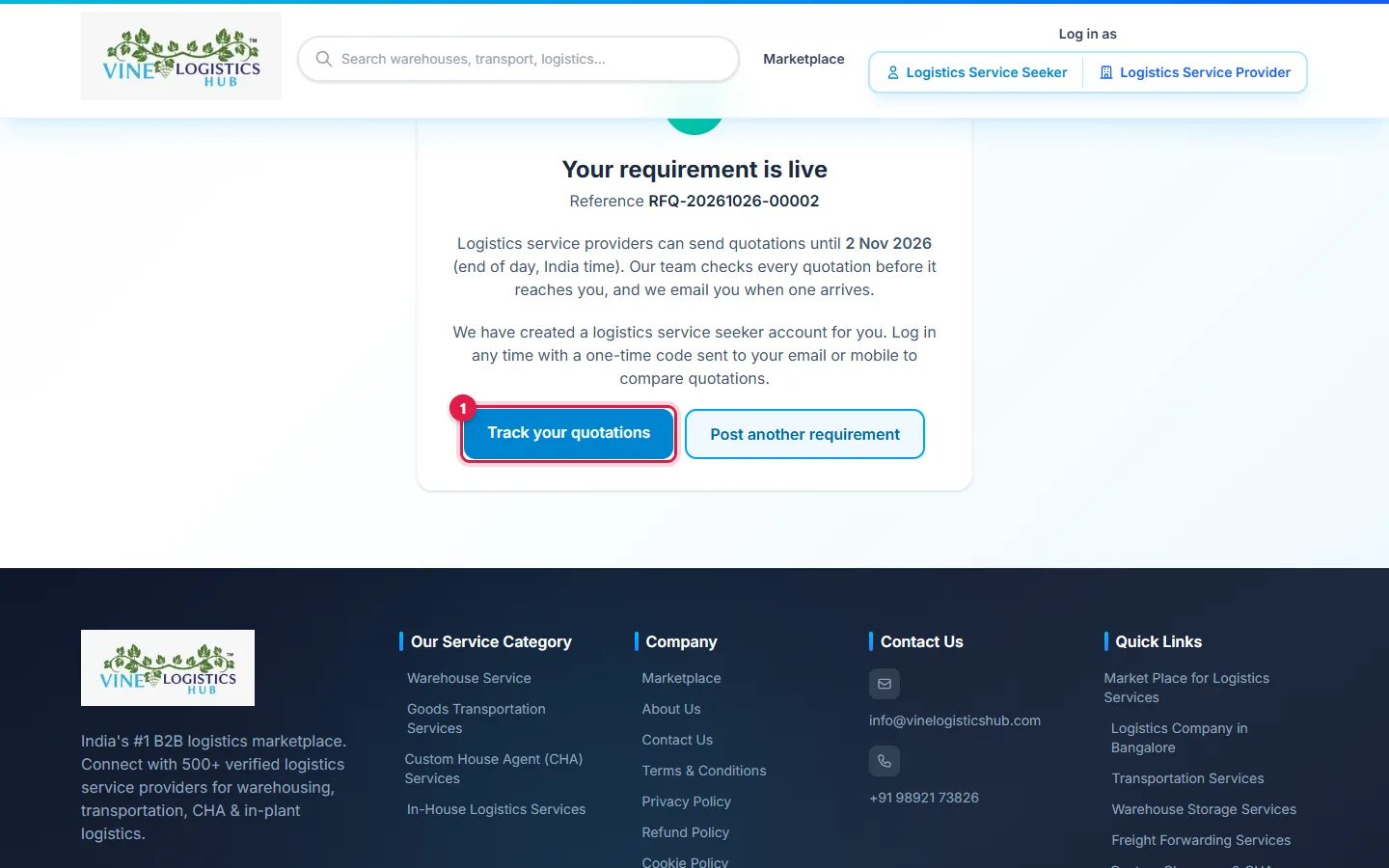
- 1Click Track your quotations. Note your RFQ reference number.
If something goes wrong
| Message or situation | What to do |
|---|---|
| First post: email and mobile are both required | Verify both. Post requirement stays grey until you do. |
| "Please enter your mobile number…" | Type the mobile with its country code. |
| "Please use your company email address…" | New accounts cannot use Gmail, Yahoo or Outlook. Use a company email. |
| "Invalid OTP. 4 attempts remaining." | Re-enter the code. After 5 wrong tries, ask for a new one. |
| "OTP not found or expired" | Codes last 10 minutes. Click Send code again. |
| "Please wait 60 seconds…" | Wait for the countdown (60 s for email, 20 s for SMS). |
| "Your verification has expired" | Verify again. A verified email or mobile is valid for 30 minutes. |
| Mobile outside India | No SMS code. Your verified email is enough. |
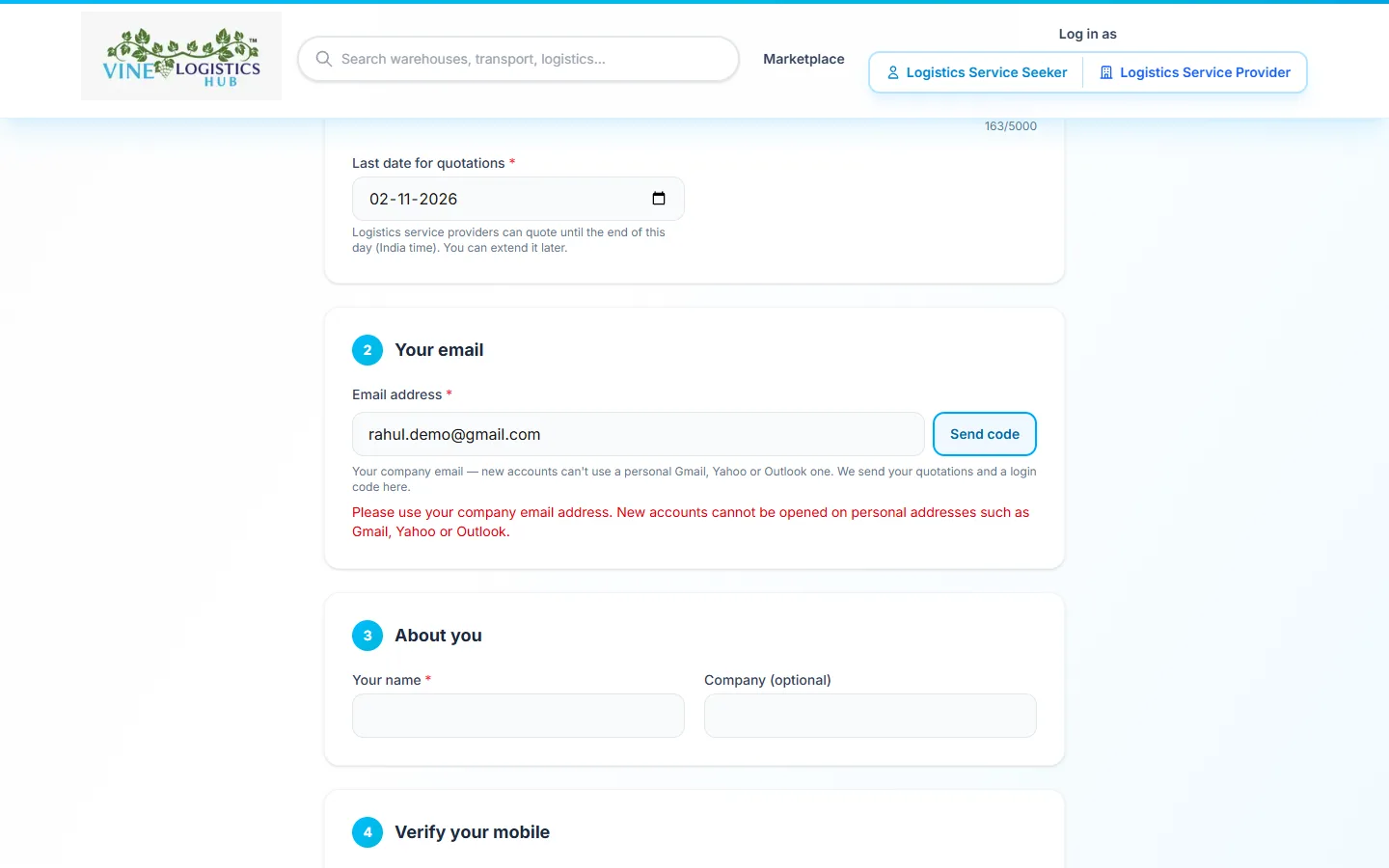
Example: a personal email on a new account.
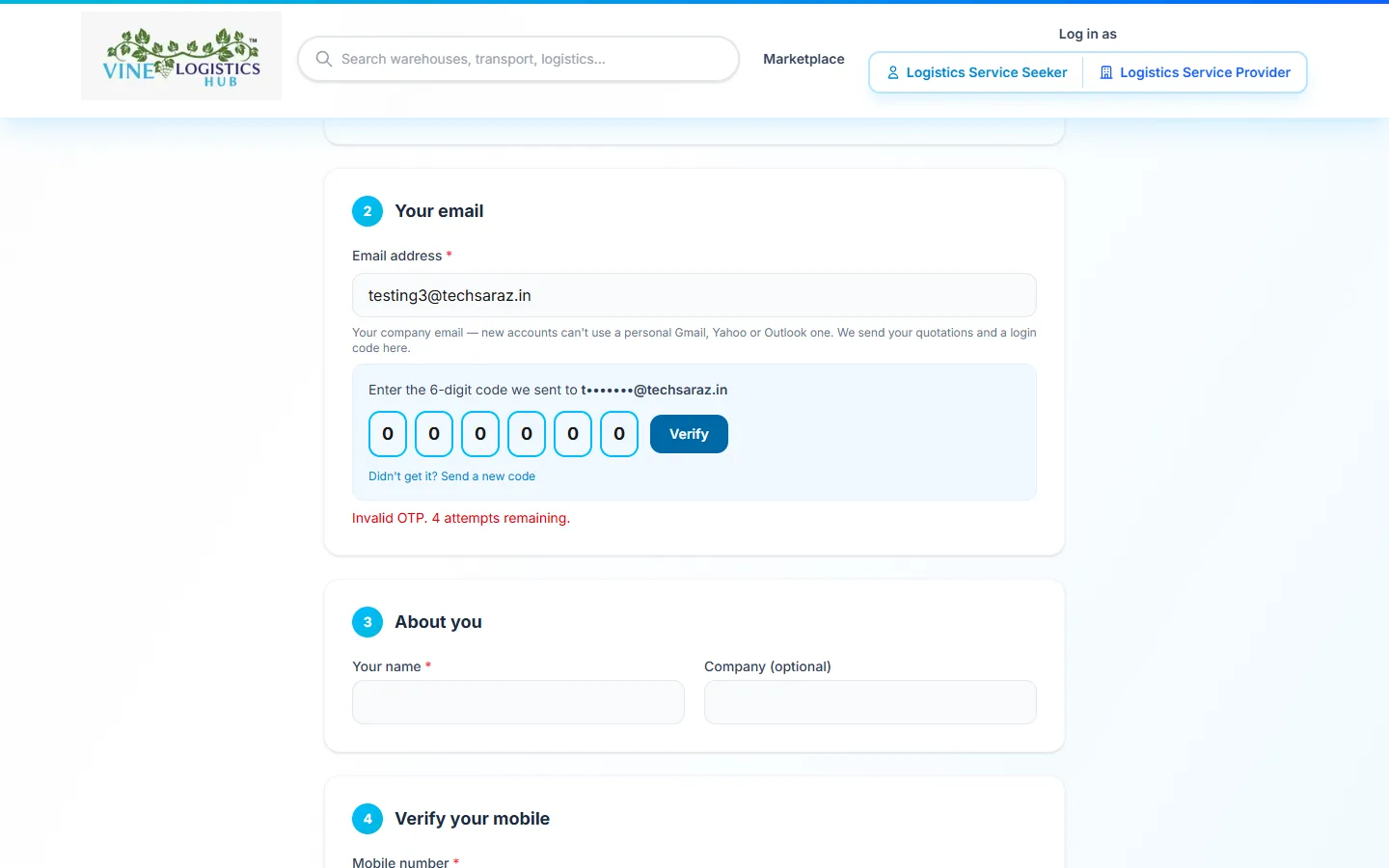
Example: a wrong code.
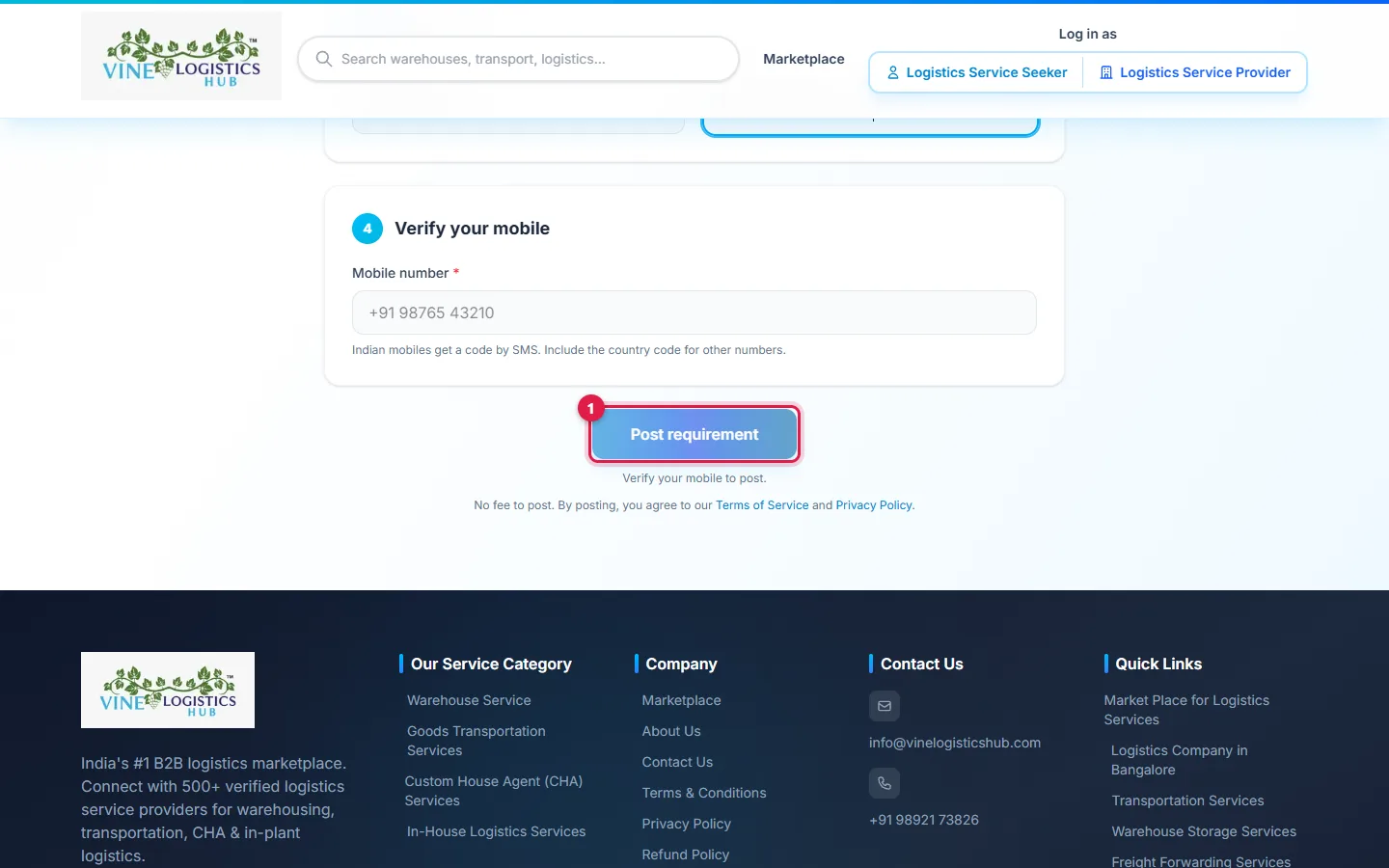
- 1Post requirement stays grey until both codes are verified.
Sign in
Sign in with an email code
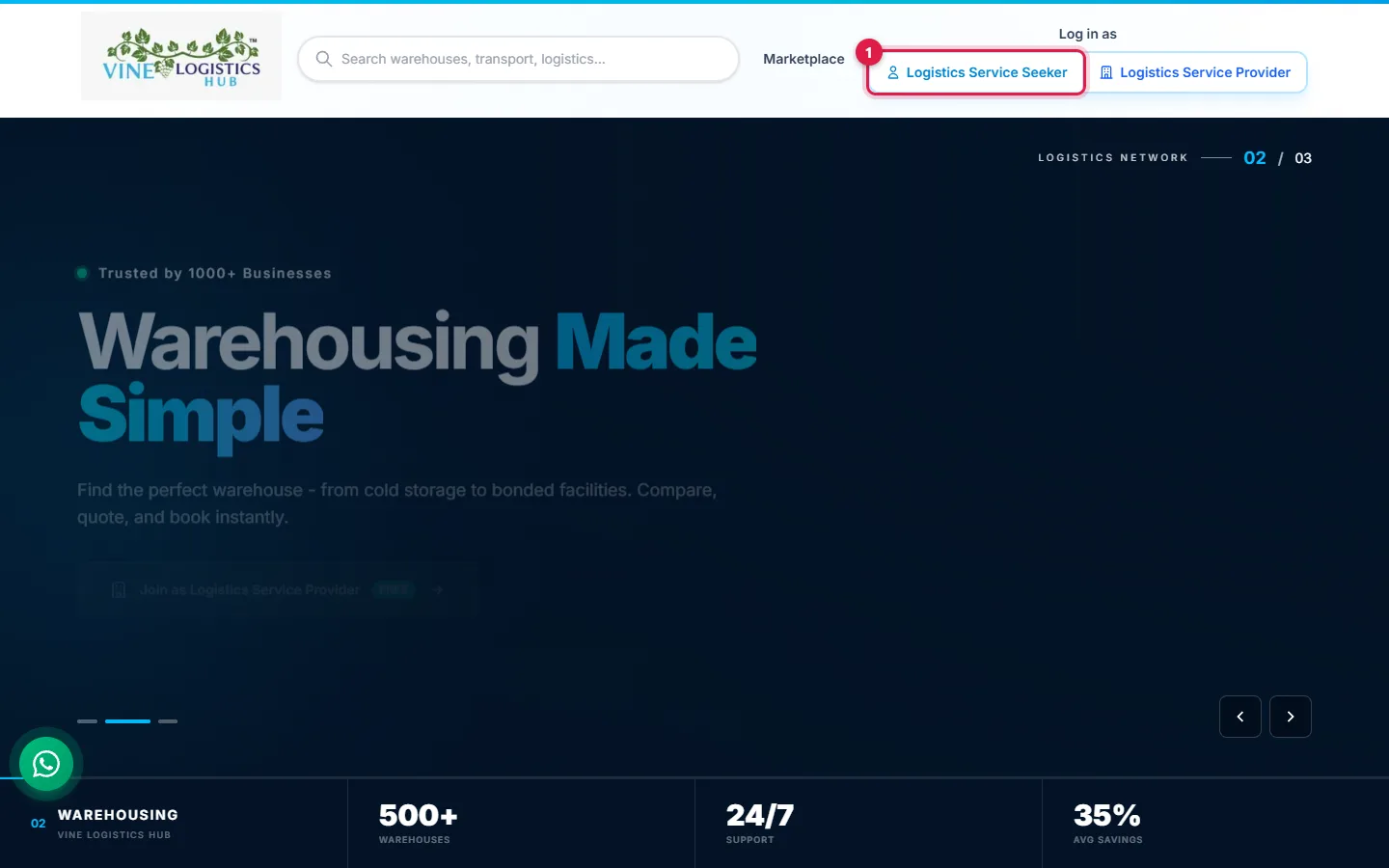
- 1Click Logistics Service Seeker under "Log in as".
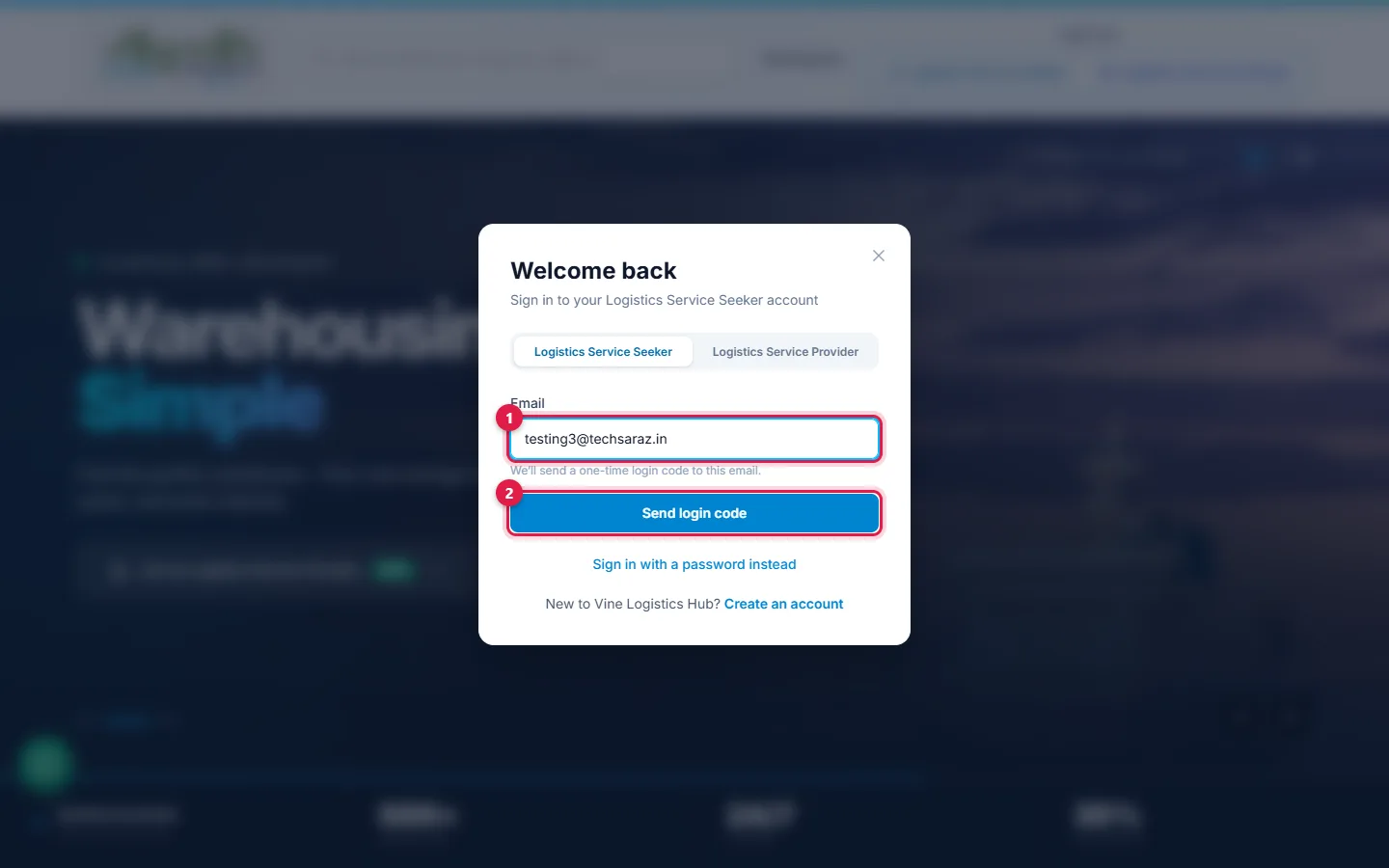
- 1Type your email.
- 2Click Send login code.
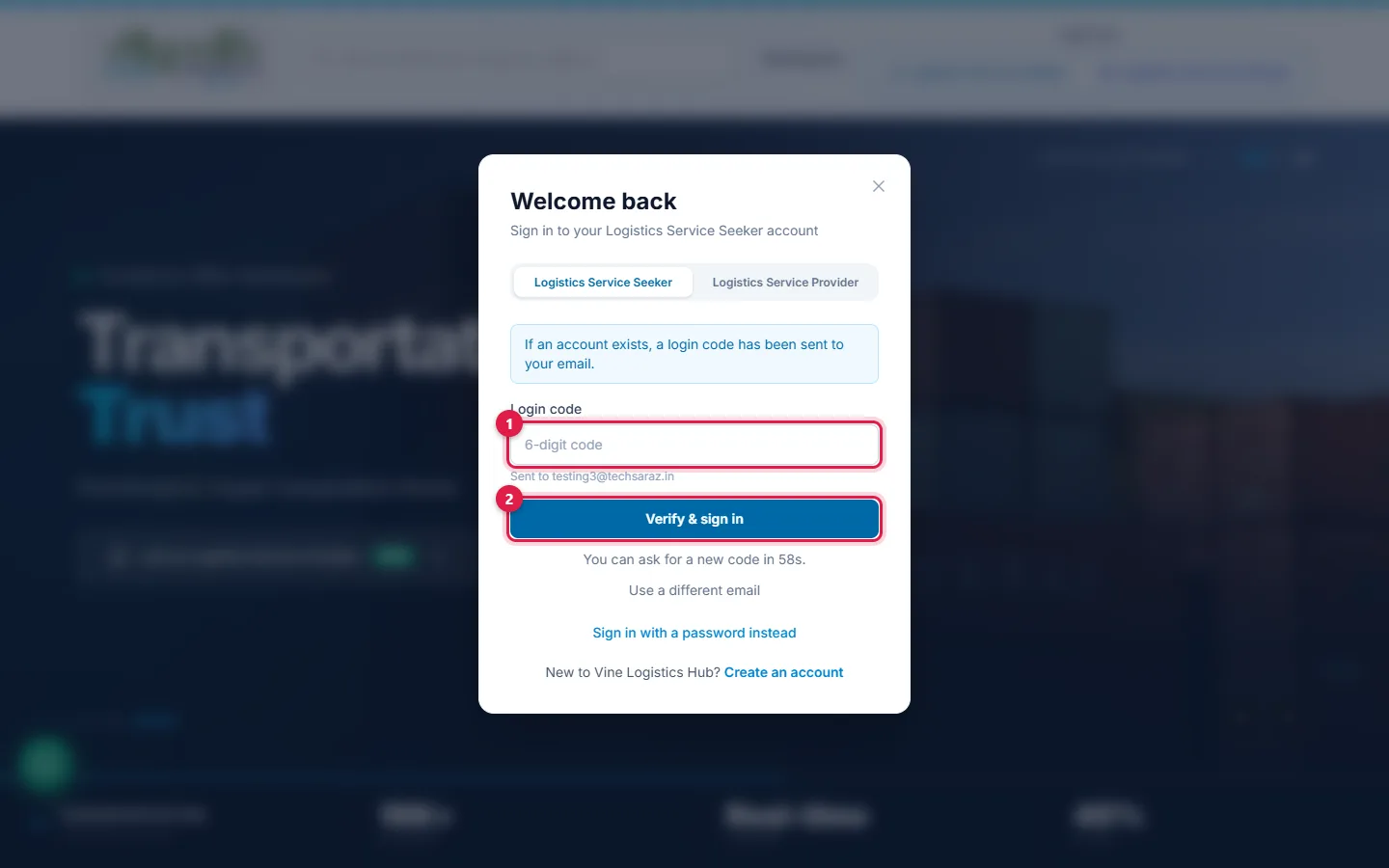
- 1Type the 6-digit code.
- 2Click Verify & sign in.
Set a password (optional)
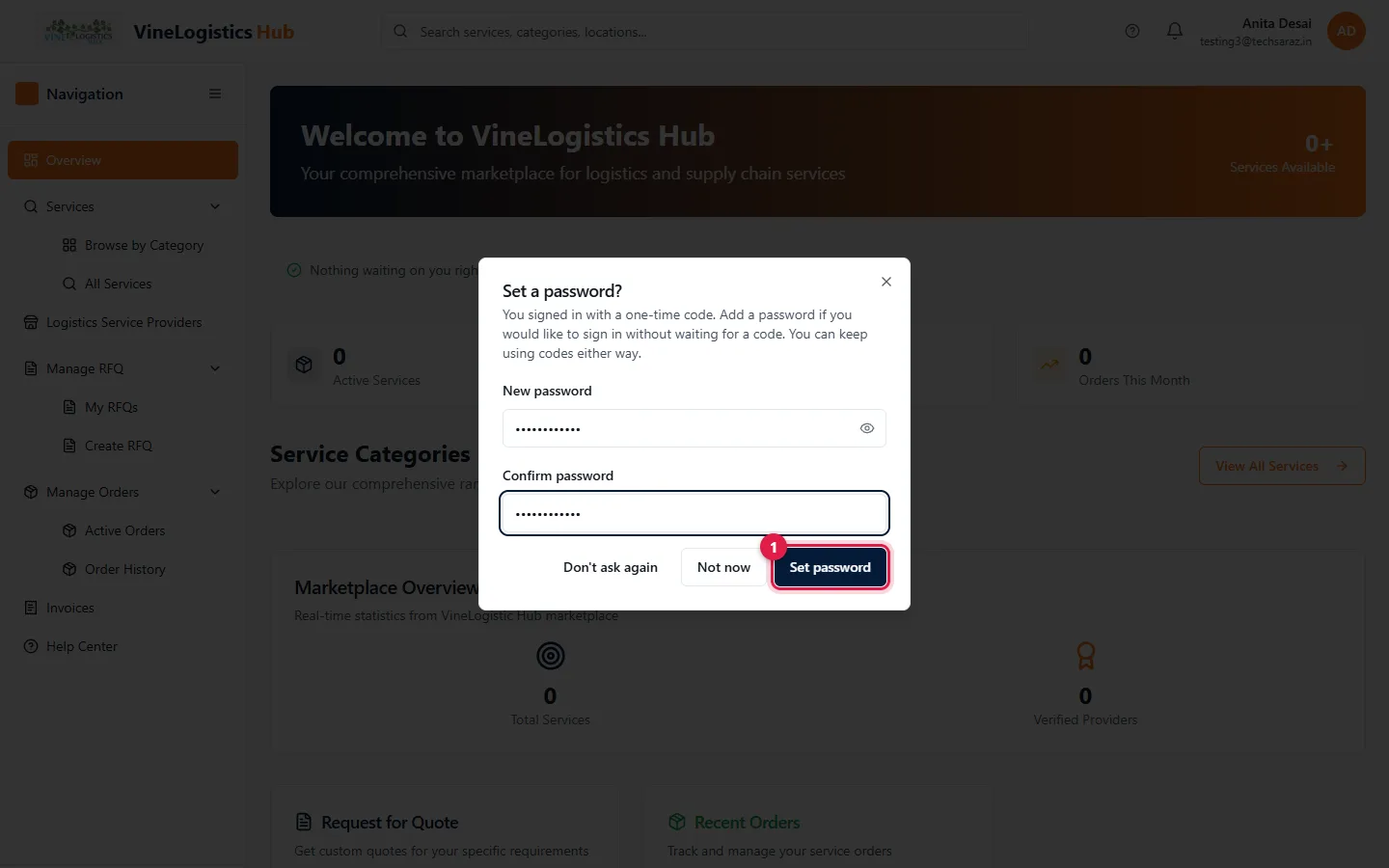
- 1Type the password twice and click Set password. Click Not now to skip.
Sign in with a password
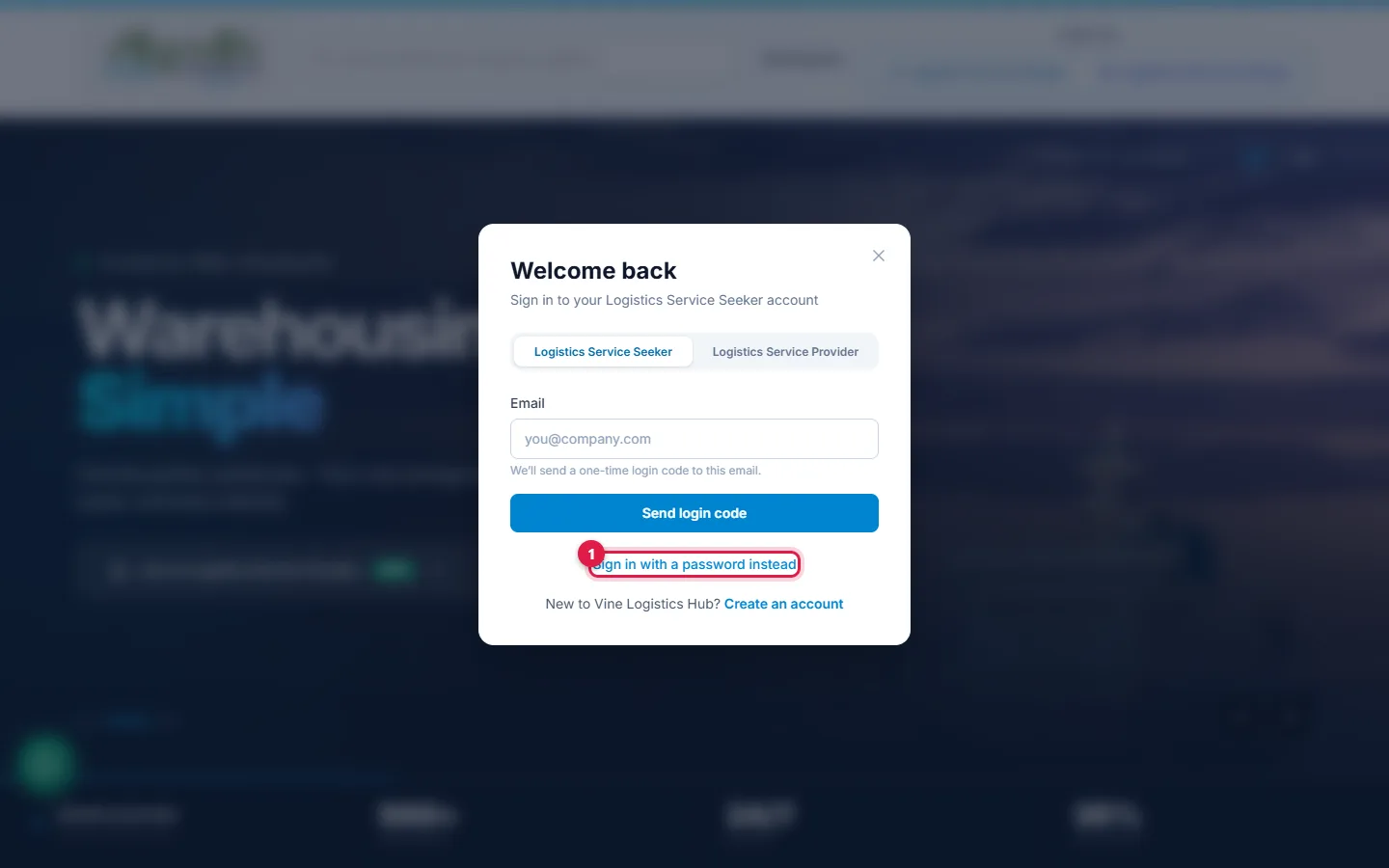
- 1Click Sign in with a password instead.
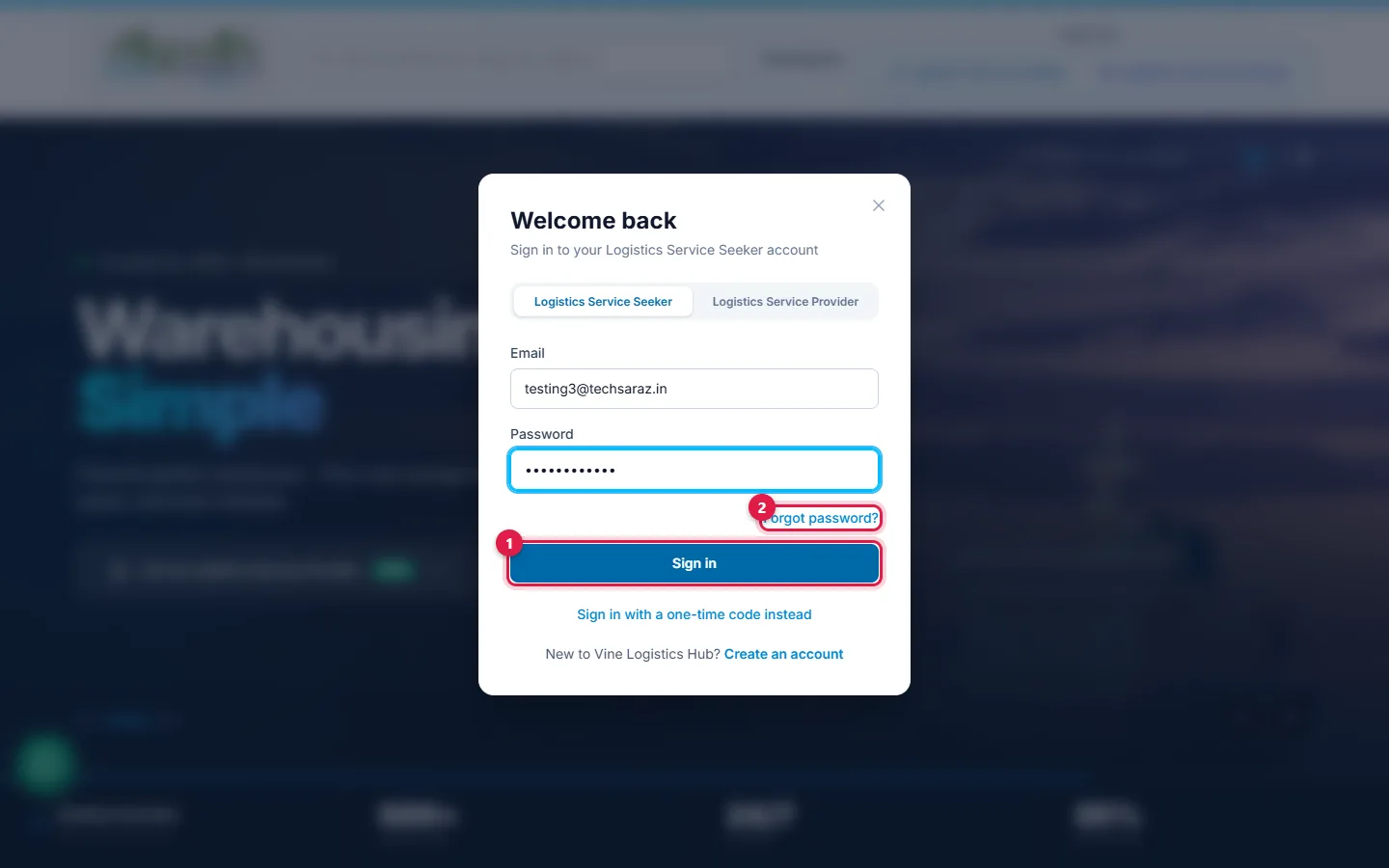
- 1Type email and password, then click Sign in.
- 2Forgot it? Click Forgot password?.
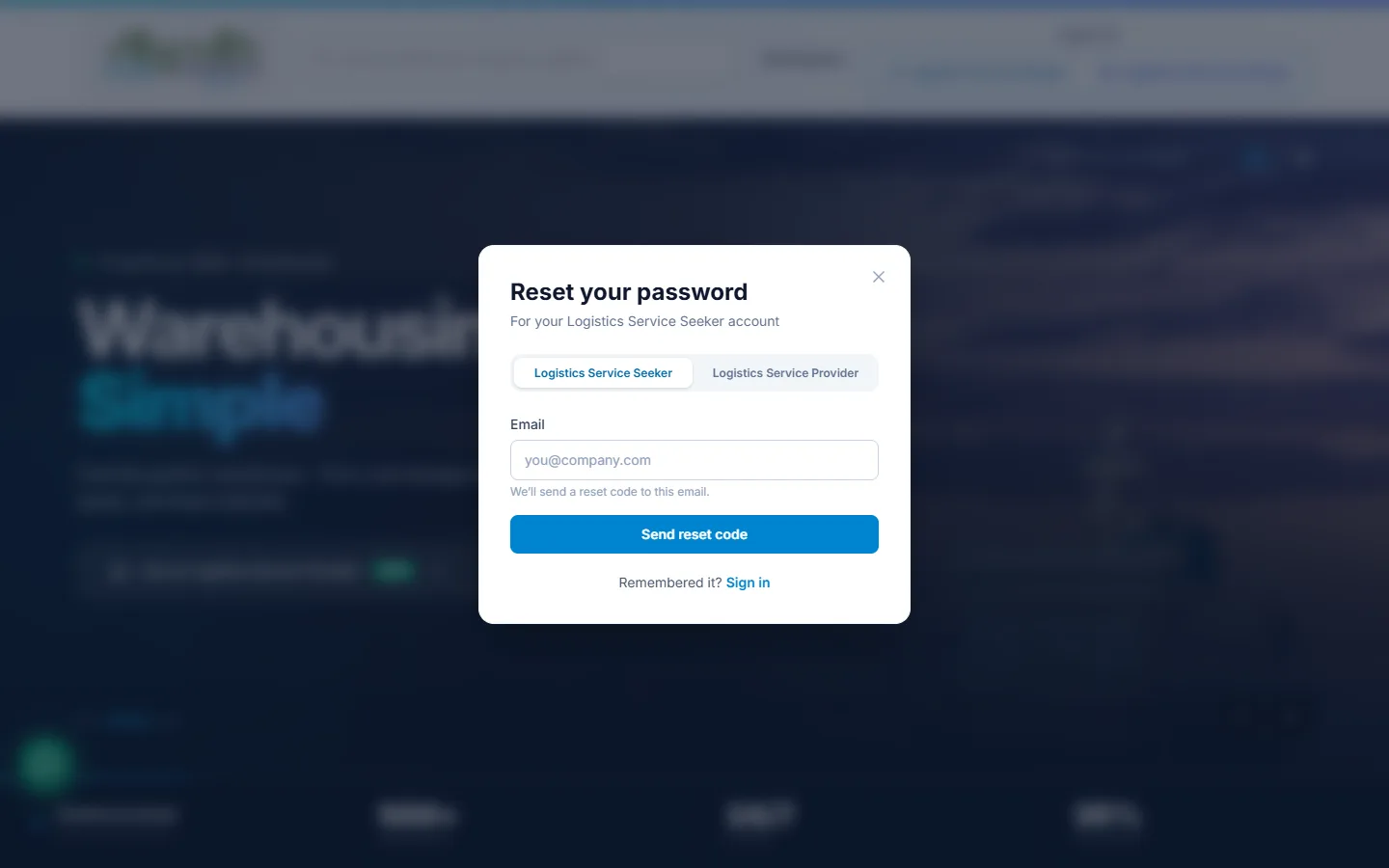
Type your email. We send a reset code, then you choose a new password.
Posting again later
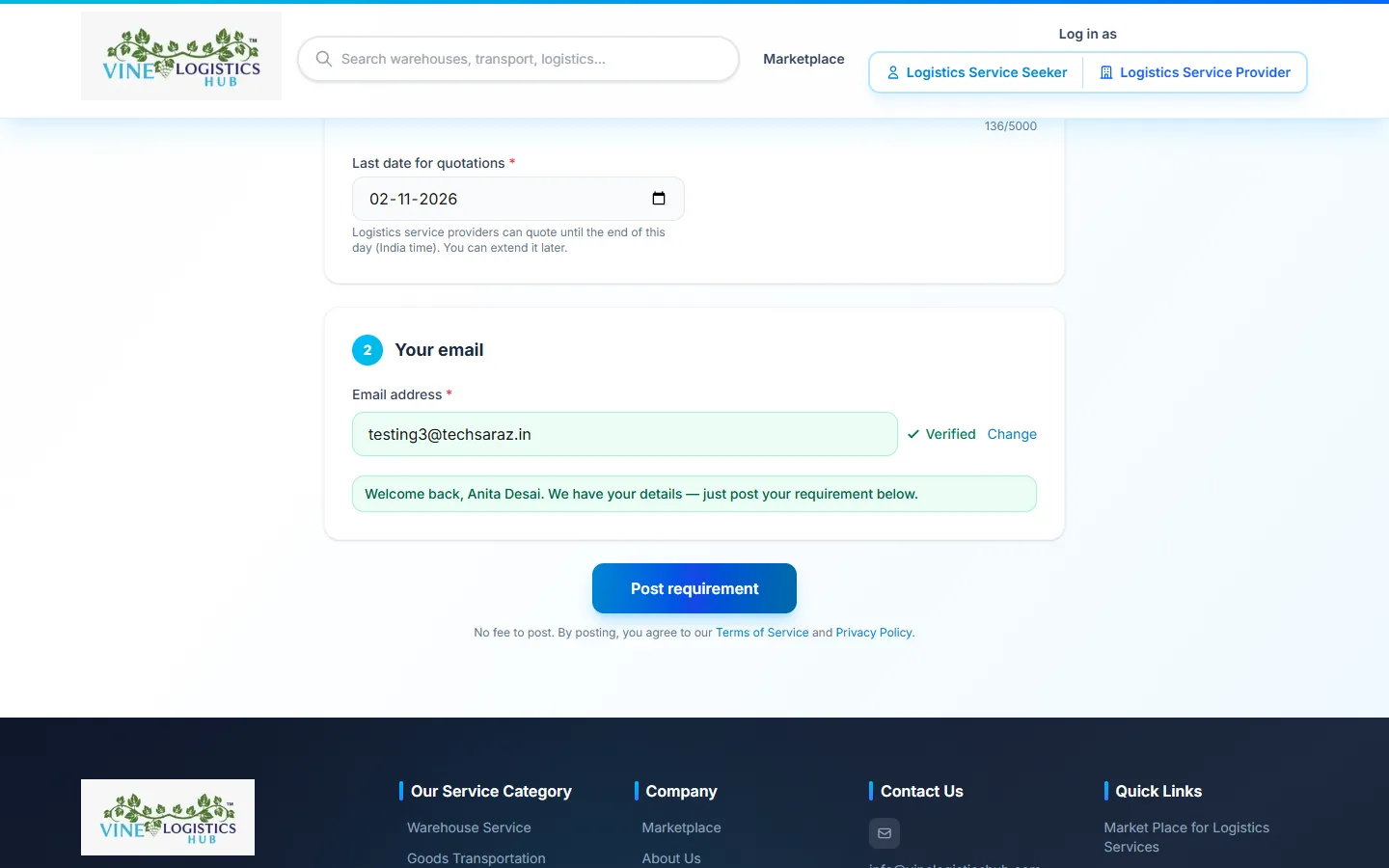
Type your email and the email code. You see Welcome back. No name or mobile needed.
| You are | Email code | Mobile code | Password |
|---|---|---|---|
| Posting the first time | Required | Required | Not needed |
| Posting again | Required | Not asked | Not needed |
| Signing in to the dashboard | Email code or | Not asked | Password, if set |
Track your quotations
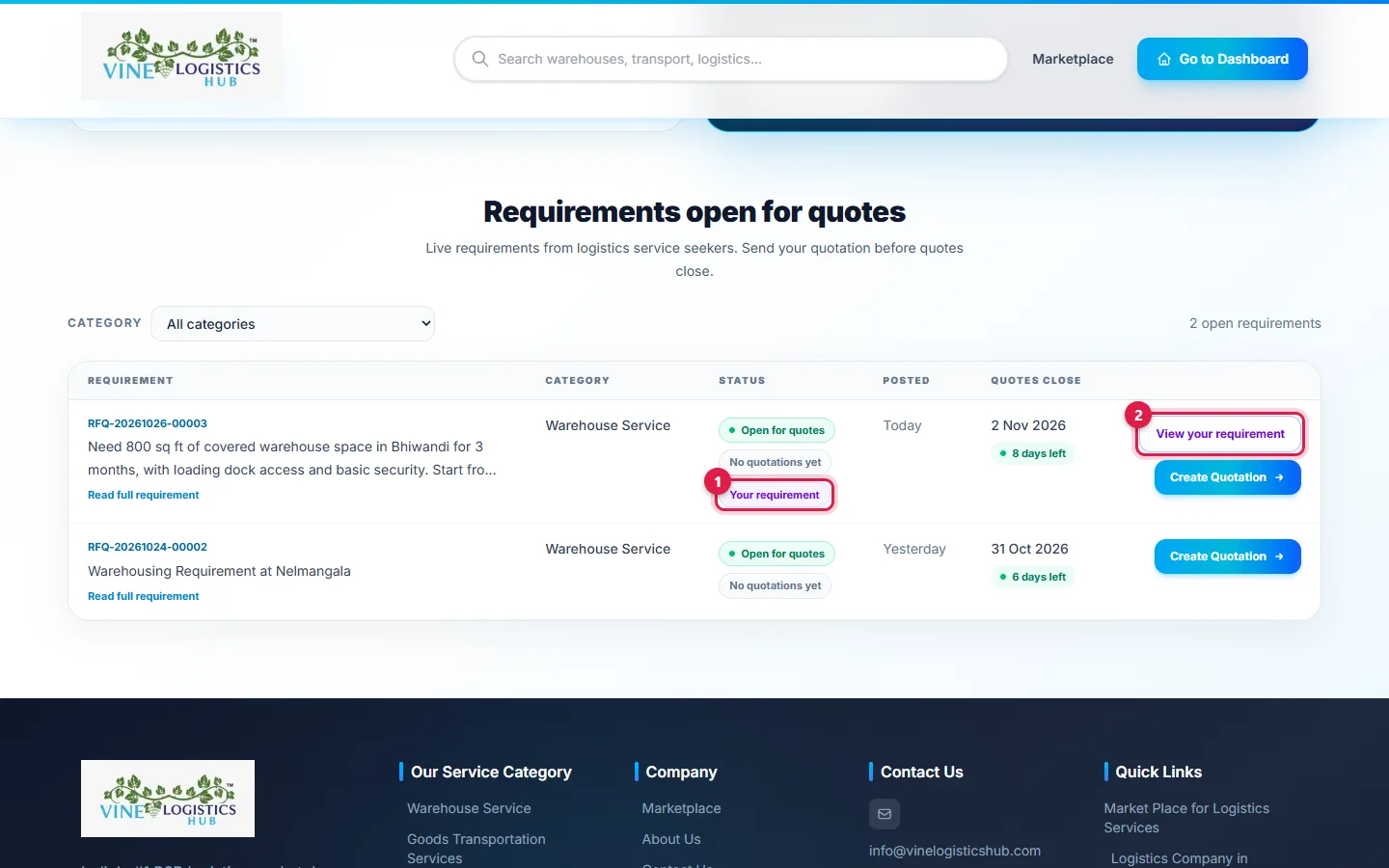
- 1Your requirement carries a Your requirement tag. The status shows No quotations yet or a count.
- 2Click View your requirement (or View quotations).
You also get an email "Quotation received for RFQ-…" with a View quotation button. Quotations appear only after our team has checked them.
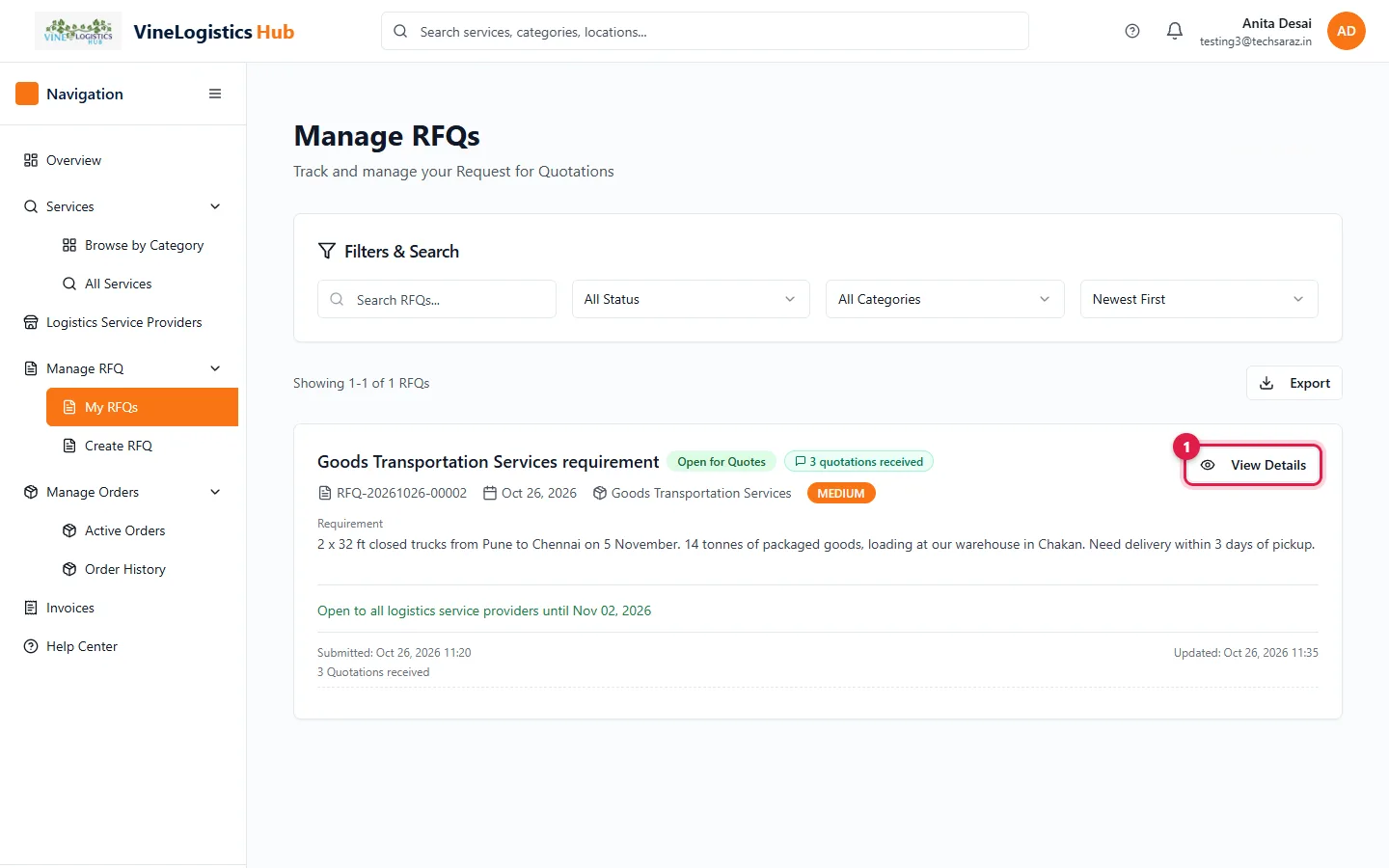
- 1In the dashboard open Manage RFQ → My RFQs, then click View Details.
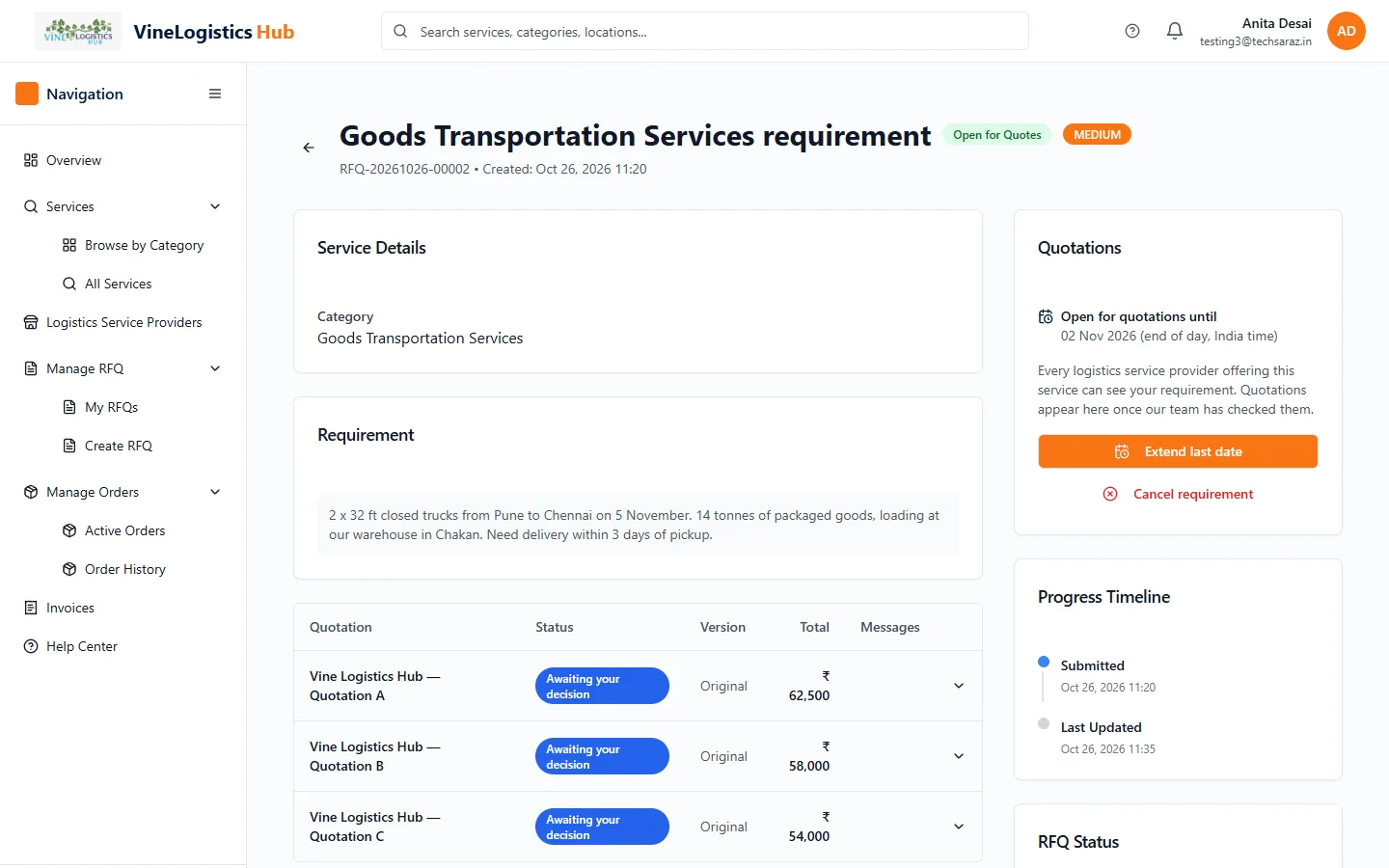
All quotations are listed here as "Vine Logistics Hub — Quotation A, B, C".
Review a quotation
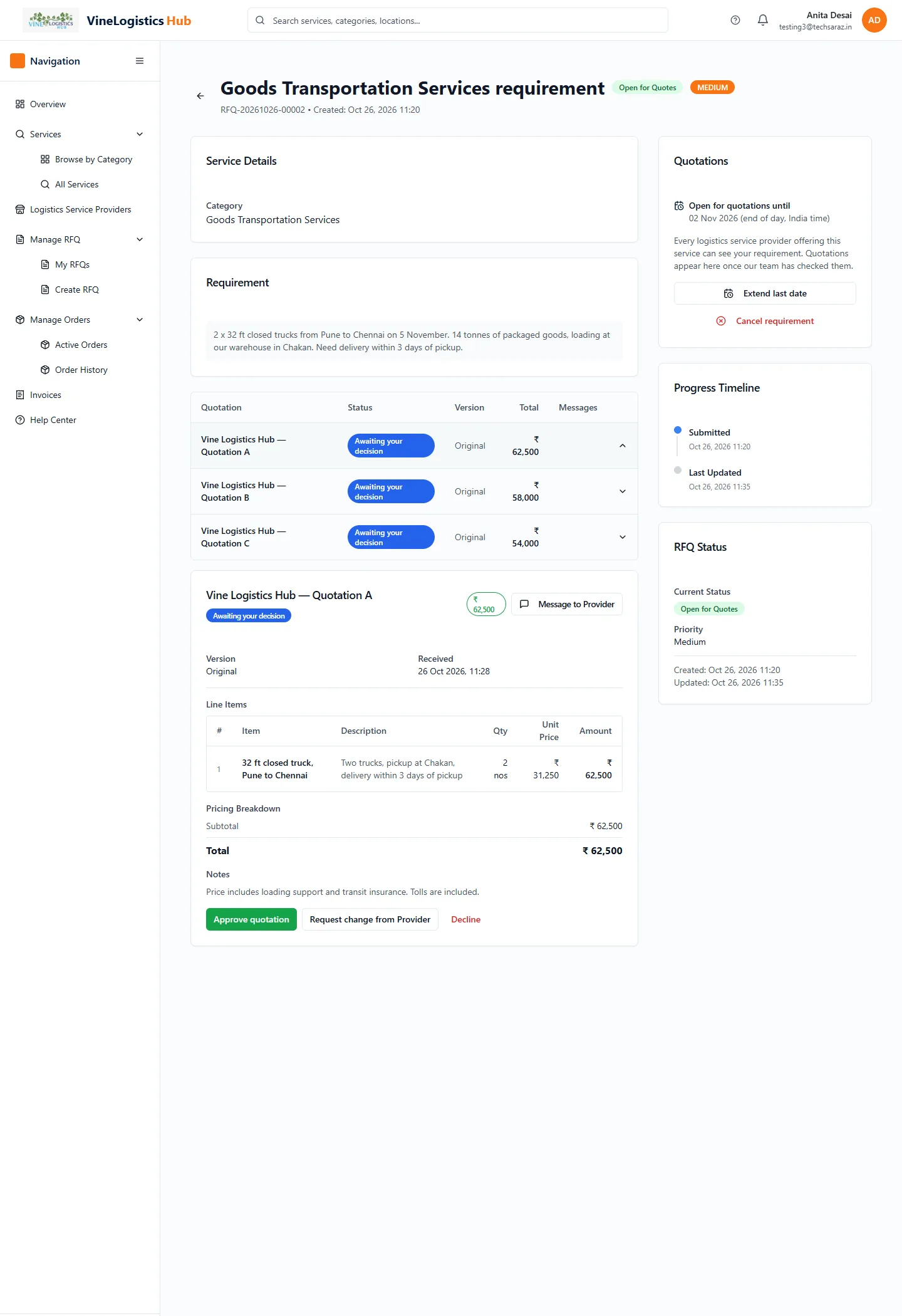
Click a quotation row to open it. Read the Line Items, Pricing Breakdown and Notes. Revision 1 and Earlier versions show changes.
| Badge | Meaning |
|---|---|
| Awaiting your decision | Approve, ask for changes or decline. |
| Changes requested / in progress | Your request is with our team or the provider. |
| Approved / Declined / Closed | Final. Closed means another quotation was approved. |
Chat with a provider
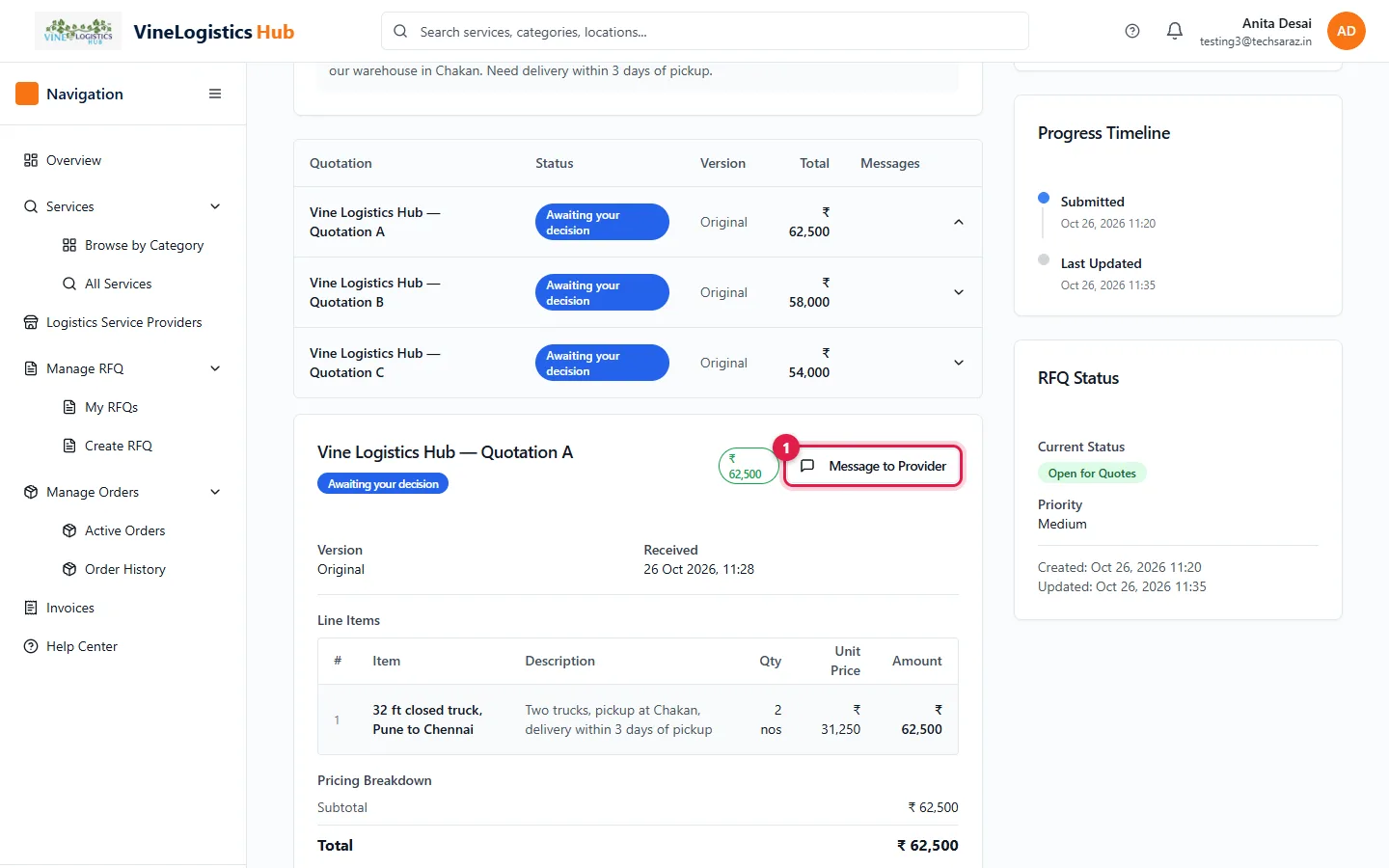
- 1Open a quotation and click Message to Provider.
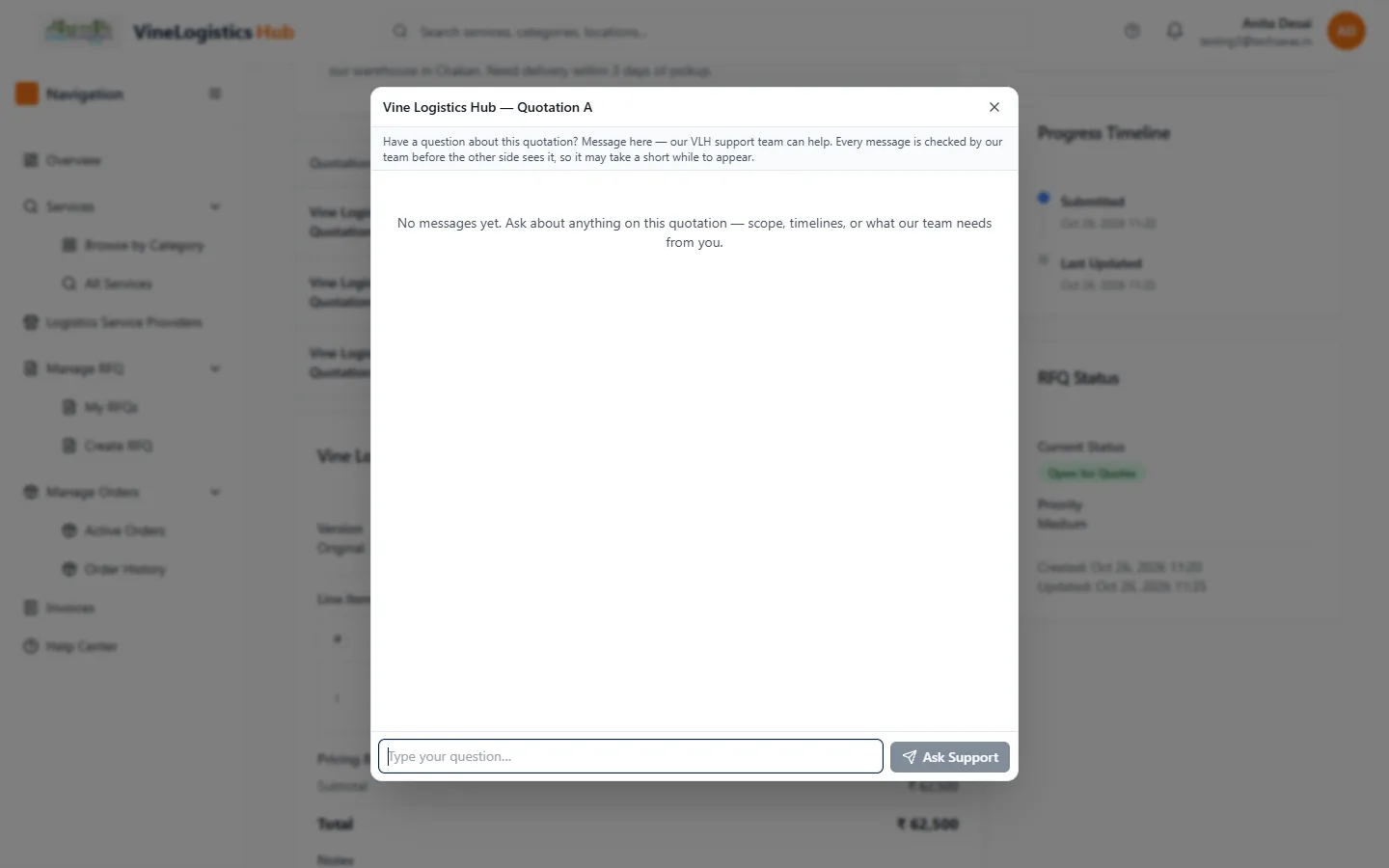
The chat window opens.
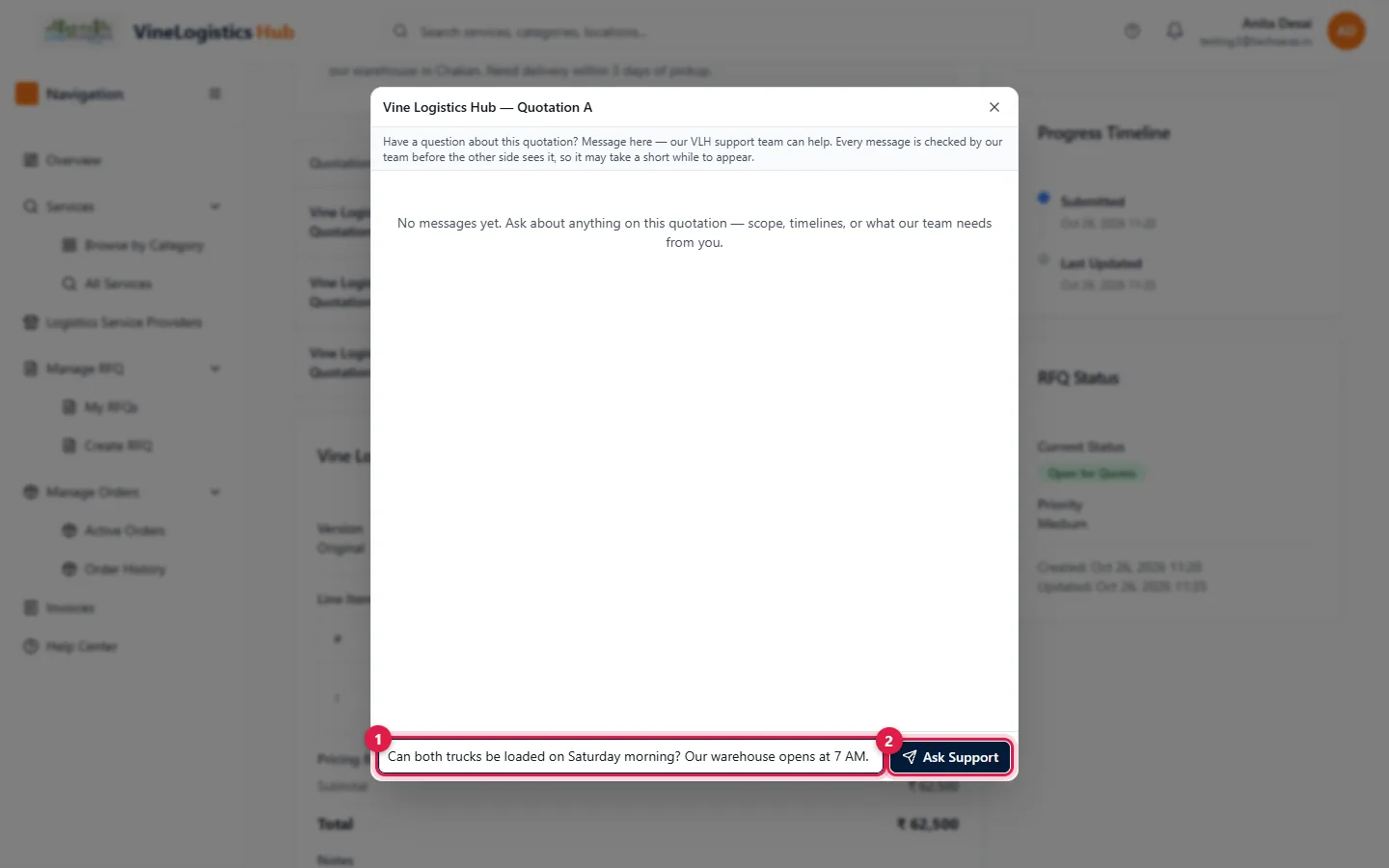
- 1Type your question.
- 2Click Ask Support.
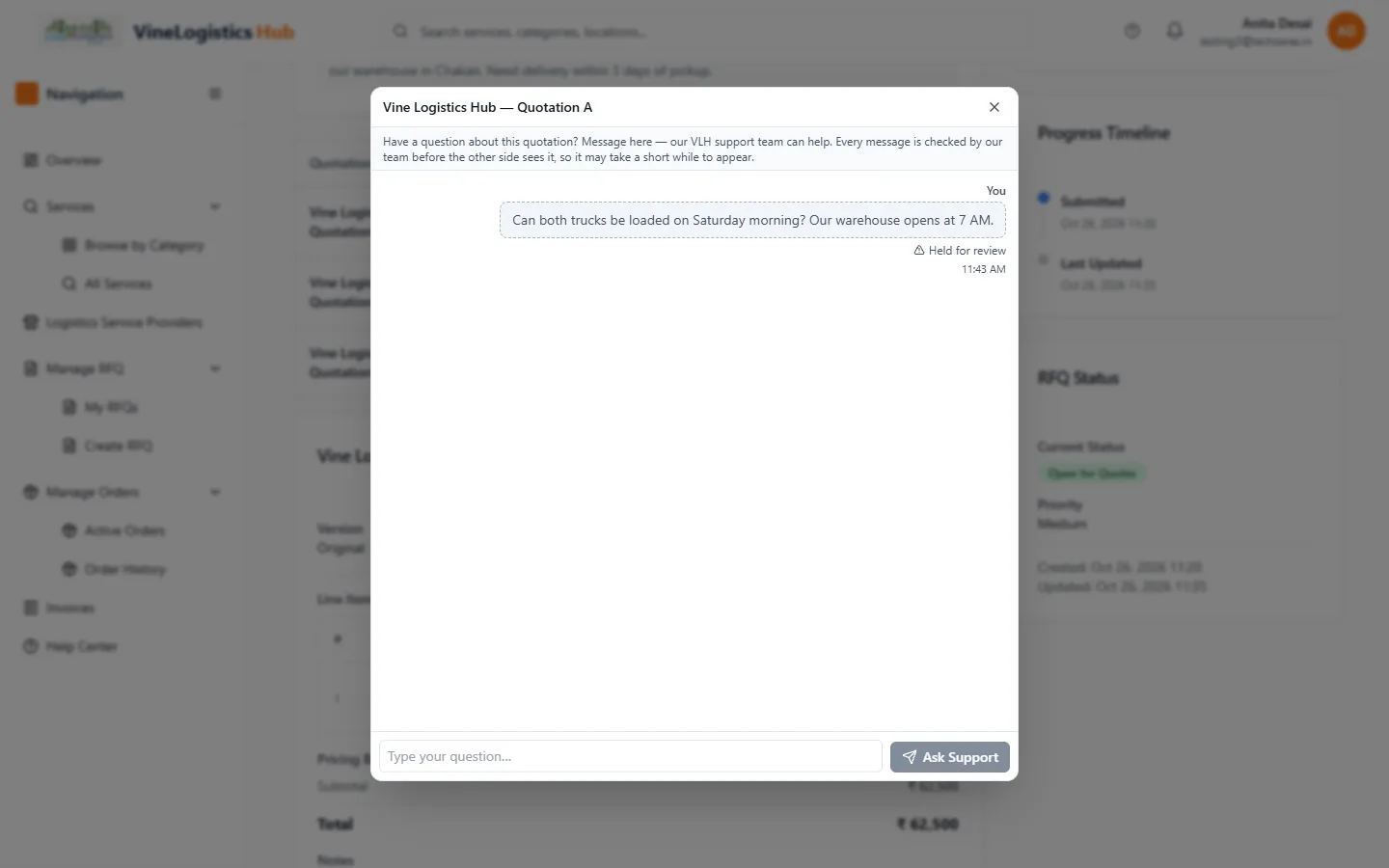
Held for review: our team checks every message first.
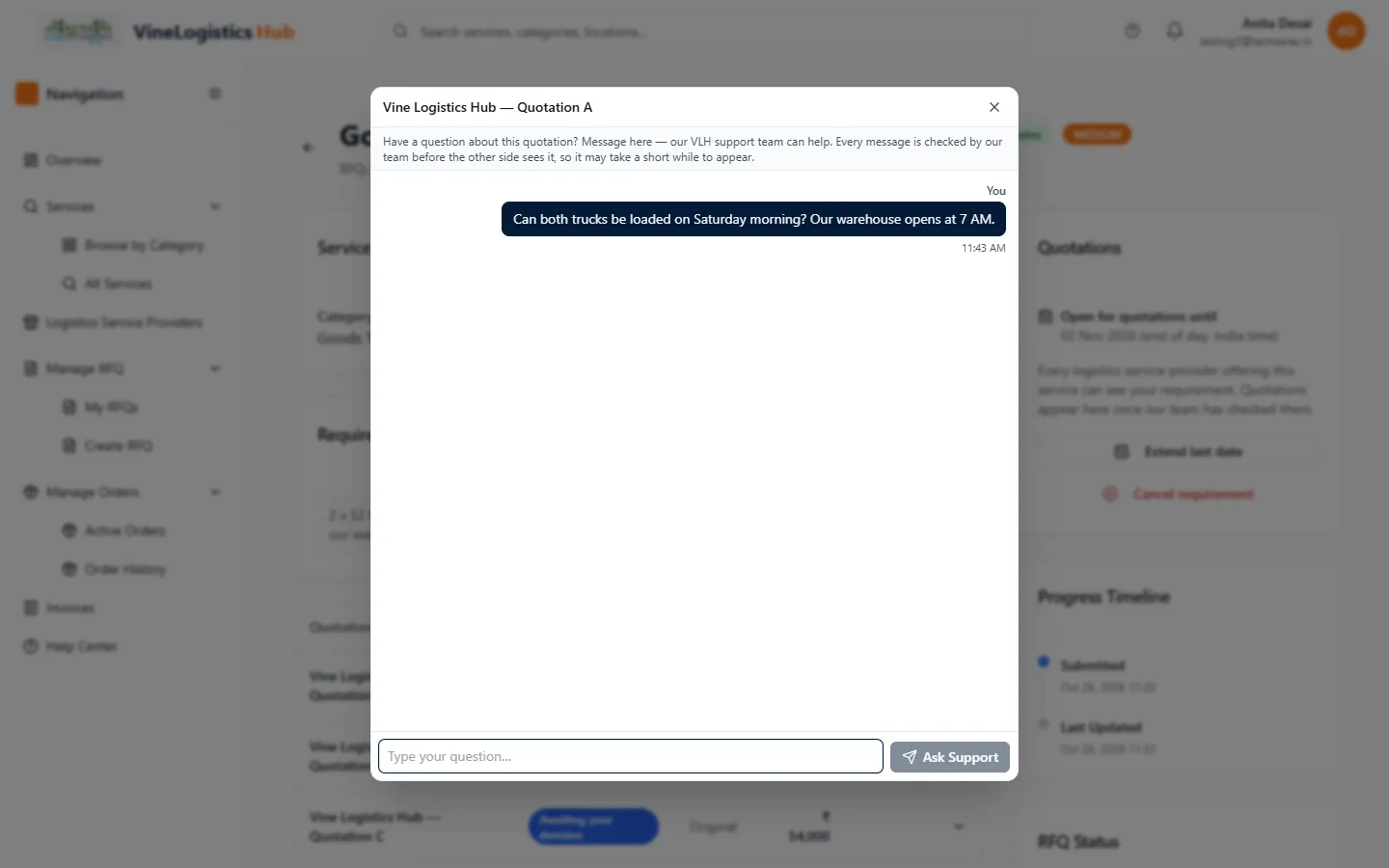
After release the message is in the thread. Replies appear the same way.
Ask for changes
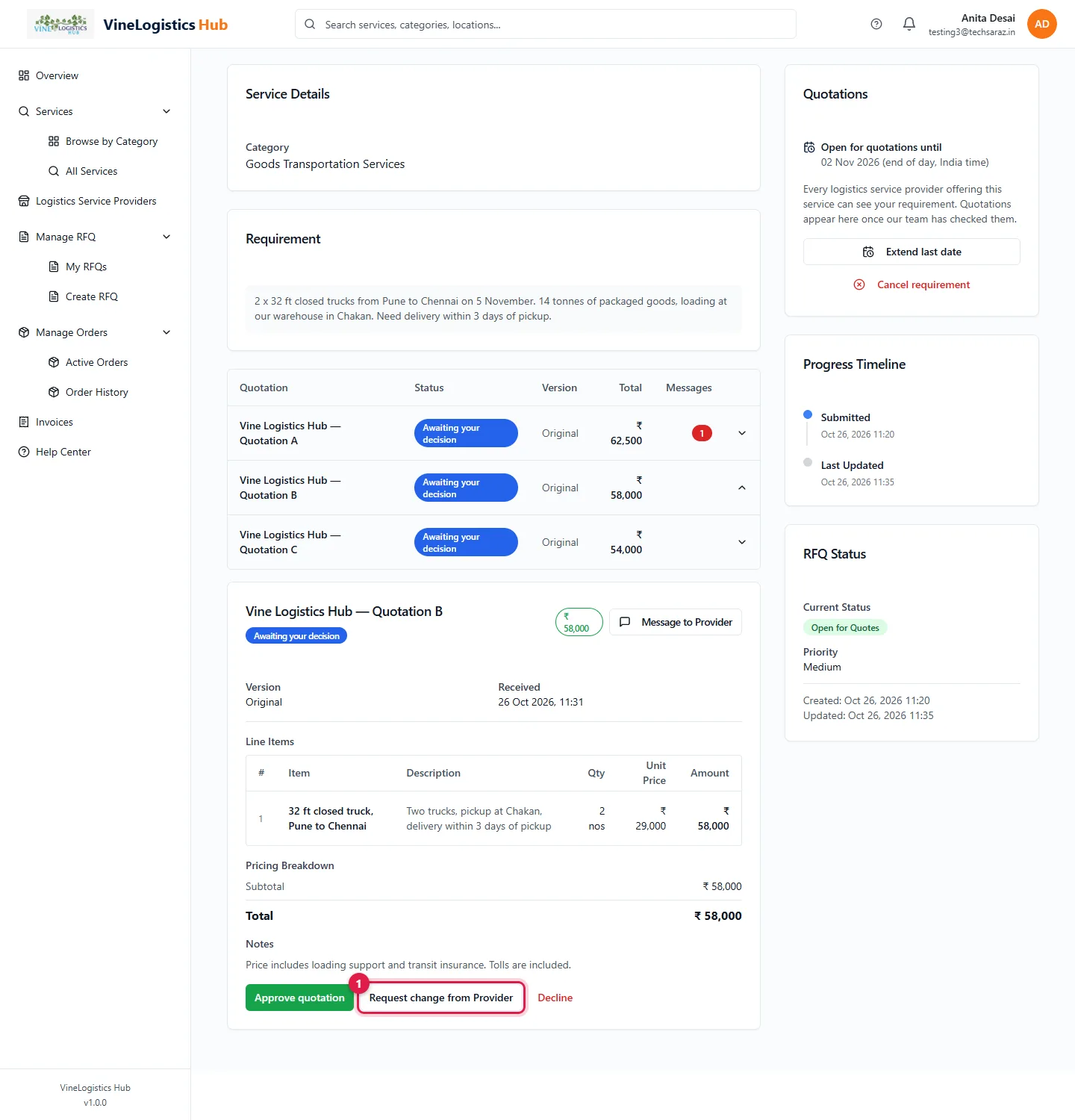
- 1Open the quotation and click Request change from Provider.
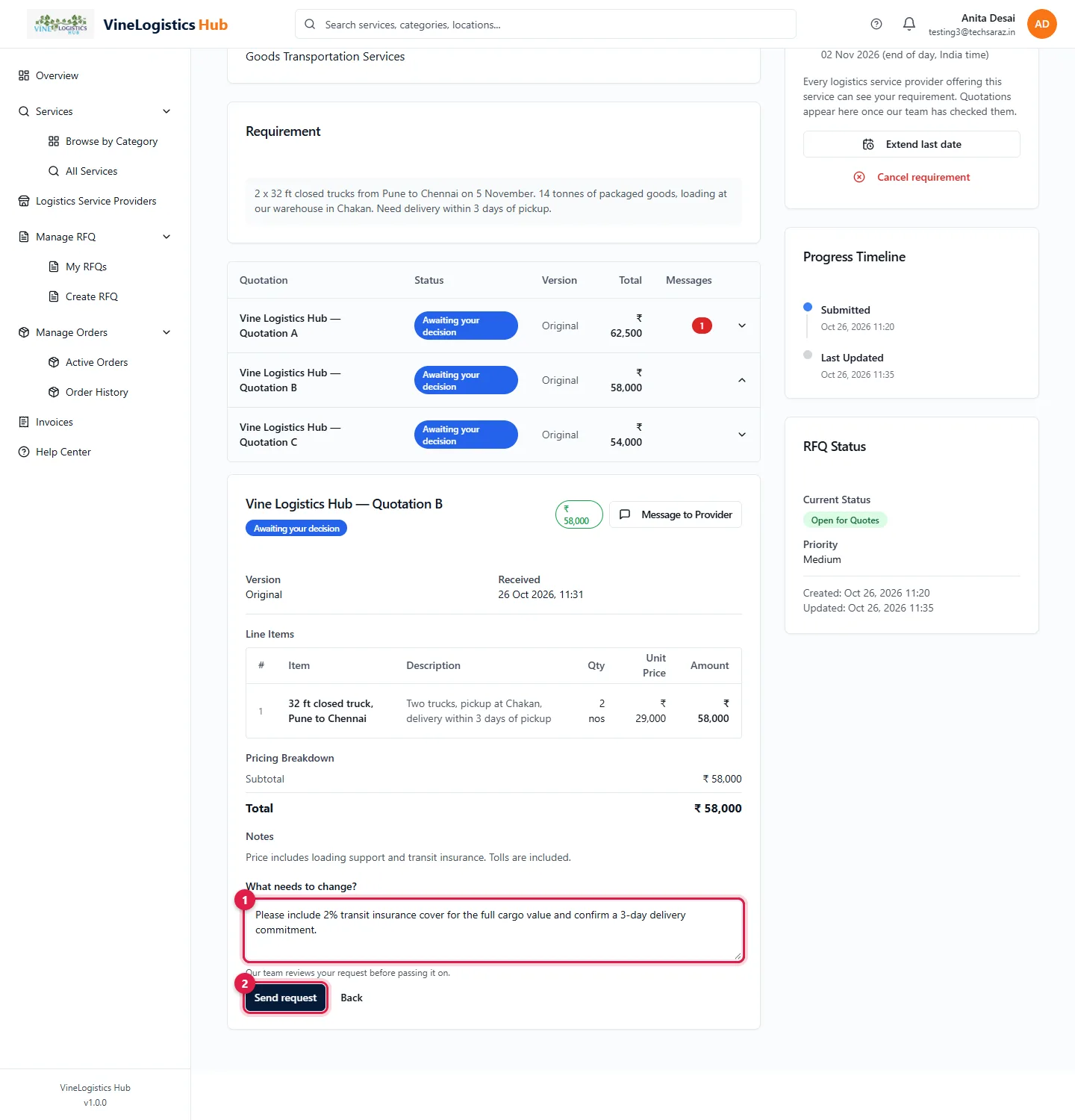
- 1Write what must change (10 to 2000 characters).
- 2Click Send request.
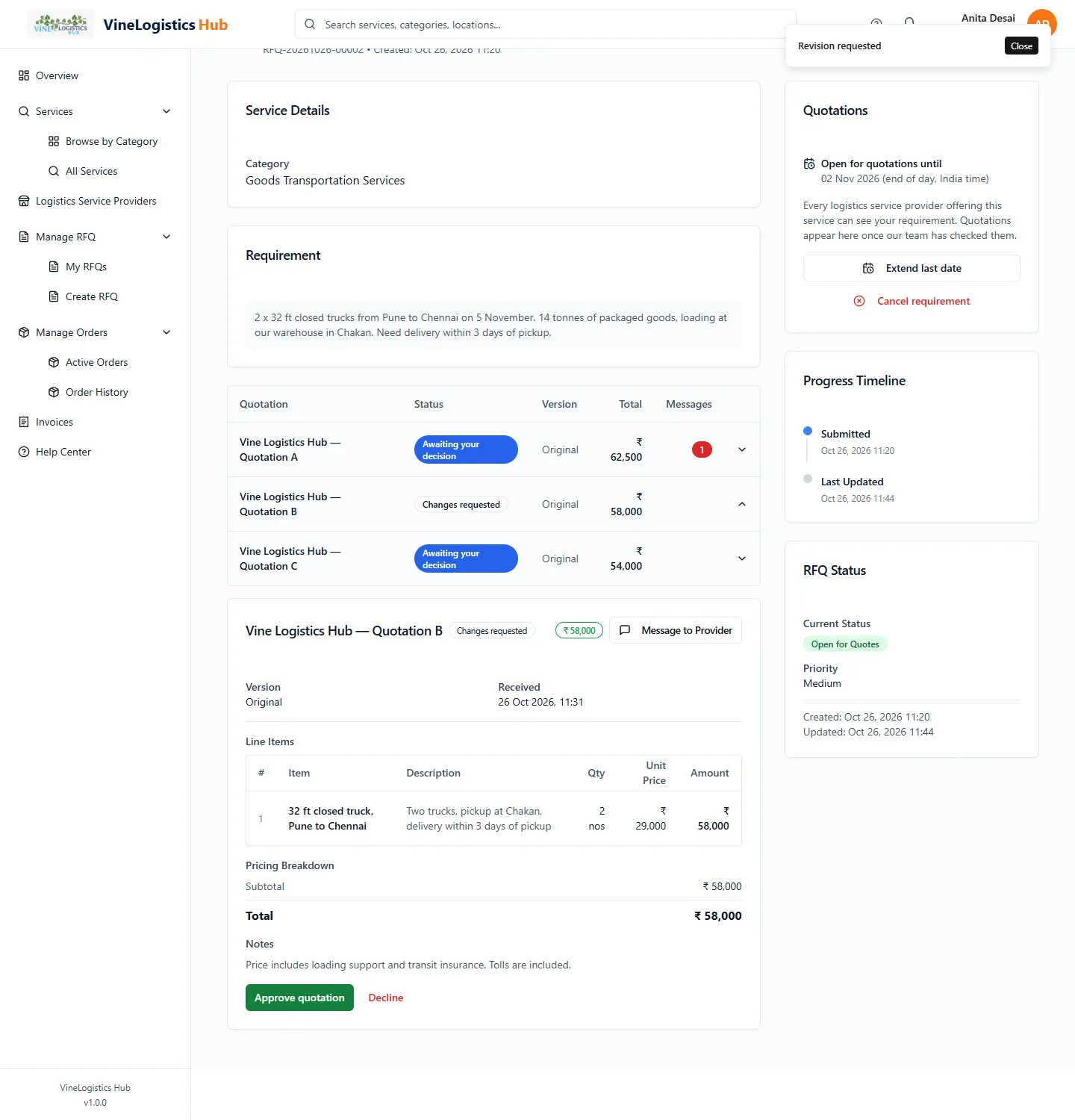
Status becomes Changes requested. Our team passes it to the provider. You get an email when the revised quotation is ready.
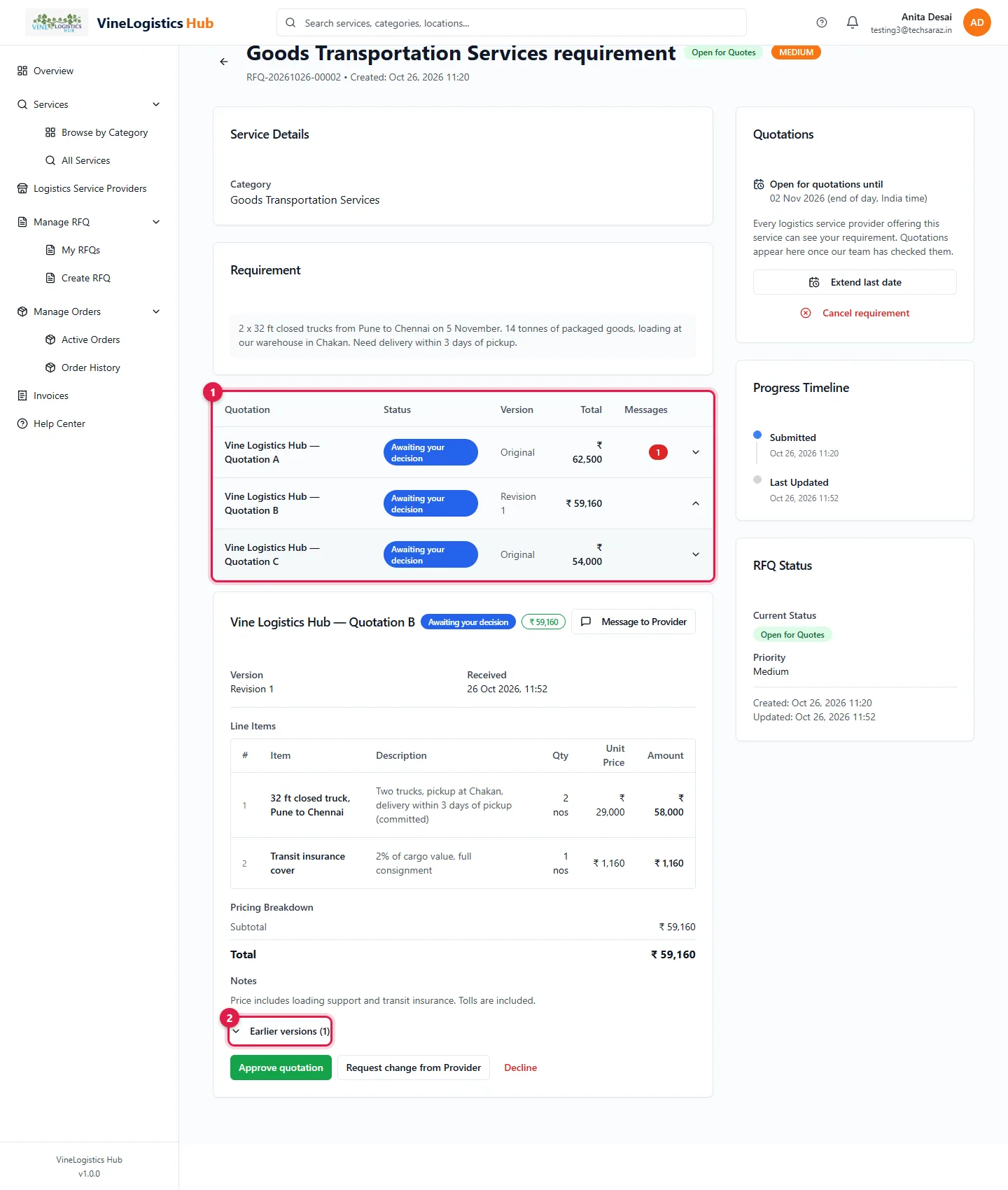
- 1The quotation now shows Revision 1 and the new total.
- 2Click Earlier versions to compare.
Decline and approve
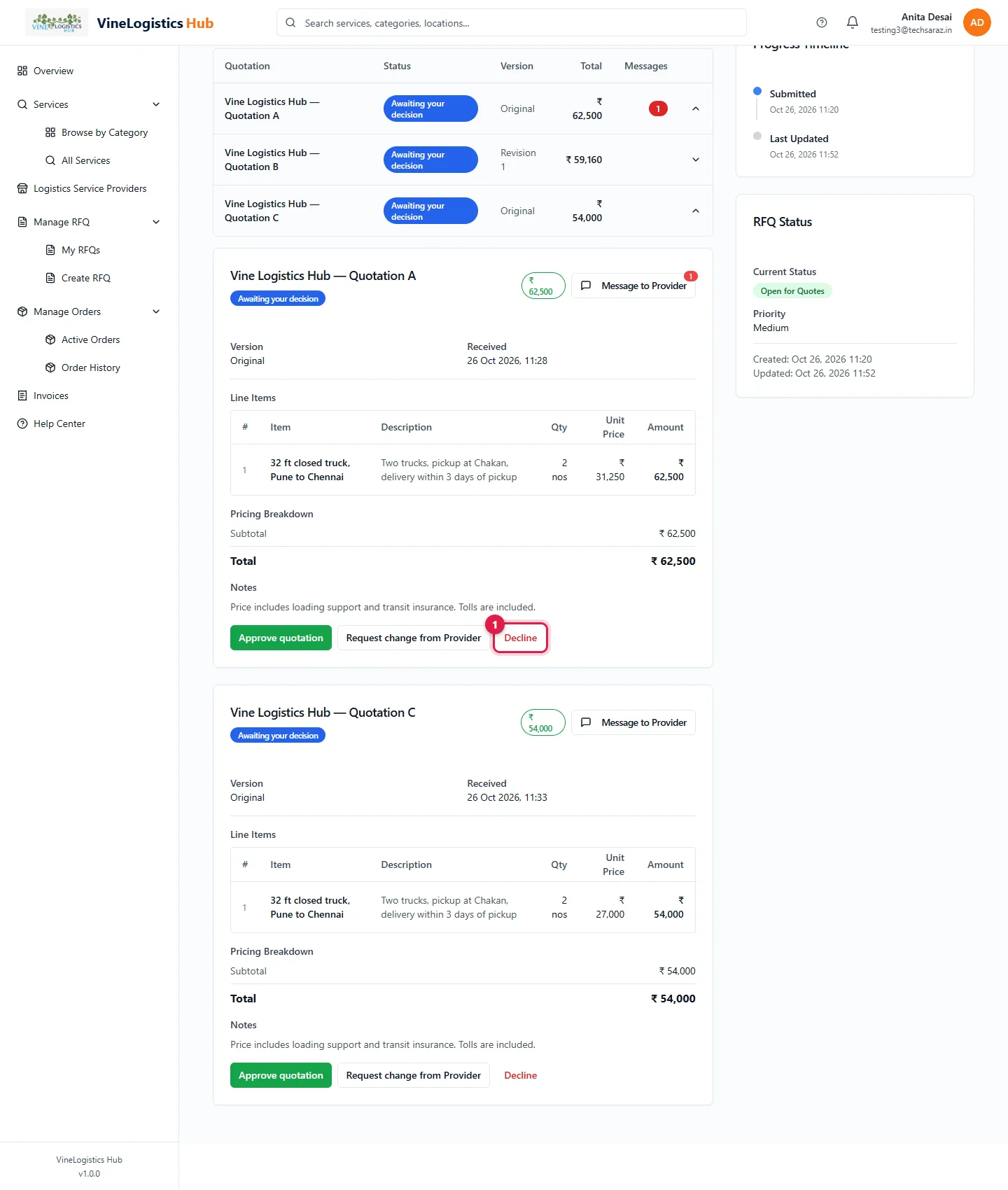
- 1Click Decline on a quotation you do not want.
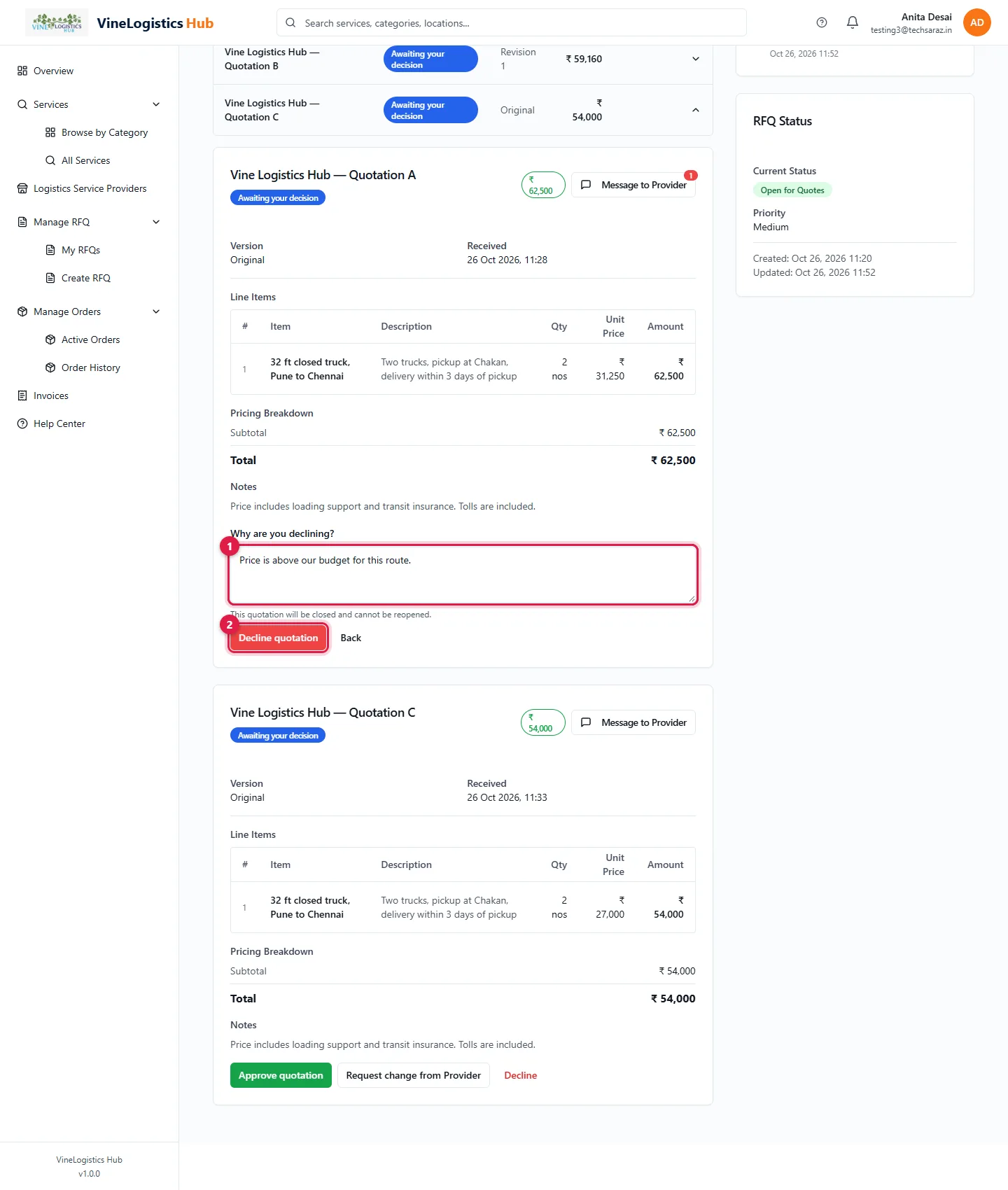
- 1Write a reason (at least 10 characters).
- 2Click Decline quotation.
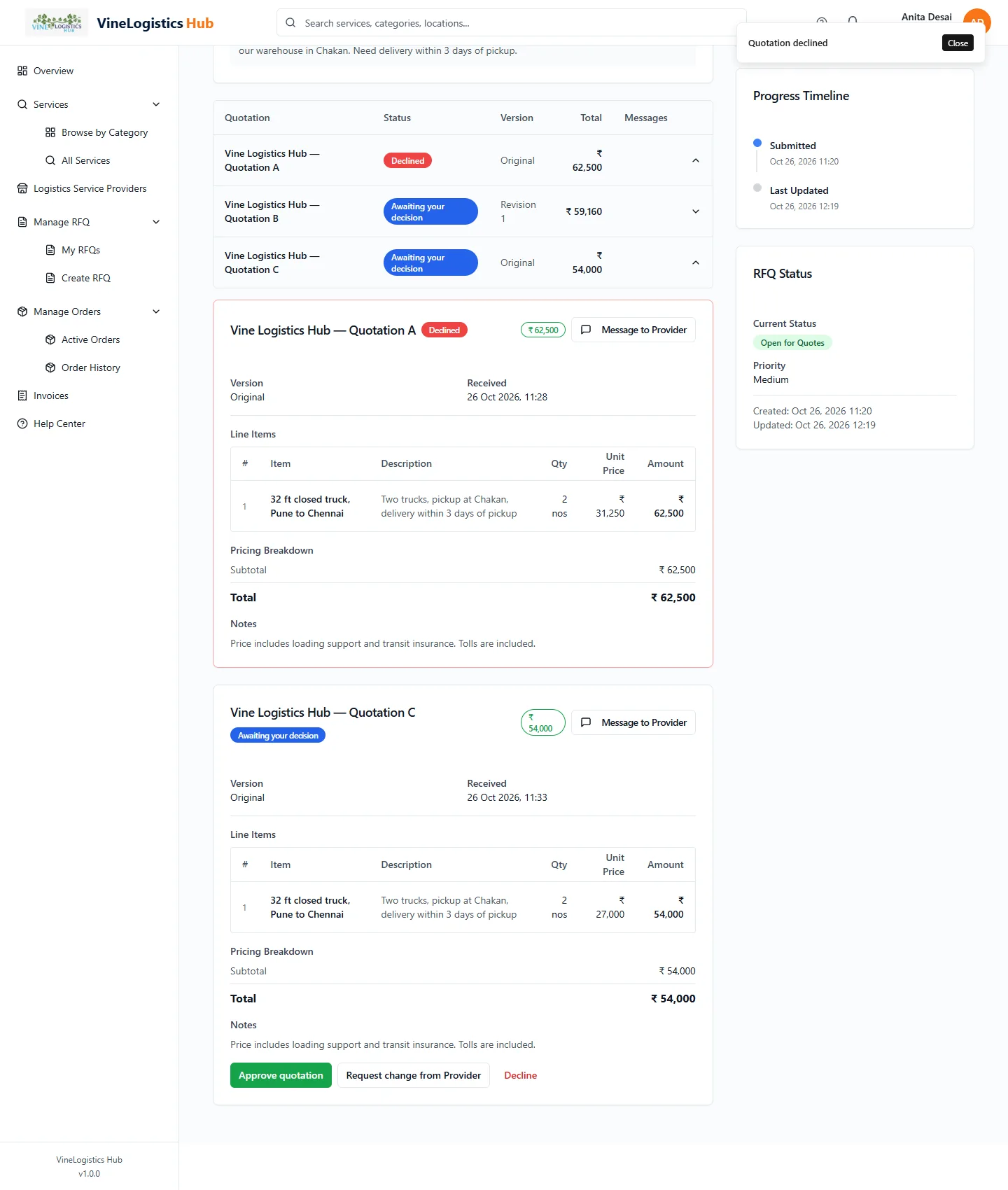
The badge turns red: Declined. This cannot be undone.
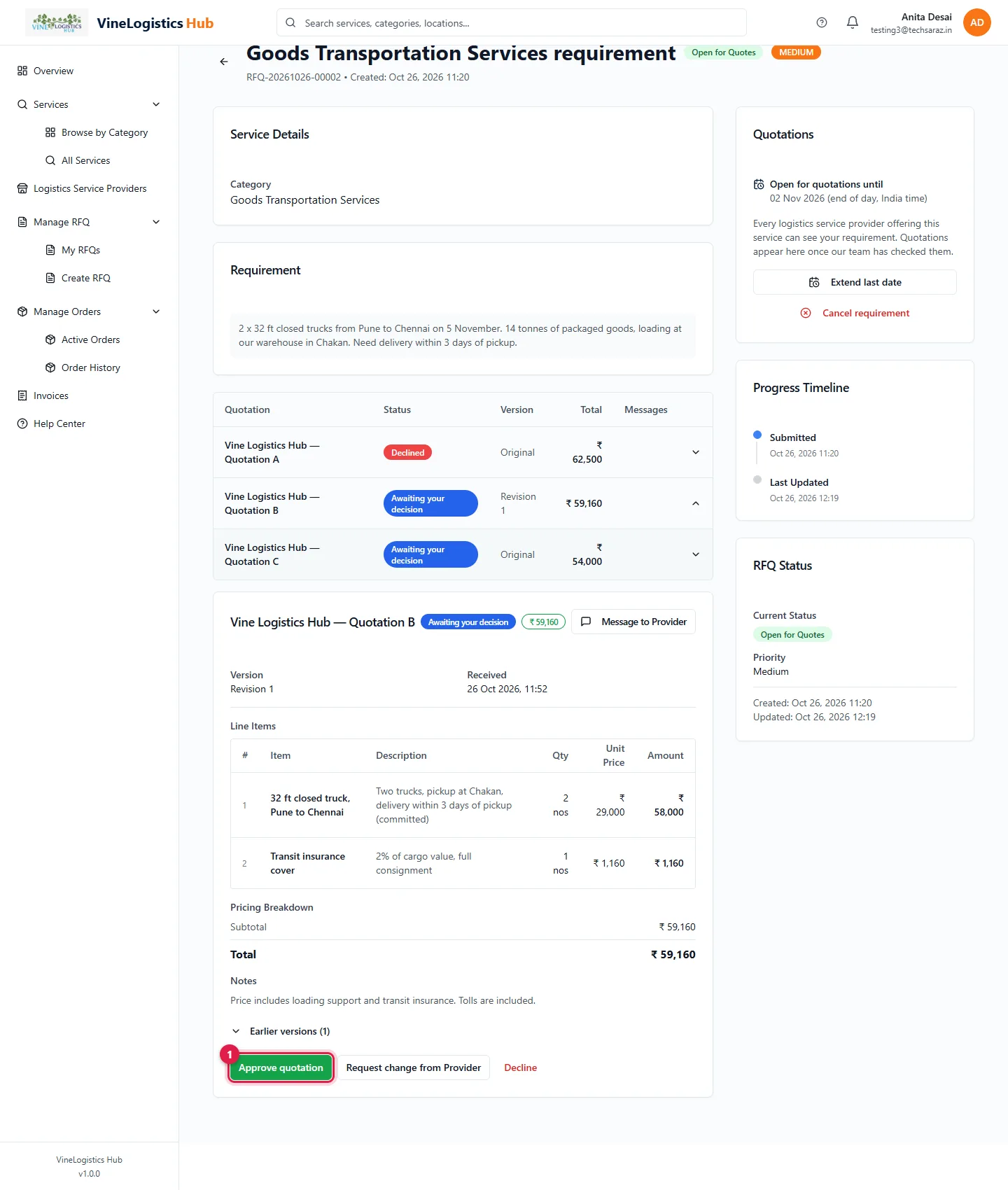
- 1On the quotation you choose, click Approve quotation.
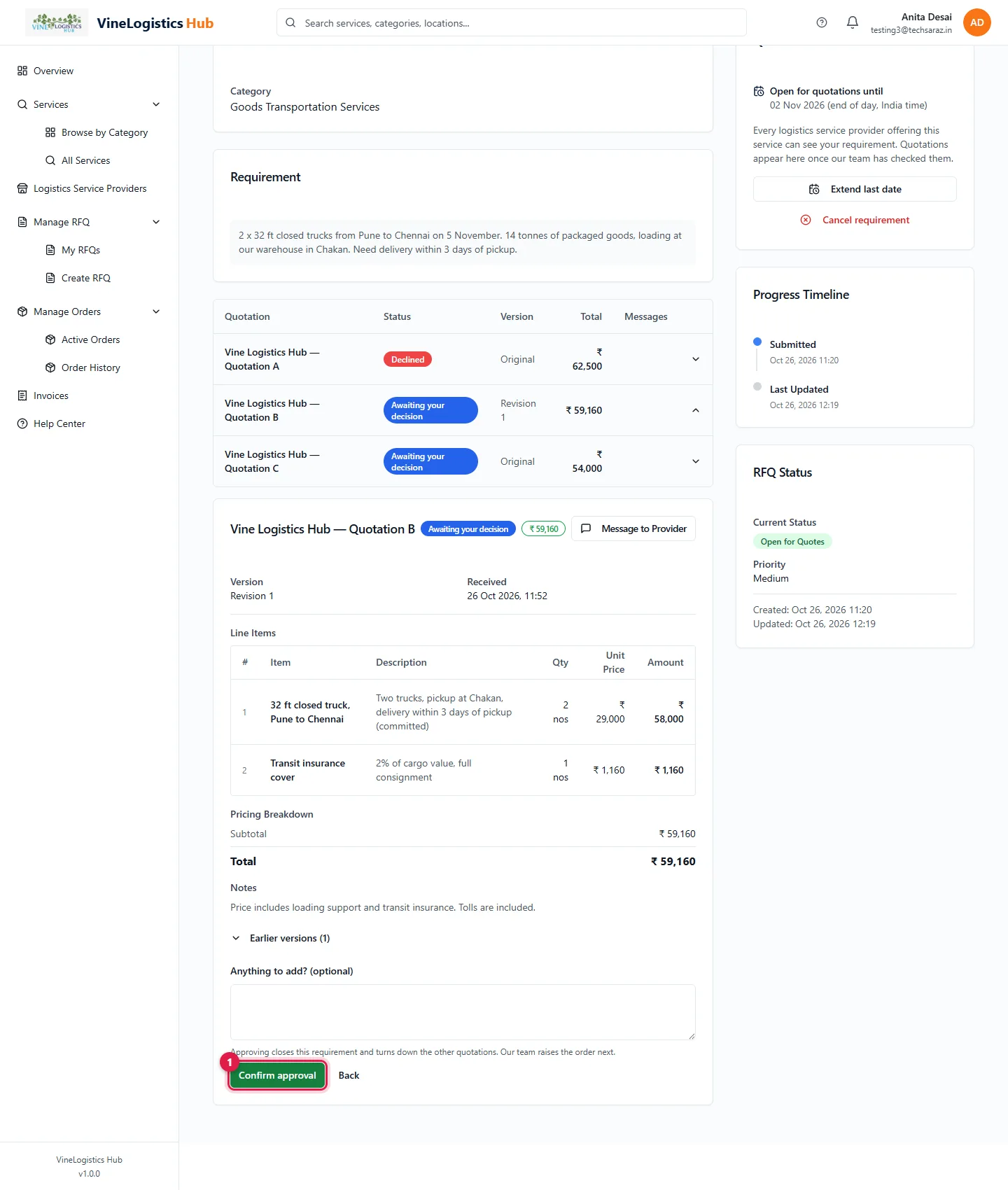
- 1Click Confirm approval.
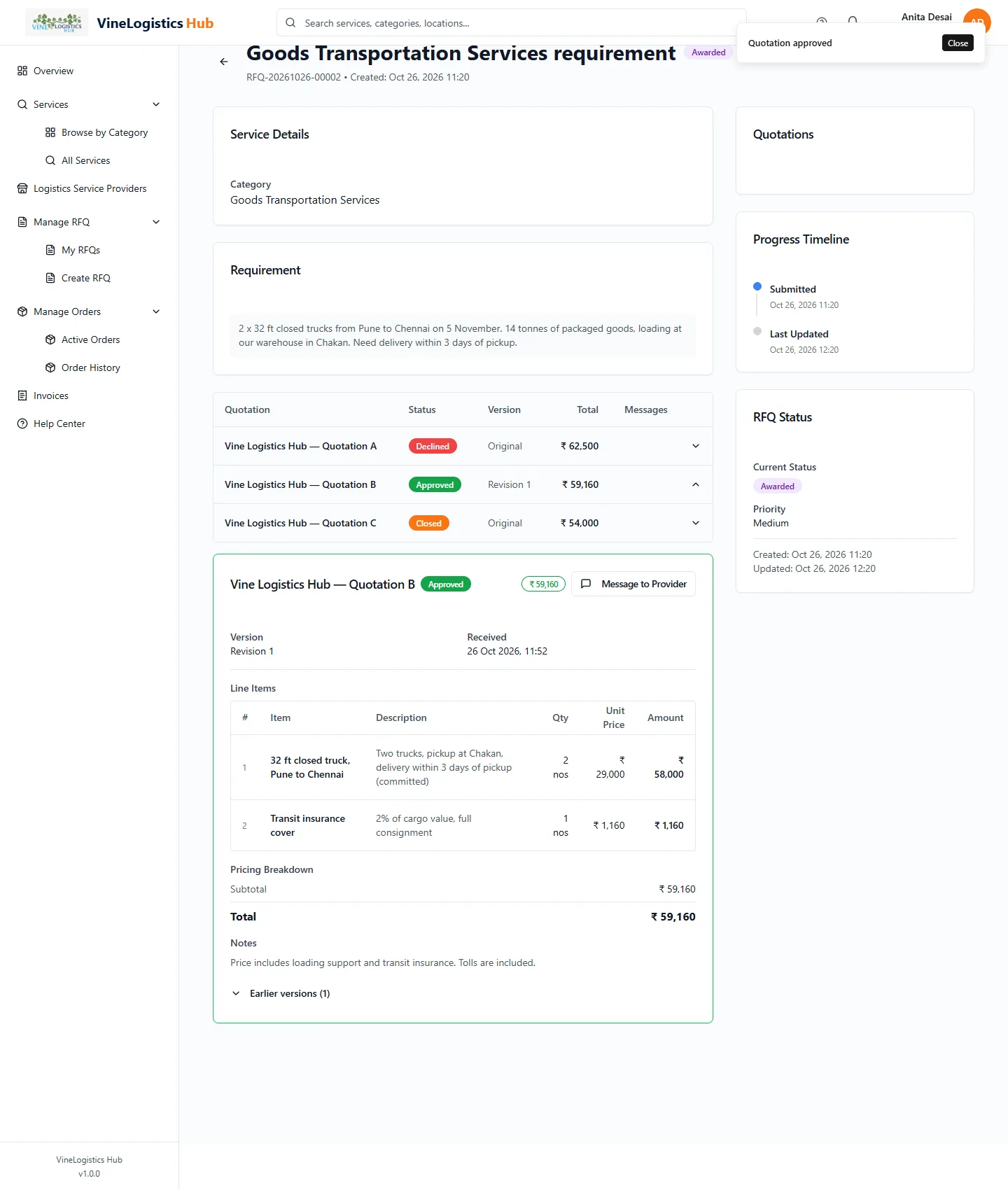
Your choice shows Approved. Every other quotation shows Closed. Our team now raises the order.
You can approve only one quotation per requirement.
Our team raises the order
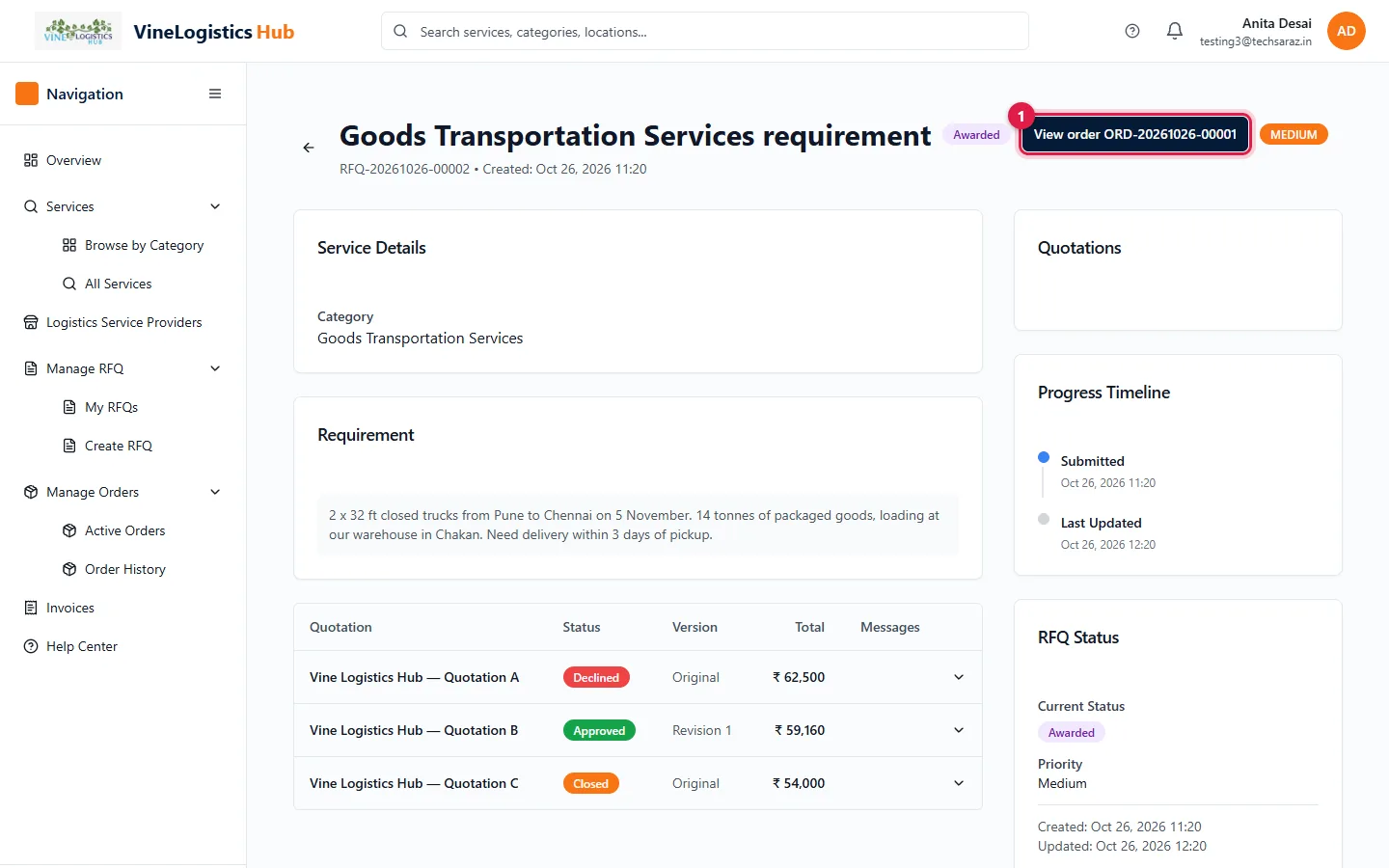
- 1Click View order on the RFQ page.
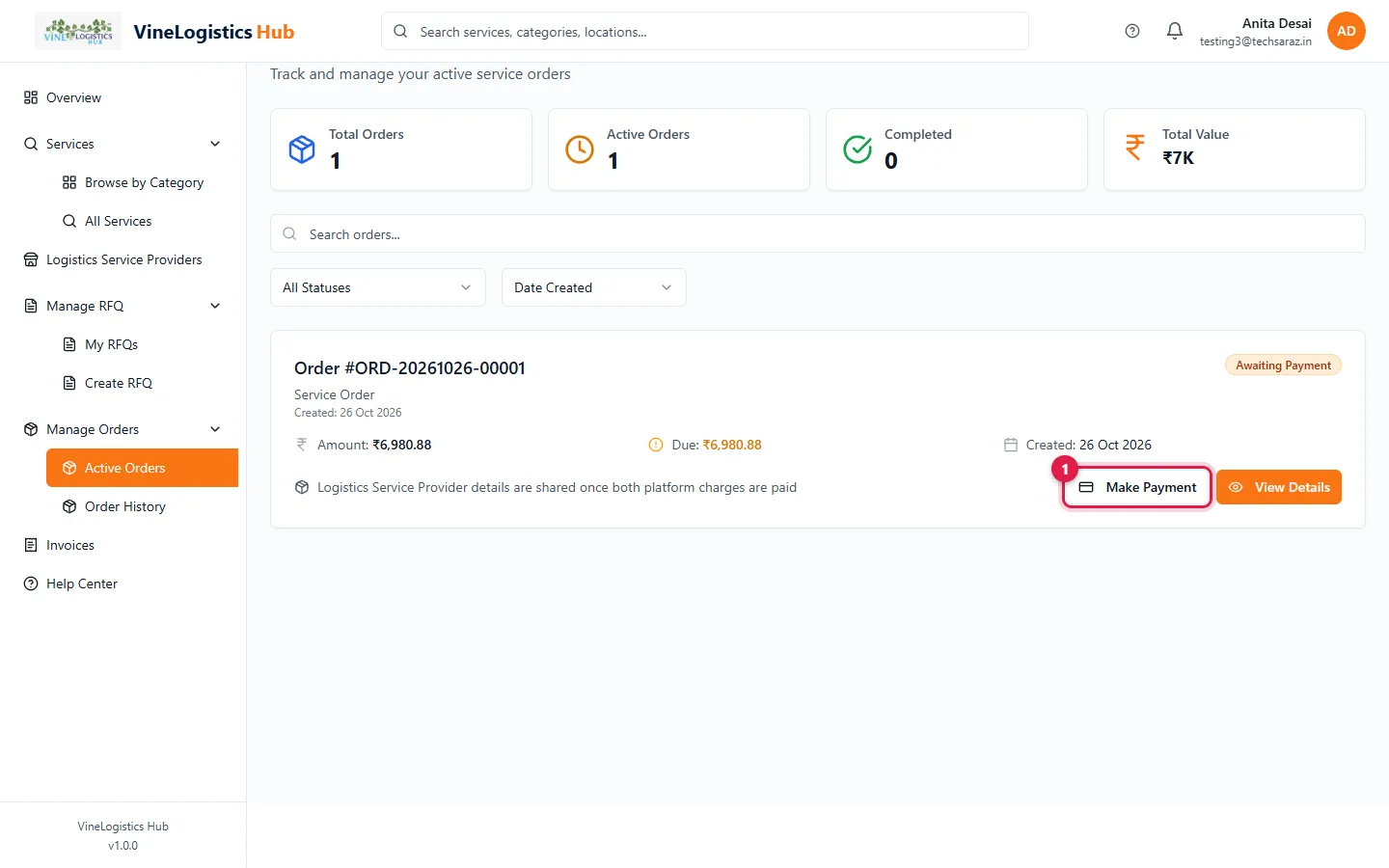
- 1Or open Manage Orders → Active Orders and click Make Payment.
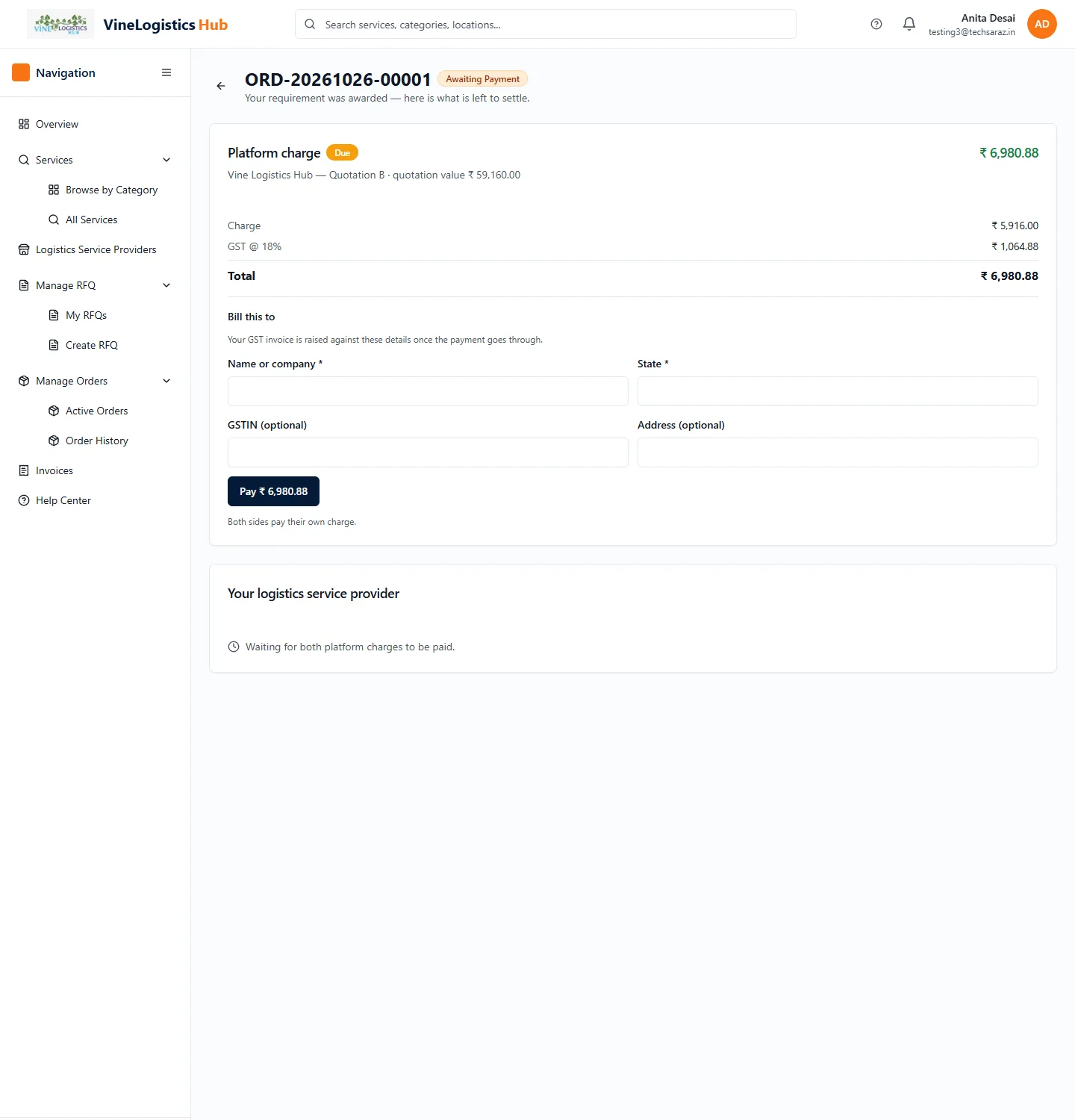
Status Awaiting Payment. Your charge = a percentage or fixed amount set by our team + 18% GST.
Pay the platform charge and get provider details
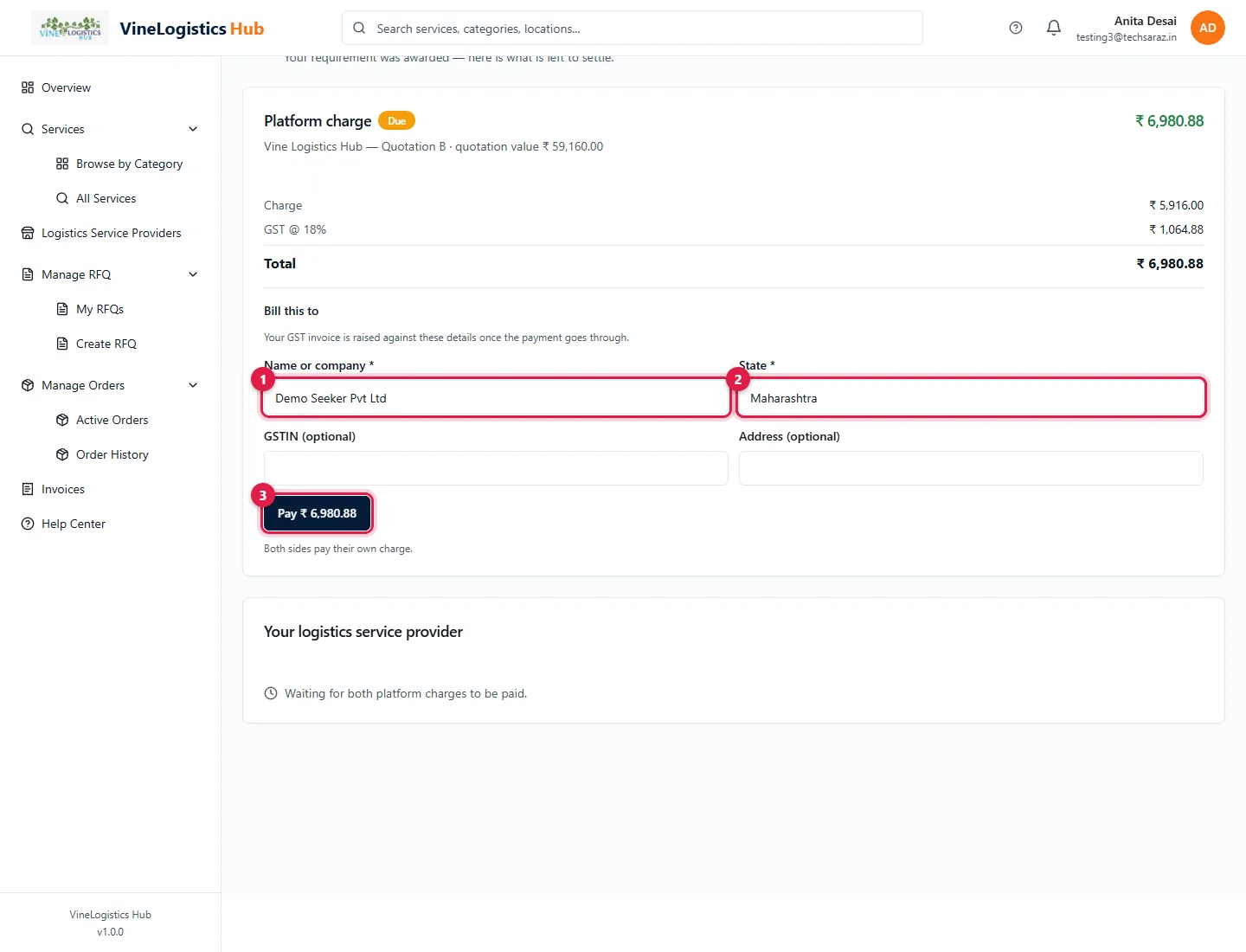
- 1Type Name or company.
- 2Type State.
- 3Click Pay ₹ ….
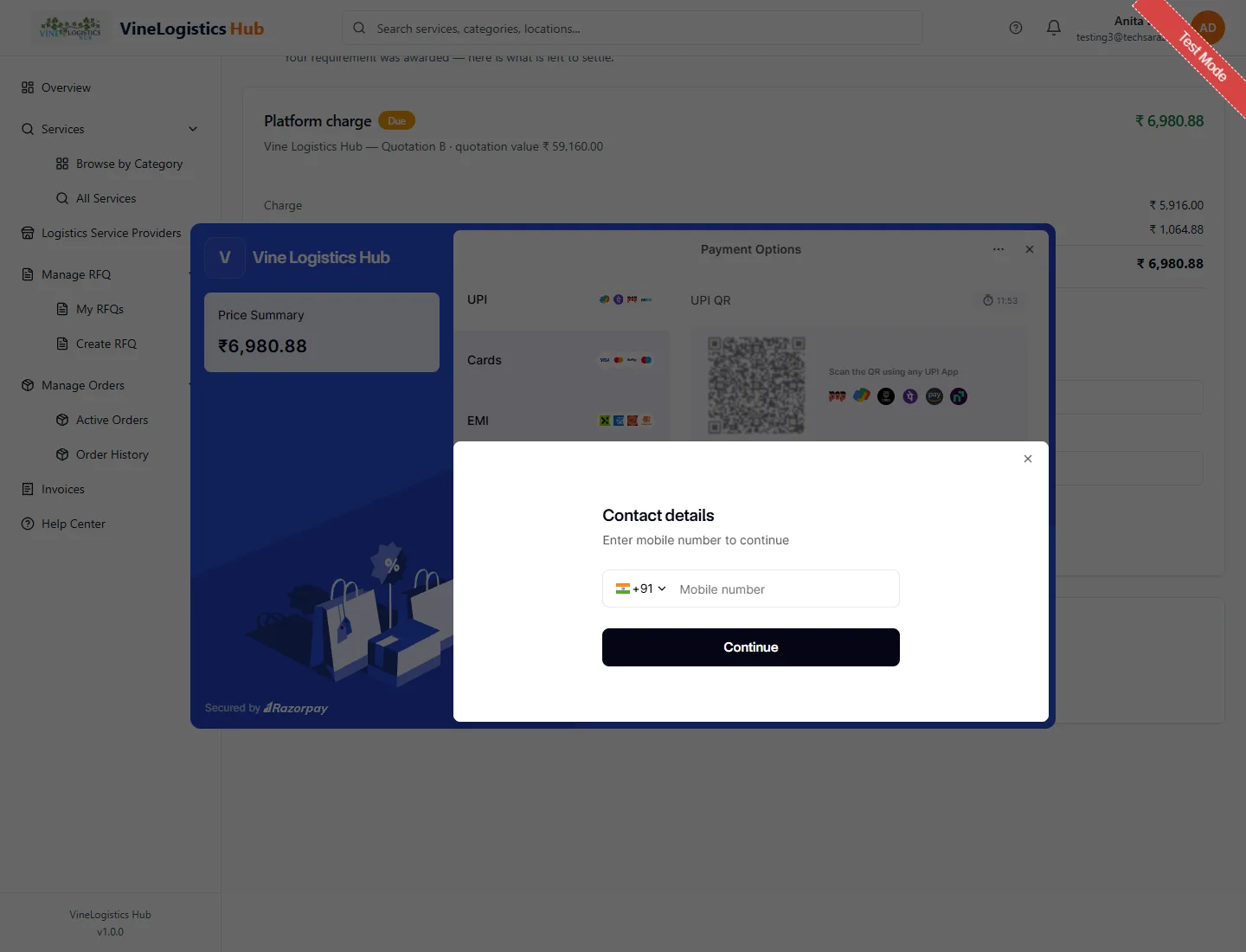
Enter your mobile number in the payment window.
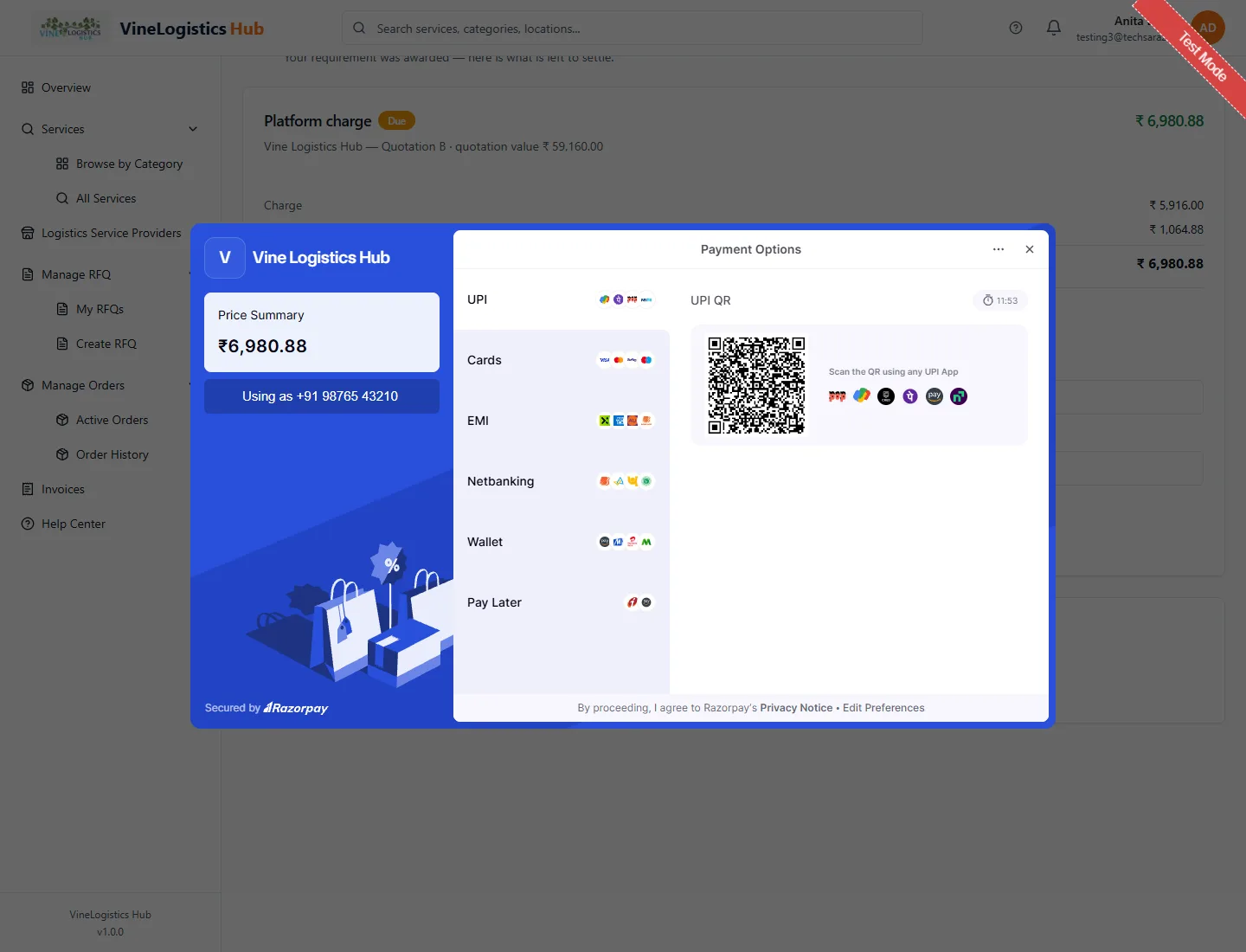
Choose UPI, card, netbanking or wallet.
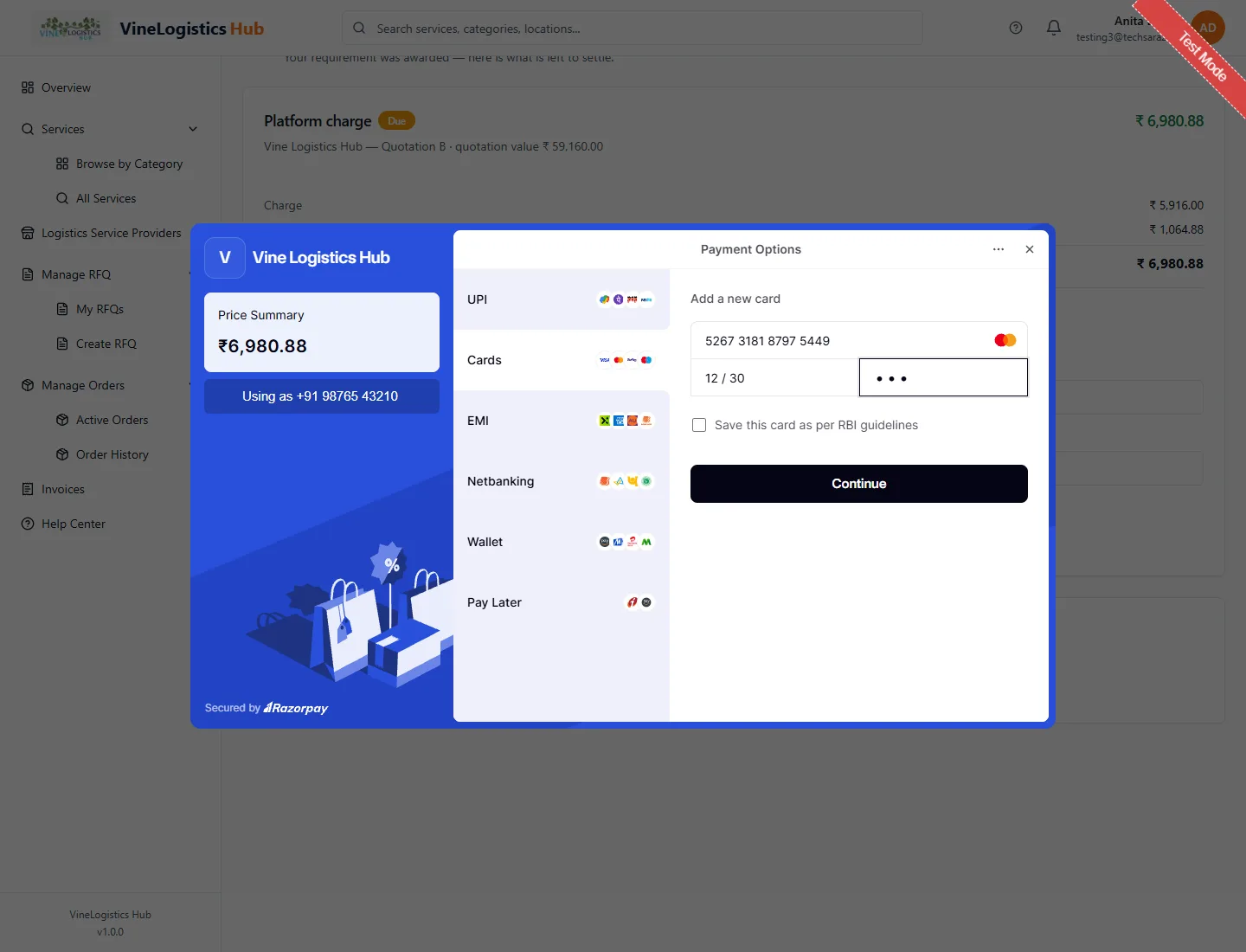
Enter your payment details.
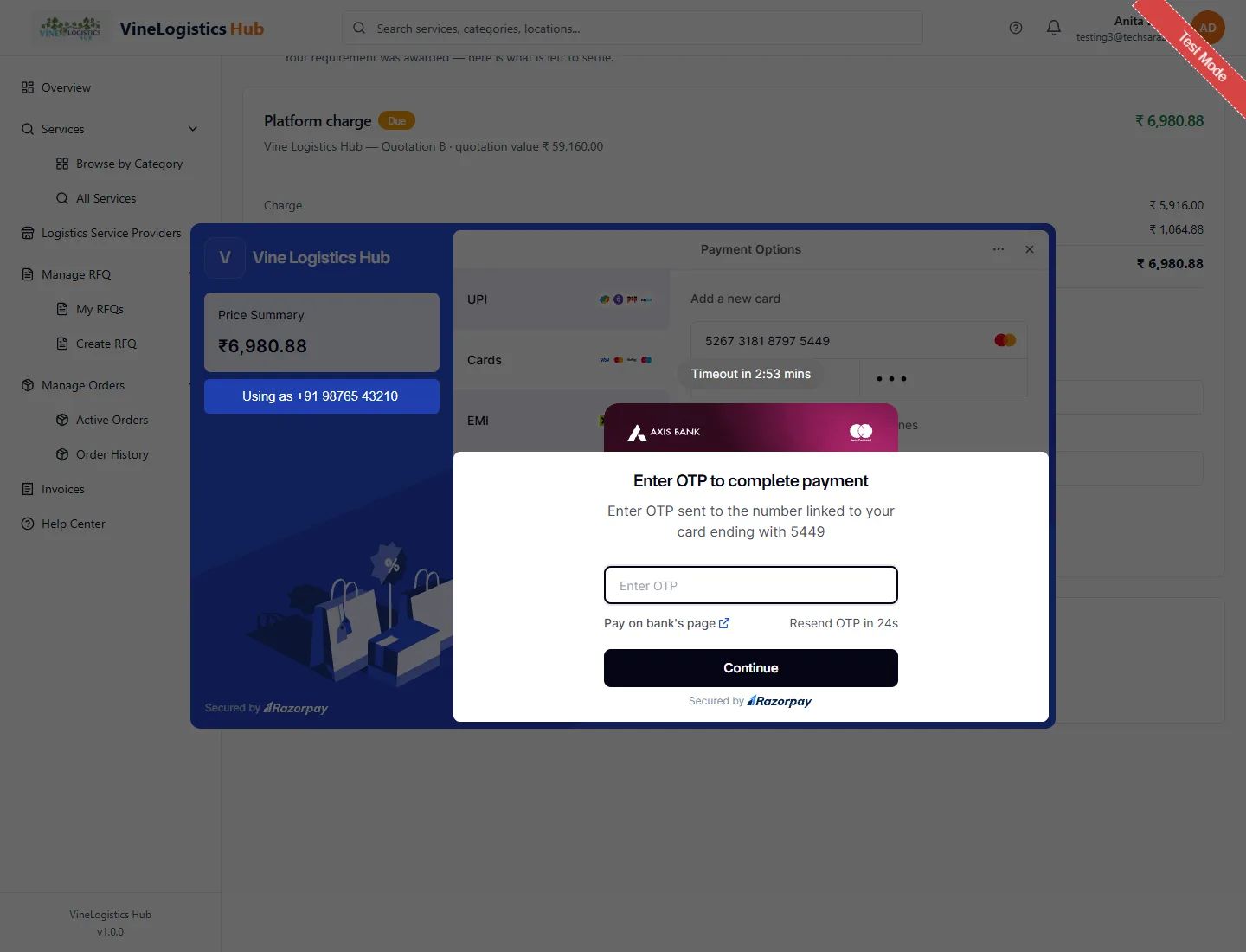
Enter the code from your bank.
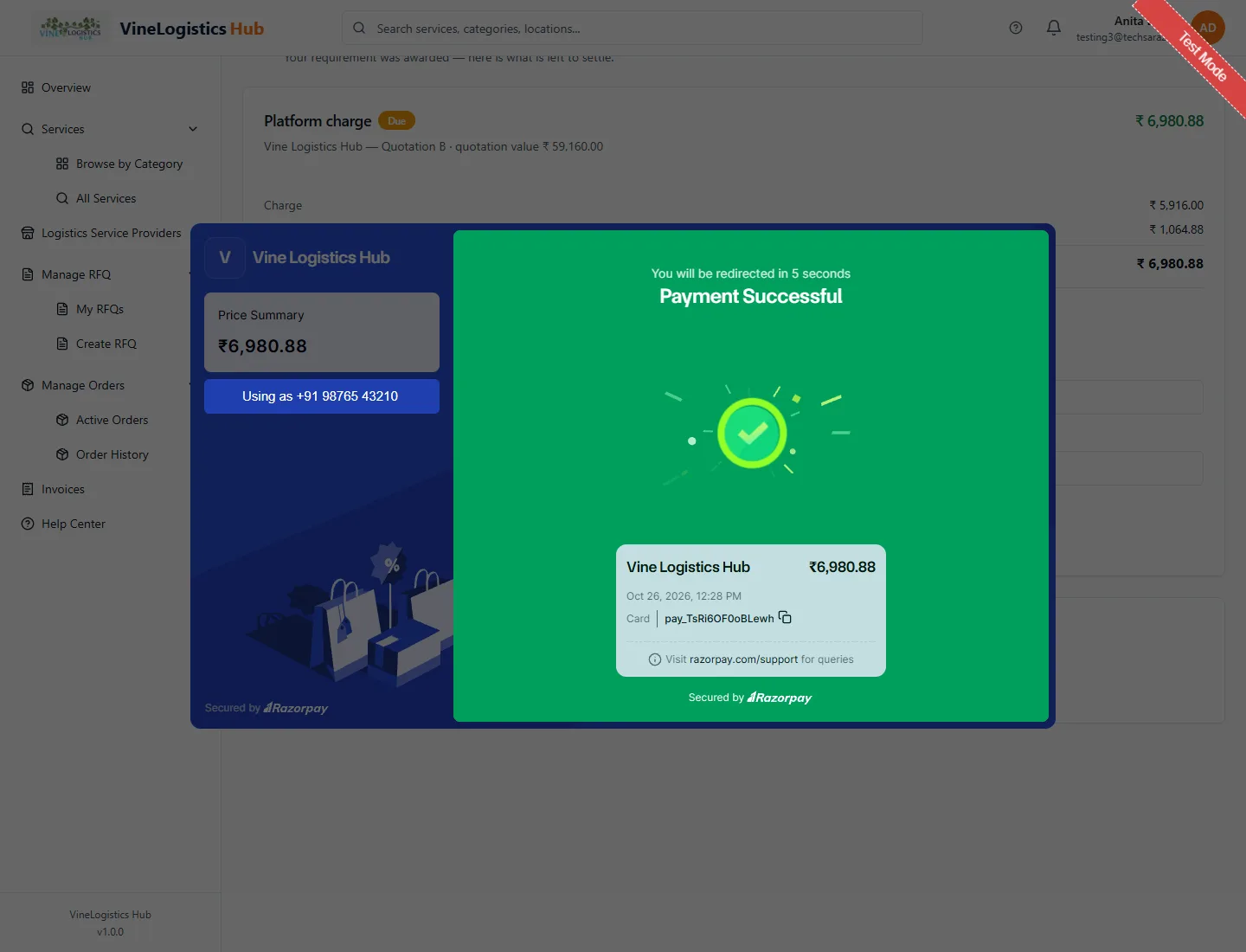
Payment Successful. Stay on the page until it updates. (Test mode banner appears only in our test system.)
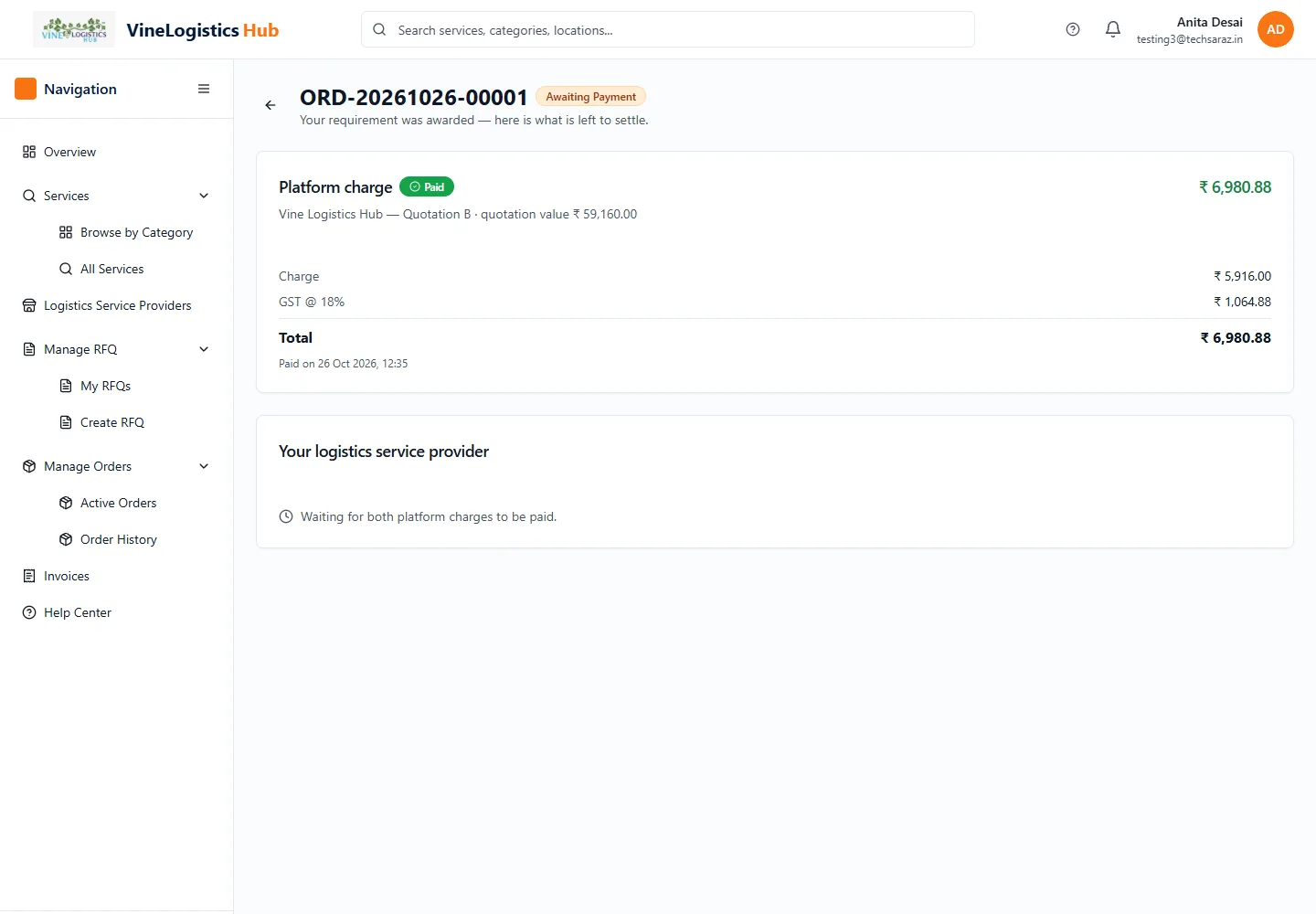
Your charge shows Paid. Provider details stay hidden until the provider pays too.
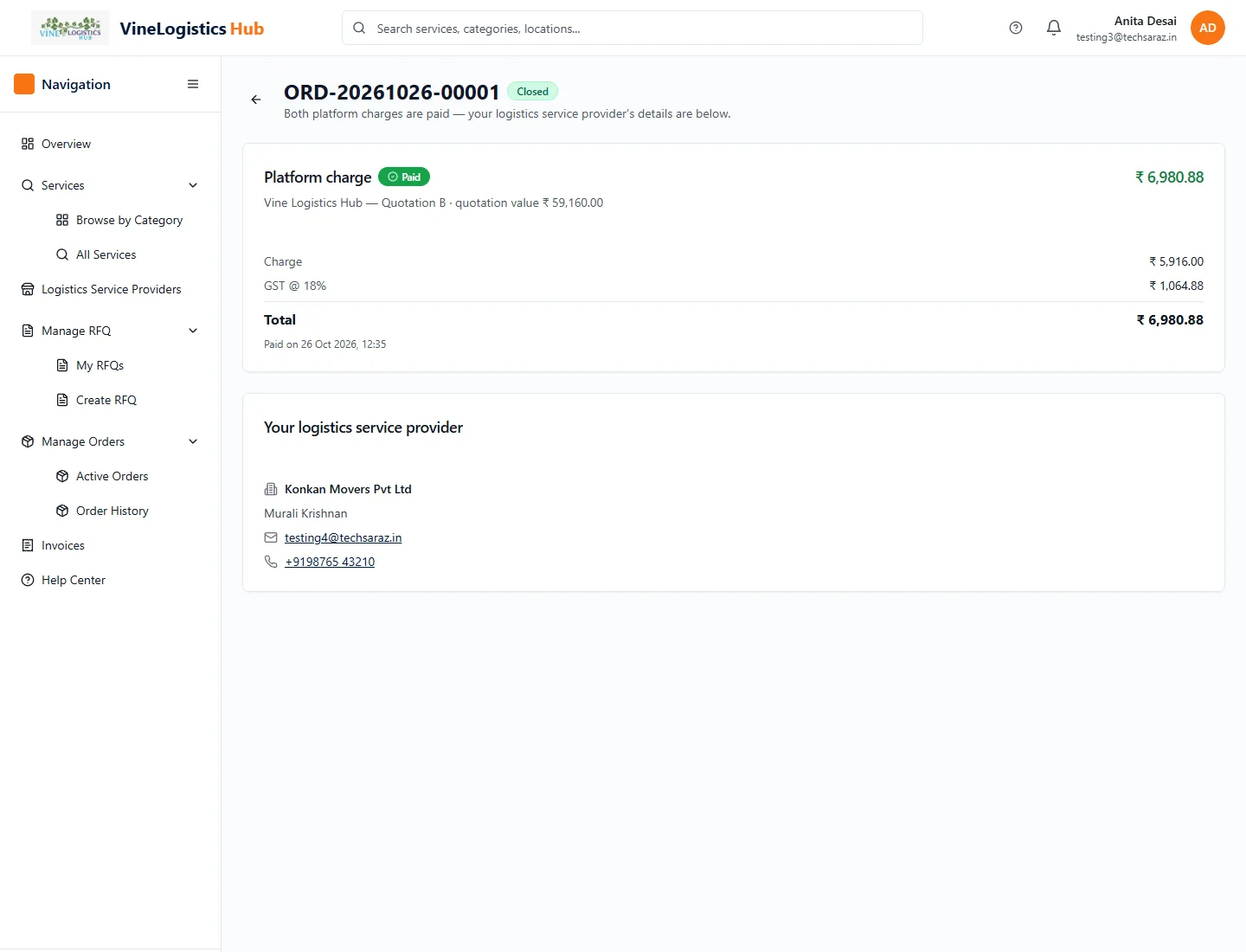
When both have paid the order is Closed and your provider's company, name, email and phone appear. They are also emailed to you.
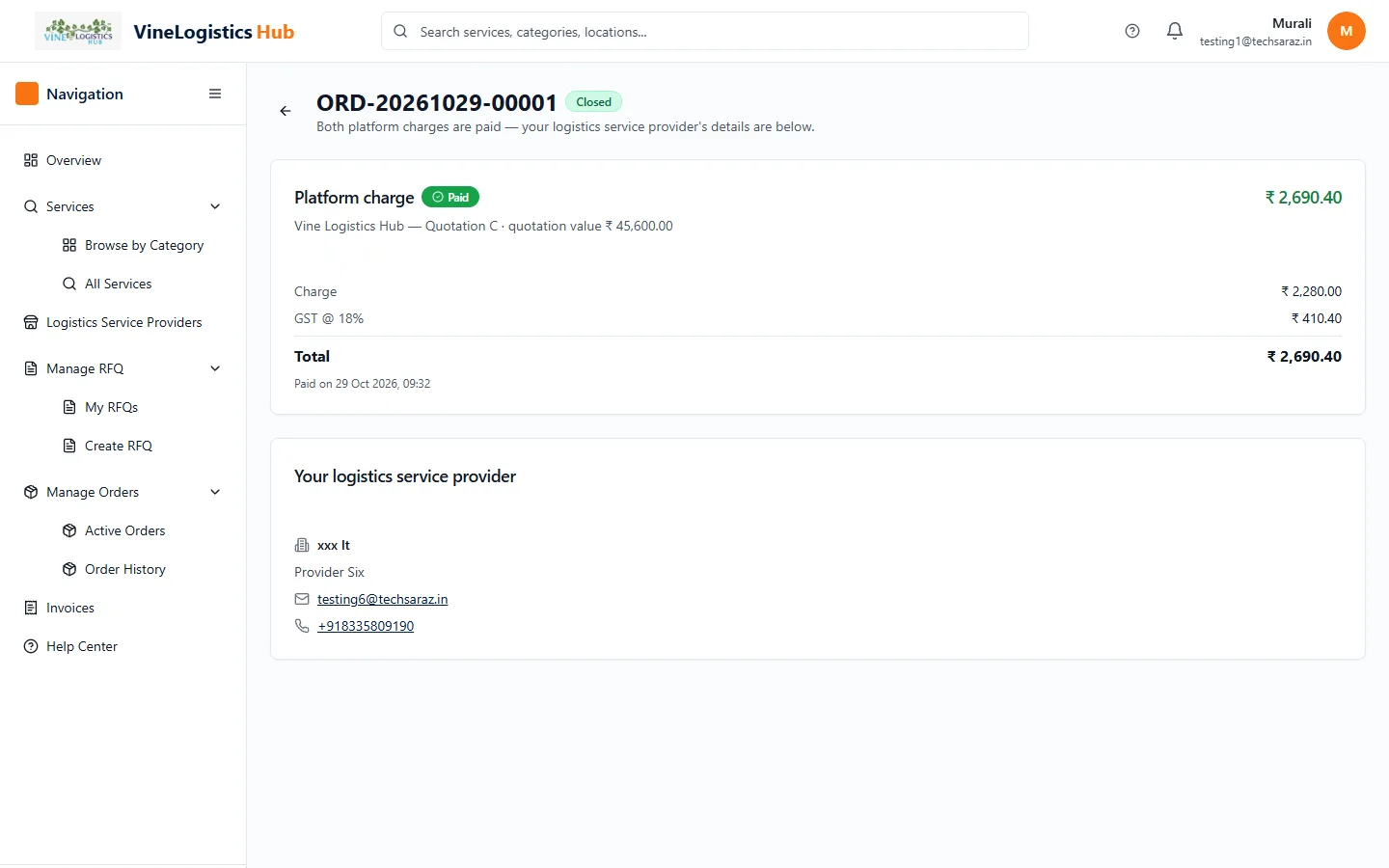
- 1Scroll to Your logistics service provider on the order page.
- 2Read the provider's company, contact person, email and phone. Reach them directly to arrange the job.
These details stay on the order page and in the email you receive — you do not need to come back to the site to find them.
Download your invoice
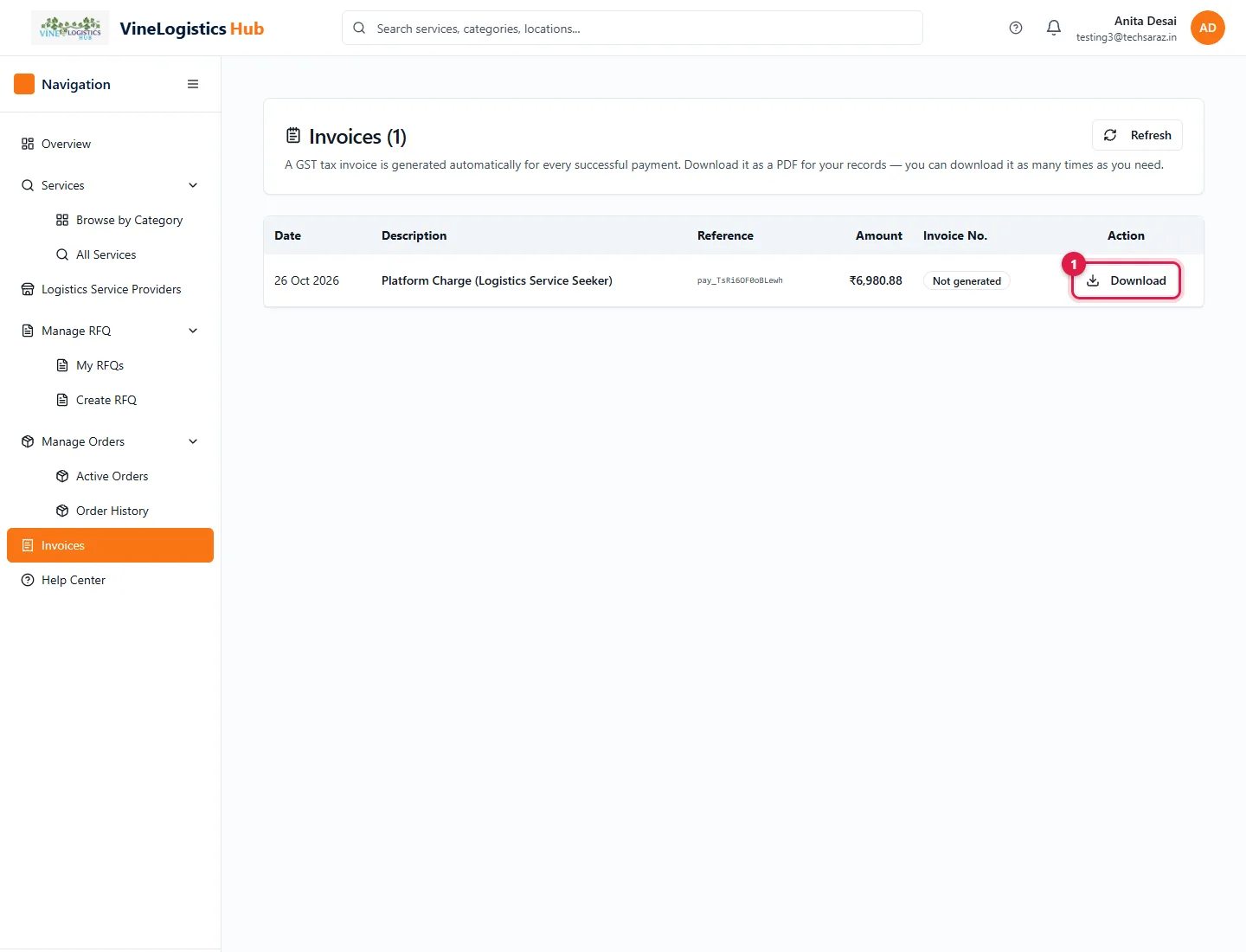
- 1Open Invoices and click Download to get your GST invoice.
Extend or cancel a requirement
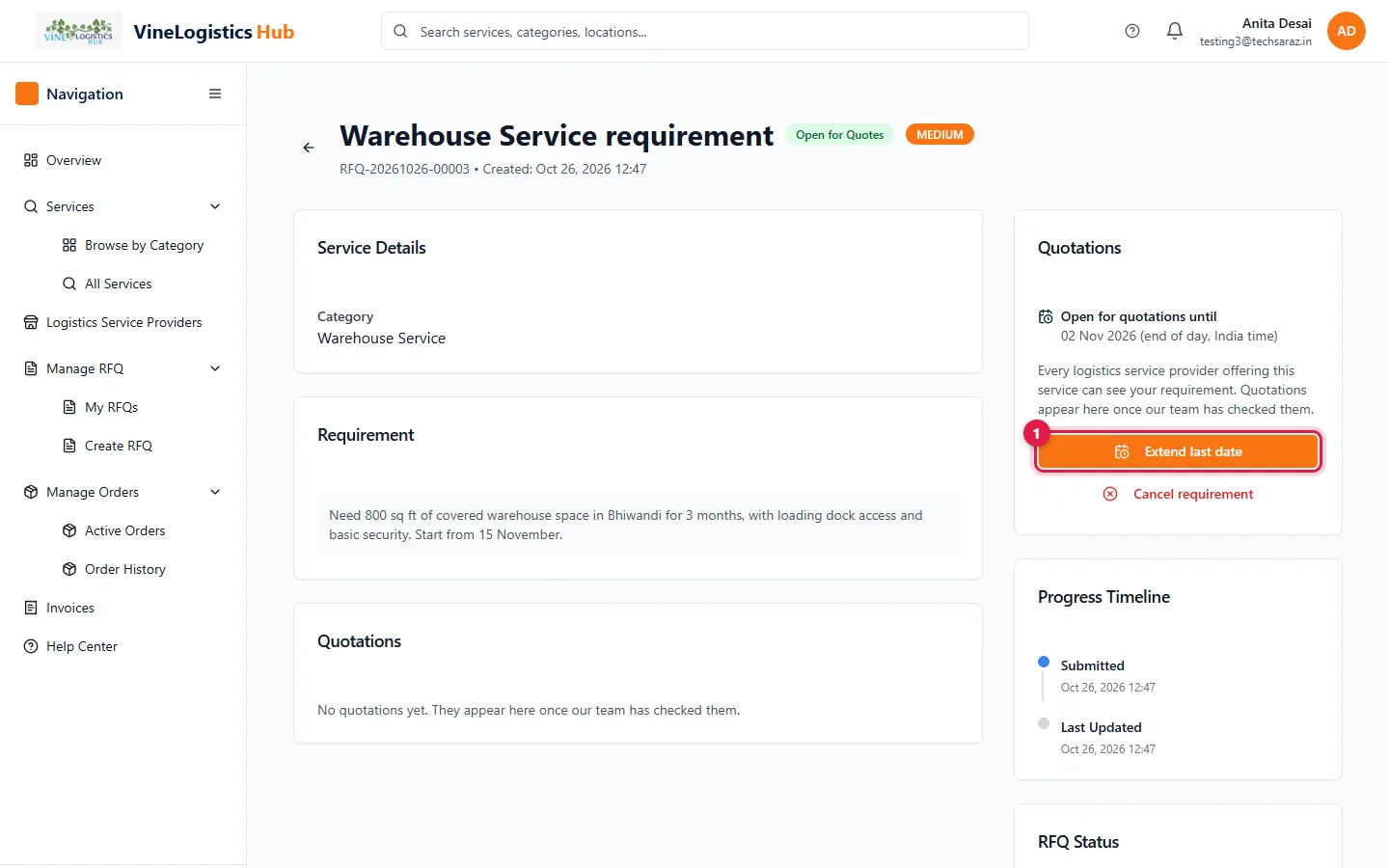
- 1Open your requirement and click Extend last date.
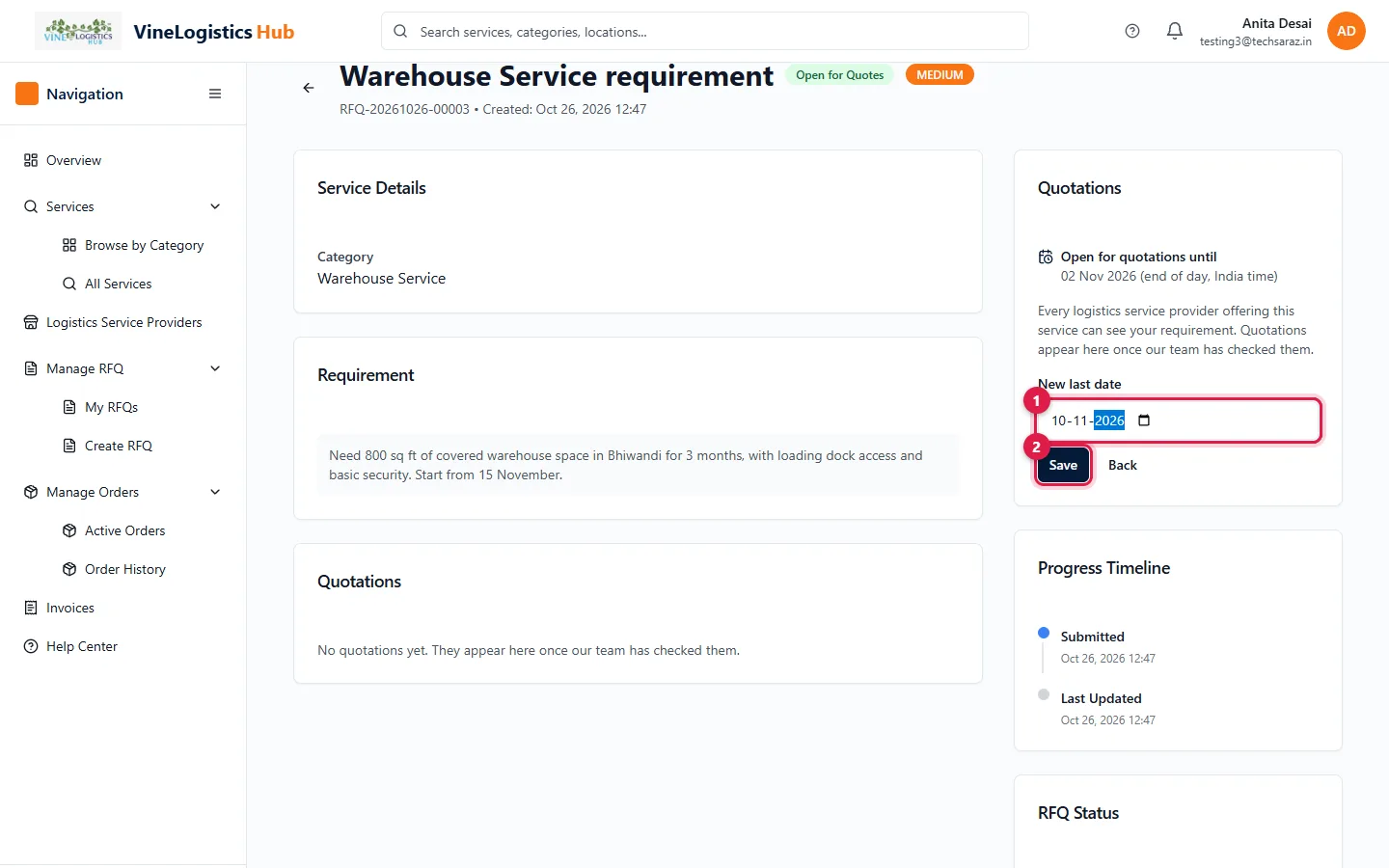
- 1Pick a new date (up to 90 days ahead).
- 2Click Save.
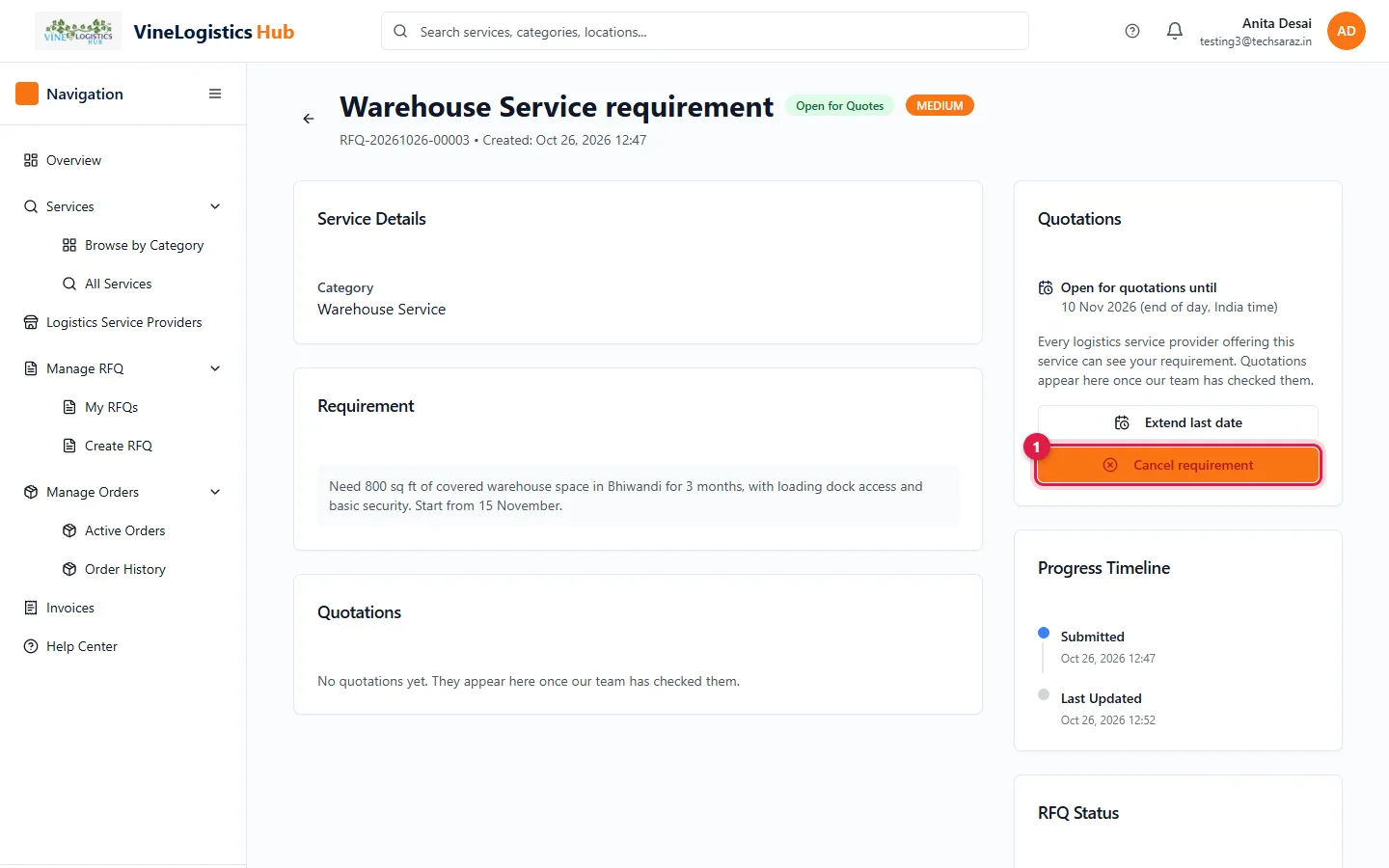
- 1To stop the requirement, click Cancel requirement.
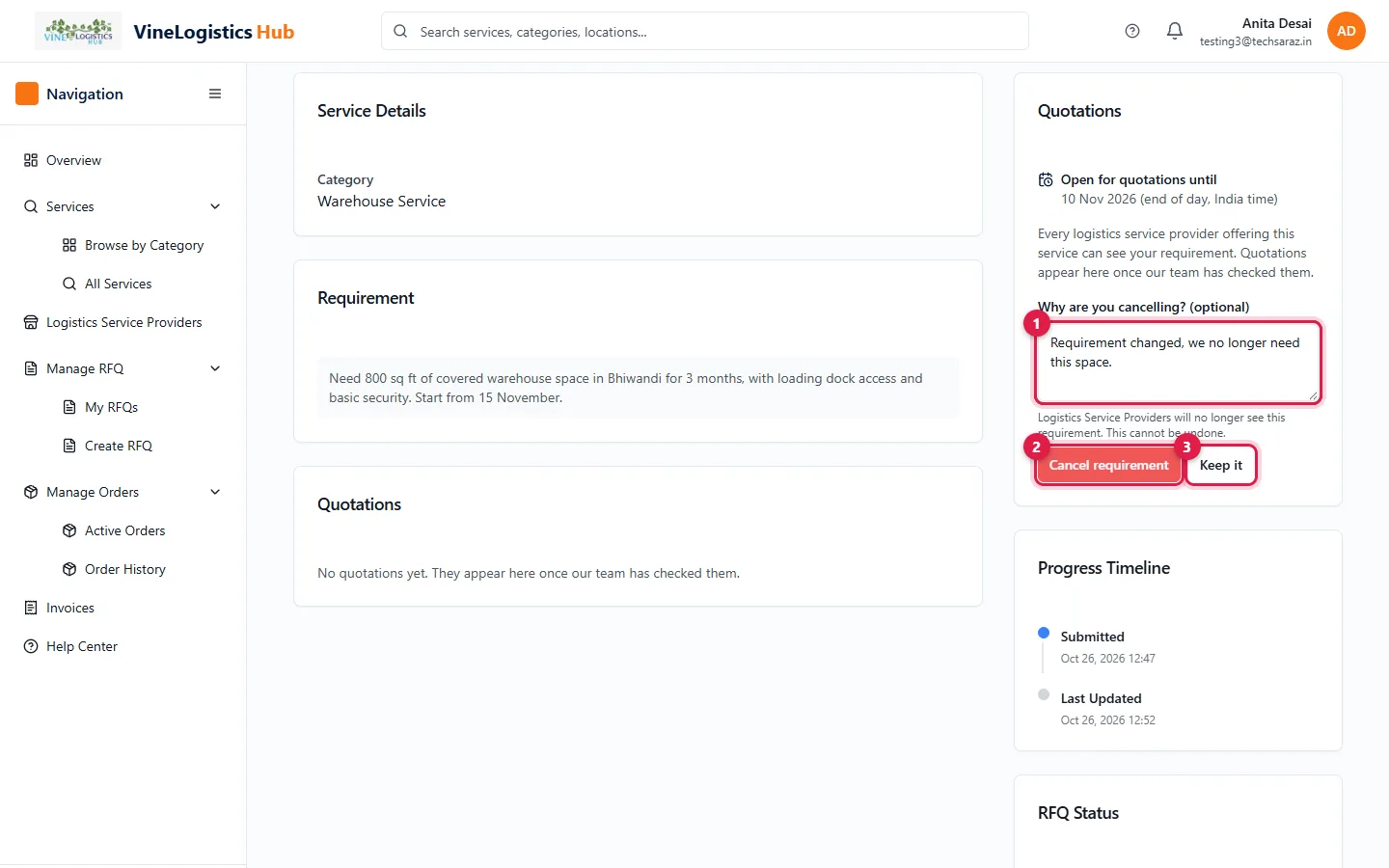
- 1Add a reason (optional).
- 2Click Cancel requirement to confirm.
- 3Or click Keep it.
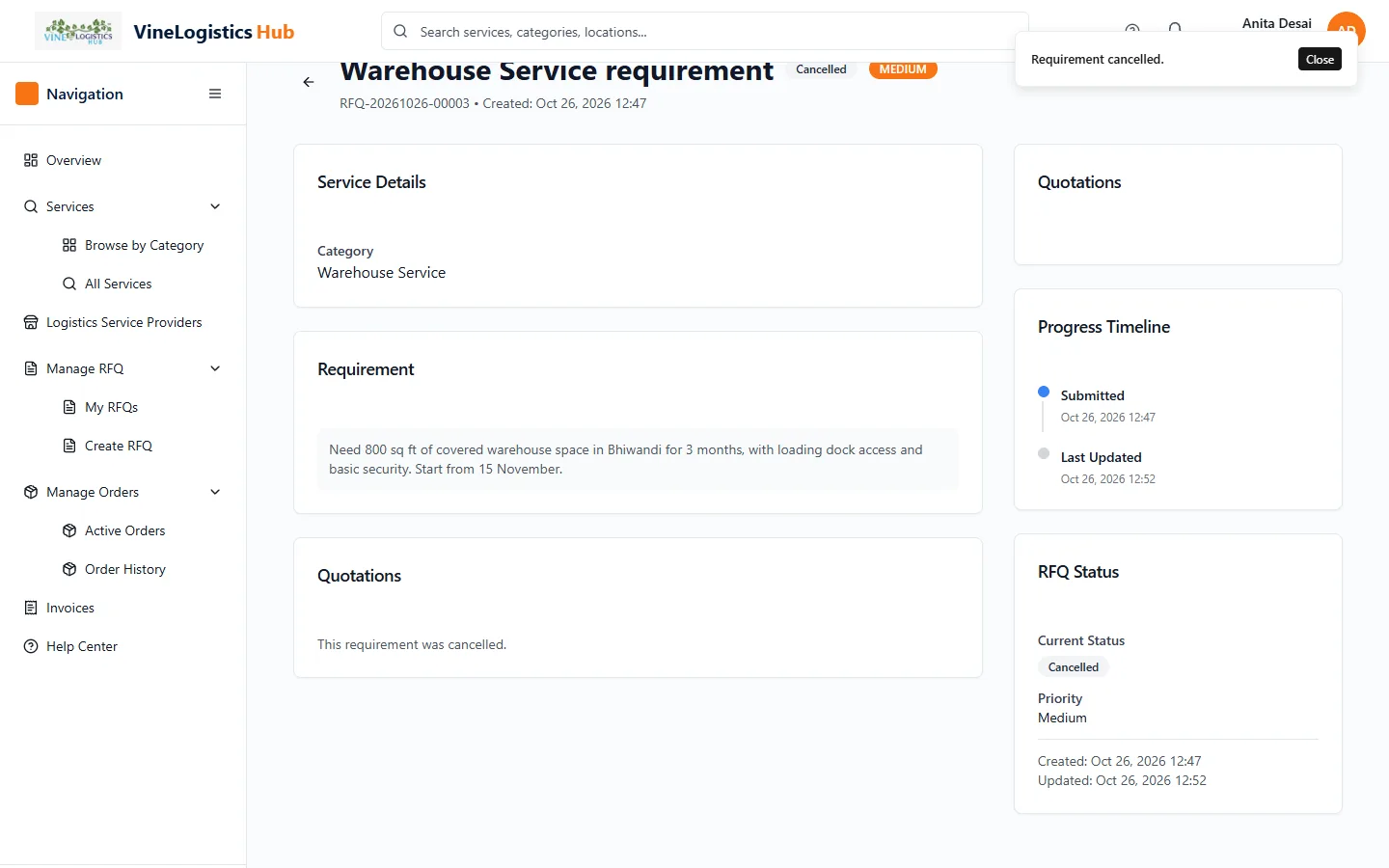
Status shows Cancelled. You can cancel only before you approve a quotation.
Need help?
Email info@vinelogisticshub.com or open Help Center in the dashboard menu.